
1. Настройка
1.1 Разопаковане и първоначална проверка
Carefully remove your ASUS K52F-A2B laptop from its packaging. Inspect the laptop and all accessories for any signs of damage. The package should contain the laptop, AC adapter, power cord, and documentation.
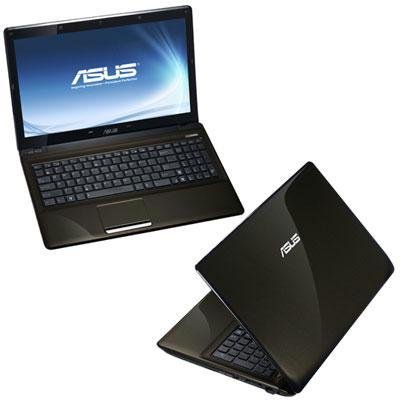
Image 1.1: The ASUS K52F-A2B laptop. This image shows the closed laptop from an angle, highlighting its dark brown finish and sleek design.
1.2 Свързване на променливотоковия адаптер
Before initial use, connect the AC adapter to the laptop and a power outlet. This ensures the battery is charged and provides stable power for setup.
- Включете променливотоковия адаптер в захранващия конектор отстрани на лаптопа.
- Включете захранващия кабел в AC адаптера.
- Включете другия край на захранващия кабел в заземен електрически контакт.
1.3 Първоначално включване
Once the AC adapter is connected, open the laptop lid and press the power button. The laptop will begin its initial boot sequence. Follow the on-screen instructions to complete the operating system setup (Windows 7 Professional 64-bit).
2. Operating Your ASUS K52F-A2B Laptop
2.1 Включване/изключване и режим на заспиване
- Включване: Натиснете бутона за захранване, разположен над клавиатурата.
- Изключване: Click the Start button, then select 'Shut down'.
- Спящ режим: Close the laptop lid or select 'Sleep' from the Start menu. Press the power button or any key to wake the laptop.
2.2 Използване на клавиатурата и тъчпада
The ASUS K52F-A2B features a full-sized keyboard and a multi-touch touchpad.
- Клавиатура: Standard QWERTY layout with function keys (Fn) for brightness, volume, and other system controls.
- Тъчпад: Supports multi-touch gestures for scrolling, zooming, and navigation. Refer to the operating system's help for detailed gesture information.
2.3 Свързване на външни устройства
Your laptop provides various ports for connecting external devices:
- USB портове: За свързване на USB устройства като мишки, клавиатури и външни устройства за съхранение.
- HDMI порт: Connects to external displays or TVs for high-definition video and audio output.
- VGA порт: Connects to older external monitors or projectors.
- Аудио жакове: За слушалки и микрофони.
- Ethernet порт: За кабелни мрежови връзки.
2.4 Using the Optical Disk Drive
The laptop includes a Super Multi Optical Disk Drive for reading and writing CDs and DVDs.
- Натиснете бутона за изваждане на устройството, за да отворите тавата.
- Поставете CD или DVD върху тавата с етикета нагоре.
- Внимателно натиснете тавата обратно в лаптопа, докато щракне и се затвори.
3. Поддръжка
3.1 Почистване на вашия лаптоп
Редовното почистване помага за поддържане на външния вид и функционалността на лаптопа.
- екран: Използвайте леко мека кърпа без влакна dampс вода или почистващ препарат за екрани. Не пръскайте течност директно върху екрана.
- Клавиатура и Casing: Използвайте мека, суха кърпа. За упорити замърсявания, леко намокрете с кърпа.ampened with mild soap and water can be used. Ensure the laptop is powered off and unplugged before cleaning.
- Vents: Use compressed air to clear dust from the cooling vents to prevent overheating.
3.2 Грижи за батерията
За да увеличите максимално живота и производителността на батерията:
- Избягвайте честото пълно разреждане на батерията.
- Съхранявайте лаптопа на хладно и сухо място, когато не го използвате за продължителни периоди.
- Ако съхранявате батерията за дълго време, заредете я до около 50% преди съхранение.
3.3 Софтуерни актуализации
Regularly update your operating system and drivers to ensure optimal performance and security. Check the ASUS support website for the latest drivers for your K52F-A2B model.
4. Отстраняване на проблеми
This section addresses common issues you might encounter with your ASUS K52F-A2B laptop.
4.1 Проблеми със захранването
- Лаптопът не се включва: Ensure the AC adapter is securely connected to both the laptop and a working power outlet. Check if the power outlet is functional. If the battery is completely drained, allow it to charge for a few minutes before attempting to power on.
- Laptop shuts down unexpectedly: This could indicate overheating. Ensure cooling vents are clear and the laptop is on a hard, flat surface.
4.2 Проблеми с дисплея
- Няма показване на екрана: Connect an external monitor to the VGA or HDMI port to check if the issue is with the laptop's internal display. Press Fn+F8 to toggle display output modes.
- Тъмно осветление на дисплея: Adjust screen brightness using the Fn+F5 (dim) and Fn+F6 (bright) function keys.
4.3 Проблеми със свързаността
- Wi-Fi връзката не се осъществява: Ensure Wi-Fi is enabled (often via a function key, e.g., Fn+F2). Check network settings in Windows.
- USB устройството не е разпознато: Try connecting the device to a different USB port. Ensure device drivers are installed.
4.4 Operating System Recovery
The ASUS K52F-A2B comes with Windows 7 Professional. For system recovery or reinstallation, it is recommended to use the recovery partition or create recovery media as instructed by ASUS. Note that official support for downgrading to Windows XP Pro may be limited, and recovery media for Windows 7 Pro might need to be created by the user.
5. Технически спецификации
| Характеристика | Спецификация |
|---|---|
| Номер на модела | K52F-A2B |
| Процесор | Intel Core i3-350M (2.26 GHz) |
| Операционна система | Windows 7 Professional 64-битова |
| Дисплей | 15.6-inch HD (1366x768) LED |
| Графика | Intel GMA HD (Integrated) |
| RAM памет | 3 GB DDR3 1066MHz (Max 8GB) |
| Съхранение | 320 GB Hard Drive (5400 RPM) |
| Оптично устройство | DVD SuperMulti |
| Безжична връзка | 802.11bgn |
| Портове | HDMI, VGA, USB, Audio Jacks |
| Webкамера | 0.3 MP |
| Тегло | 5.8 паунда |
6. Гаранция и поддръжка
6.1 Гаранционна информация
Your ASUS K52F-A2B laptop comes with the following warranty coverage:
- 2-годишна глобална гаранция
- 1-Year Accidental Damage Warranty
- 30-Day Zero Bright Dot Guarantee
- 2-way FREE shipping for repairs
6.2 Техническа поддръжка
За техническа помощ, изтегляне на драйвери или допълнителна информация, моля, посетете официалния сайт за поддръжка на ASUS. website. 24/7 technical support is available as part of your warranty.
For the most up-to-date support contact information, please refer to the documentation included with your product or visit www.asus.com/support.