
Въведение
Welcome to your guide for the Apple Watch SE 2nd Generation. This manual will help you understand and utilize all the features of your new wearable device, from initial setup to advanced functionalities. Whether you are a new user or looking to explore advanced features, this guide provides clear, step-by-step instructions.
Настройка
Setting Up Your Apple Watch SE 2nd Generation
Follow these steps to get your Apple Watch SE 2nd Generation ready for use:
- Включване: Press and hold the side button until the Apple logo appears on the screen.
- Сдвояване с iPhone: Open the Apple Watch app on your iPhone. Bring your Apple Watch close to your iPhone and follow the on-screen instructions to pair the devices.
- Първоначална конфигурация: During the setup process, you will be guided to set up your preferences, sign in with your Apple ID, and configure cellular service (if your model supports it and you have a plan).
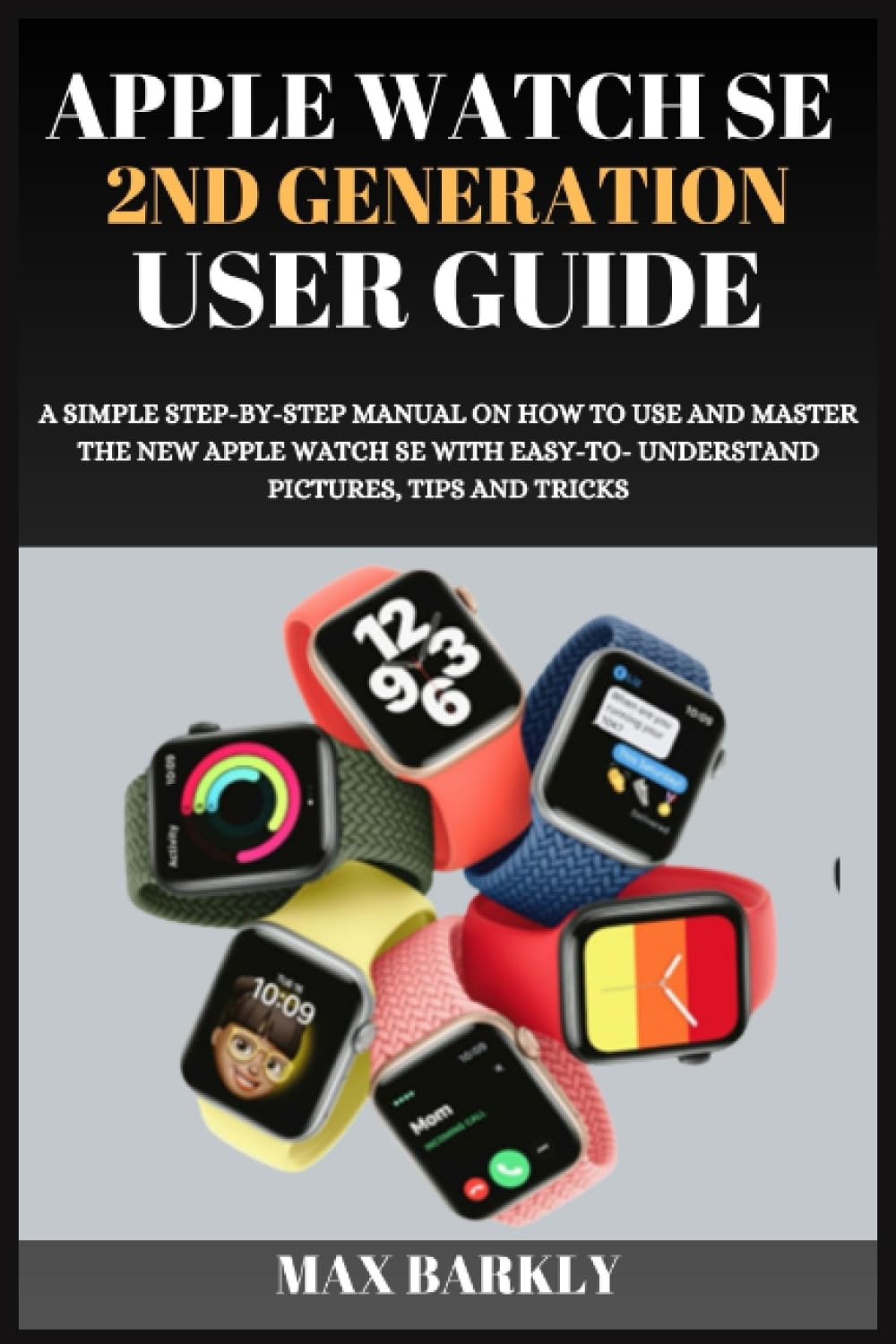
Image: Front cover of the user guide book. This image represents the manual itself, which provides detailed instructions for the Apple Watch SE 2nd Generation.
Operating Your Apple Watch SE 2nd Generation
Навигиране в интерфейса на часовника
Learn how to interact with your Apple Watch SE 2nd Generation using its various controls:
- Цифрова корона: Rotate to scroll through lists, zoom in or out, or adjust values. Press once to go to the watch face or app list. Double-press to return to the last used app.
- Страничен бутон: Press once to open the Dock, which shows recently used apps. Double-press to activate Apple Pay. Press and hold to access emergency services or power off the watch.
- Сензорен екран: Tap to select items, swipe to navigate between screens or notifications, and use Force Touch (press firmly) for additional options within apps.
Customizing Watch Faces and Complications
Personalize your watch face to display information and apps you use most frequently:
- Промяна на циферблатите: On the watch face, press firmly on the display (Force Touch), then swipe left or right to select a new face. Tap "New" to browse and add more faces.
- Adding Complications: While customizing a watch face, tap "Edit" and then tap a complication area to choose what information (e.g., weather, activity, calendar) it displays.
Проследяване на здравето и фитнеса
Your Apple Watch SE 2nd Generation is a powerful tool for monitoring your health and fitness:
- Пръстени за активност: Track your daily progress towards Move (active calories), Exercise (brisk activity), and Stand (standing for at least one minute per hour) goals.
- Приложение за тренировка: Select from various workout types (e.g., running, cycling, swimming) to track your performance, heart rate, and calories burned.
- Мониторинг на сърдечната честота: View your current heart rate, resting heart rate, and heart rate during workouts. Receive notifications for unusually high or low heart rates.
- Проследяване на съня: Monitor your sleep patterns, including time spent in different sleep stages, and set sleep goals to improve your rest.
Utilizing Built-in Apps
Explore the pre-installed applications for communication and productivity directly from your wrist:
- Съобщения: Send and receive texts, dictate replies, or use Smart Replies.
- телефон: Make and answer calls, access your contacts, and check voicemail.
- Календар: View your schedule, upcoming events, and receive event notifications.
- поща: Check and respond to emails from your linked accounts.
- App Store: Discover and download new apps directly to your Apple Watch.
Managing Notifications and Alerts
Stay informed without constantly checking your iPhone:
- Център за известия: Плъзнете надолу от горната част на циферблата на часовника, за да view скорошни известия.
- Персонализиране на известията: Adjust notification settings for individual apps in the Apple Watch app on your iPhone to control what alerts appear on your watch.
Siri and Voice Commands
Use Siri for hands-free assistance and quick access to information:
- Activating Siri: Raise your wrist and speak your command, or press and hold the Digital Crown.
- Команди: Ask Siri questions, set reminders, send messages, start workouts, and control smart home devices.
Syncing and Content Management
Ensure your watch and iPhone are always in sync and manage your content effectively:
- Automatic Syncing: Your Apple Watch automatically syncs data, such as activity, health metrics, and app data, with your paired iPhone.
- Adding Music/Podcasts: Use the Apple Watch app on your iPhone to transfer music, podcasts, and audiobooks to your watch for offline listening during workouts or when away from your iPhone.
Поддръжка
Optimizing Performance and Care
To ensure your Apple Watch SE 2nd Generation operates smoothly and lasts longer, consider these maintenance tips:
- Софтуерни актуализации: Regularly update your watchOS to the latest version. Updates often include performance improvements, new features, and security enhancements.
- Почистване: Clean your Apple Watch and bands regularly. Use a soft, lint-free cloth, slightly dampened with fresh water. Avoid harsh chemicals, soaps, or abrasive materials.
- Здраве на батерията: Optimize battery life by managing background app refresh, reducing screen brightness, and disabling unnecessary notifications. Check battery health in the Settings app on your watch.
- Водоустойчивост: The Apple Watch SE 2nd Generation is water resistant, but not waterproof. Avoid exposing it to high-velocity water or submerging it for extended periods. Dry it thoroughly after exposure to water.
Отстраняване на често срещани проблеми
Разрешаване на проблеми
If you encounter issues with your Apple Watch SE 2nd Generation, try these solutions before seeking further support:
- Часовникът не отговаря: If your watch is unresponsive, force restart it by holding the Digital Crown and side button simultaneously until the Apple logo appears.
- Проблеми със сдвояването: Ensure Bluetooth is enabled on your iPhone and both devices are charged. Try unpairing the watch from your iPhone (via the Apple Watch app) and then re-pairing it.
- Проблеми с приложението: If a specific app is not working correctly, try closing and reopening it. If the problem persists, restart your Apple Watch.
- Източване на батерията: If you experience rapid battery drain, check for apps running in the background, reduce screen brightness, disable 'Always On' display (if applicable), and review настройки за известията.
- Известията не се показват: Verify that 'Do Not Disturb' or 'Theater Mode' is not enabled. Check notification settings for individual apps in the Apple Watch app on your iPhone.
Спецификации
Спецификации на продукта
| Характеристика | детайл |
|---|---|
| Модел | Apple Watch SE 2nd Generation |
| ASIN (for this guide) | B0CF4FP4X6 |
| Publisher (for this guide) | Независимо публикувано |
| Publication Date (for this guide) | 9 август 2023 г |
| език | английски |
| ISBN-13 (for this guide) | 979-8856739182 |
| Item Weight (for this guide) | 7.5 унции |
| Dimensions (for this guide) | 6 x 0.24 x 9 инча |
Note: Specifications related to publisher, publication date, ISBN, item weight, and dimensions refer to the physical user guide book, not the Apple Watch SE 2nd Generation device itself.
Допълнителни ресурси
For more detailed information, support, and the latest updates regarding your Apple Watch SE 2nd Generation, please visit the official Apple support webсайт:

Image: Back cover of the user guide book, showing the ISBN barcode. This image is part of the physical book product.