
1. Въведение
Thank you for choosing the JSAUX USB C Docking Station Stand. This 5-in-1 multiport hub is designed to enhance your mobile device experience by providing expanded connectivity, including video output, high-speed data transfer, and power delivery, all while serving as a stable phone stand. This manual provides detailed instructions for setup, operation, and maintenance to ensure optimal performance.
2. Продуктът свършиview
The JSAUX 5-Port Docking Station Stand integrates multiple essential ports into a compact design, allowing you to connect various peripherals to your USB-C enabled smartphone or tablet.
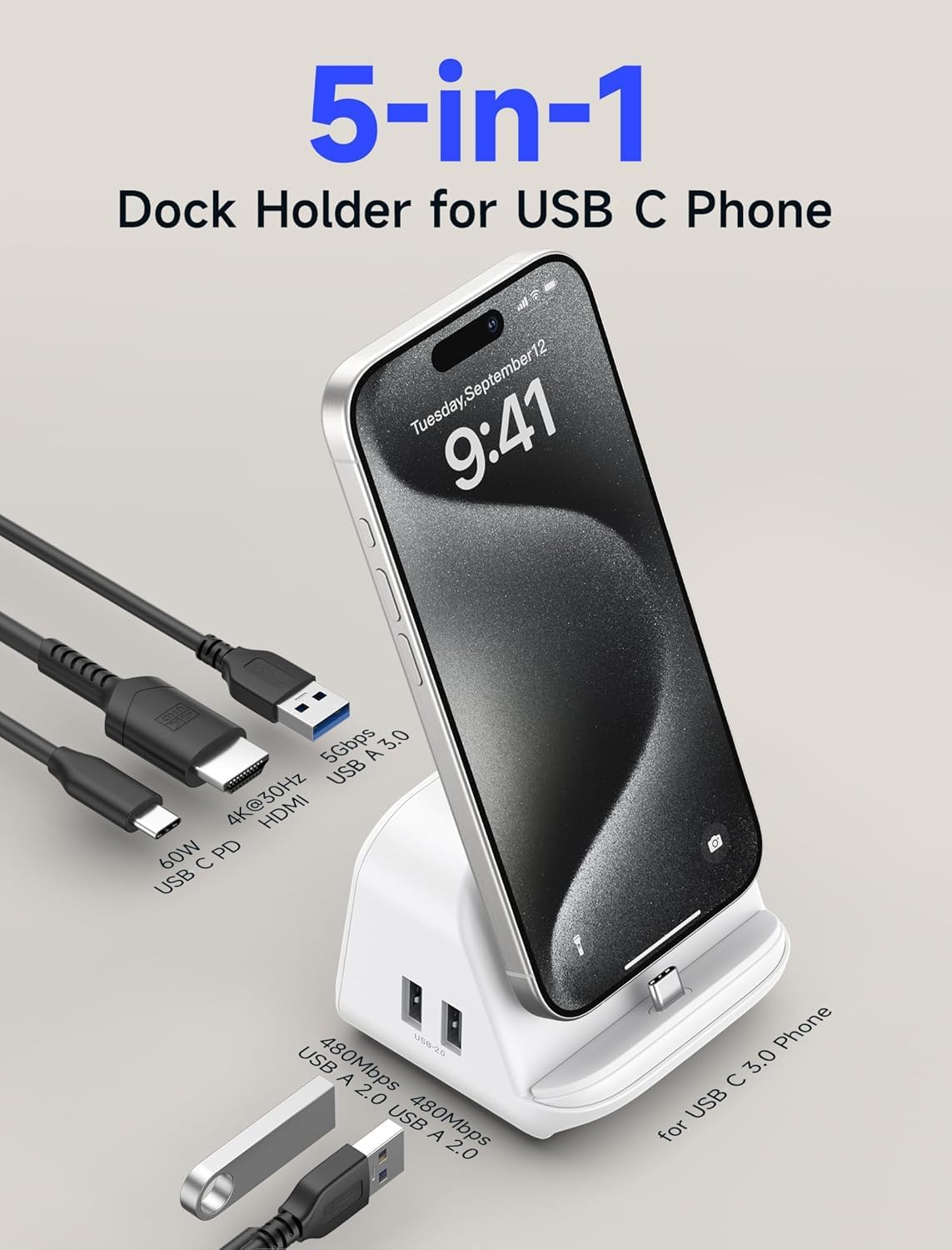
Изображение 1: Отпред и отзад view of the JSAUX 5-in-1 USB C Docking Station Stand, highlighting its various ports including USB-C PD, HDMI, USB 3.0, and USB 2.0.
Ключови характеристики:
- 5-в-1 свързаност: Combines essential ports for versatile use.
- 4K HDMI изход: Supports video output up to 4K@30Hz for external displays.
- USB 3.0 трансфер на данни: One USB-A 3.0 port for high-speed data transfer up to 5Gbps.
- USB 2.0 трансфер на данни: Two USB-A 2.0 ports for standard data transfer up to 480Mbps, ideal for peripherals.
- 60W захранване (PD): USB-C PD port for fast charging your device while in use.
- Integrated Phone Stand: Provides a stable and convenient viewing angle for your device.
- Слотове за SD/TF карти: For direct access to memory cards.
3. Съдържание на пакета
- JSAUX USB C Docking Station Stand (5-Port)
- USB-C към USB-C кабел
- Захранващ адаптер (зарядно устройство)
- Adjustable Pads (for phone case thickness)
- Ръководство за употреба (този документ)
4. Настройка
Следвайте тези стъпки, за да настроите докинг станцията си:
- Свържете захранването: Plug the provided USB-C to USB-C cable into the USB-C PD port on the docking station and connect the other end to the power adapter. Plug the power adapter into a wall outlet. Ensure the power adapter is rated over 30W for 60W fast charging support.
- Prepare Phone Stand: The docking station includes adjustable pads to accommodate different phone case thicknesses. Refer to the guide on the dock for proper pad placement:

Image 2: The phone stand section of the dock, illustrating how to place the included pads for bare phones (3mm pad) and phones with cases (1mm pad) to ensure stability. Note: Only supports phone cases with a thickness of 3mm or less.
- Въведете телефон: Carefully place your USB-C enabled phone onto the stand, aligning its USB-C port with the connector on the dock. Ensure a secure connection. A blue indicator light on the dock will illuminate to confirm a proper connection.

Image 3: Close-up of the dock's base, showing a blue light indicating a proper connection and the absence of light for an incorrect connection.
5. Инструкции за работа
5.1. Свързване към дисплей (HDMI)
Connect an HDMI cable (not included) from the HDMI port on the docking station to your monitor, TV, or projector. The dock supports 4K@30Hz video output, allowing you to mirror or extend your phone's display to a larger screen for presentations, video streaming, or gaming.

Image 4: A smartphone docked and connected to an external monitor via the HDMI port, showcasing 4K video output.
5.2. Data Transfer (USB & Card Slots)
- USB 3.0 порт: Use the blue USB-A 3.0 port for connecting external storage devices like hard drives or USB flash drives. This port offers data transfer speeds up to 5Gbps, ideal for quickly moving large files.

Image 5: A smartphone docked, with a USB drive connected to the USB A 3.0 port, illustrating 5Gbps data transfer speeds.
- USB 2.0 портове: The two black USB-A 2.0 ports are suitable for connecting peripherals such as keyboards, mice, or game controllers. These ports provide data transfer speeds up to 480Mbps.

Image 6: A smartphone docked and connected to a monitor, with a gamepad connected to a USB A 2.0 port for gaming.
- Слотове за SD/TF карти: Insert your SD or TF (MicroSD) cards into the corresponding slots for direct access to files on your phone or computer.
5.3. Charging (60W PD)
The USB-C PD port allows you to charge your connected device at up to 60W while simultaneously using other functions of the docking station. This ensures your device remains powered during extended use.

Image 7: A smartphone docked and charging via the 60W Power Delivery port, with the charging status visible on the phone screen.
5.4. Бележки за съвместимост
- iPhone 15 Plus: When an HDMI connection is active, the USB 3.0 port may not function.
- Samsung S21 / Samsung Note20 Ultra: A USB drive must be connected to the dock before connecting the phone. Additionally, the USB drive and Power Delivery (PD) cannot be used simultaneously.
- Phone Case Thickness: For optimal stability and connection, the dock only supports phone cases with a thickness of 3mm or less.

Image 8: Visual representation of compatible phone models, including iPhone 15 series, Google Pixel, Samsung Galaxy S23/S22/S21/S20 series, OnePlus 9/8 series, Xiaomi Mi 10 series, Huawei P40 series, and Huawei Mate 40 series.
6. Поддръжка
To ensure the longevity and proper functioning of your docking station, follow these maintenance guidelines:
- Почистване: Use a soft, dry cloth to wipe the surface of the docking station. Avoid using harsh chemicals or abrasive cleaners.
- Порт грижа: Keep all ports free of dust and debris. Use compressed air if necessary to clear any blockages.
- Съхранение: Когато не се използва, съхранявайте докинг станцията на хладно и сухо място, далеч от пряка слънчева светлина и екстремни температури.
- Обработка: Избягвайте изпускане или подлагане на устройството на силни удари, тъй като това може да повреди вътрешните компоненти.
7. Отстраняване на проблеми
If you encounter issues with your JSAUX USB C Docking Station Stand, please refer to the following common solutions:
- Няма захранване/зареждане:
- Ensure the power adapter is securely plugged into both the wall outlet and the dock's USB-C PD port.
- Проверете дали захранващият адаптер работи правилно и осигурява достатъчно мощностtage (over 30W for 60W PD).
- Check the connection between your phone and the dock's USB-C connector. The blue indicator light should be on.
- No Video Output via HDMI:
- Уверете се, че HDMI кабелът е здраво свързан както към докинг станцията, така и към дисплея.
- Verify the display input source is set to the correct HDMI port.
- For iPhone 15 Plus users, note that the USB 3.0 port may not work when HDMI is active. Try disconnecting any USB 3.0 devices.
- Test with a different HDMI cable or display if possible.
- USB устройства, които не са разпознати:
- Ensure USB devices are properly inserted into the correct USB-A ports.
- For Samsung S21/Note20 Ultra, connect the USB drive before docking the phone. Also, avoid using USB drive and PD simultaneously.
- Some high-power USB devices may require external power or may not be fully supported.
- Phone Not Stable on Stand:
- Ensure the correct adjustable pads are used based on your phone's case thickness (or lack thereof).
- The dock supports phone cases with a maximum thickness of 3mm. Thicker cases may prevent a stable connection.
If the issue persists, please contact JSAUX customer support for further assistance.
8. Спецификации
| Характеристика | Спецификация |
|---|---|
| Модел | 5 порта |
| Тип конектор | HDMI, USB-C, USB-A, SD, TF |
| HDMI изход | 4K при 30Hz |
| Скорост на данни през USB-A 3.0 | До 5Gbps |
| Скорост на данни през USB-A 2.0 | До 480Mbps |
| USB-C захранване | До 60W |
| Съвместими устройства | Cellular Phones (USB-C enabled) |
| Съвместими модели телефони | iPhone 15 Series, Google Pixel, Samsung S24/23/21/20, OnePlus 9/8, Xiaomi Mi 10, Huawei P40/Mate 40 series |
| Материал | Пластмаса |
| Тегло на артикула | 10.5 унции (297.67 грама) |
| Размери на опаковката | 5.87 x 4.8 x 3.23 инча |
| Източник на захранване | Електрически с кабел |
9. Гаранция и поддръжка
JSAUX products are designed and manufactured to the highest quality standards. For specific warranty information, please refer to the warranty card included with your purchase or visit the official JSAUX website. If you require technical support, have questions about product functionality, or need assistance with troubleshooting, please contact JSAUX customer service through their official channels. Please have your product model and purchase details ready when contacting support.