
1. Въведение
The CHROX X99 Pro Android 13.0 TV Box is a smart multimedia player designed to transform your television into a powerful entertainment hub. Featuring the latest Android 13.0 operating system and a robust H313 Quad-core processor, this device offers fast performance, 4K video playback, and extensive connectivity options for an enhanced viewопит.
2. Съдържание на пакета
Моля, проверете дали всички изброени по-долу артикули са включени във вашия пакет:
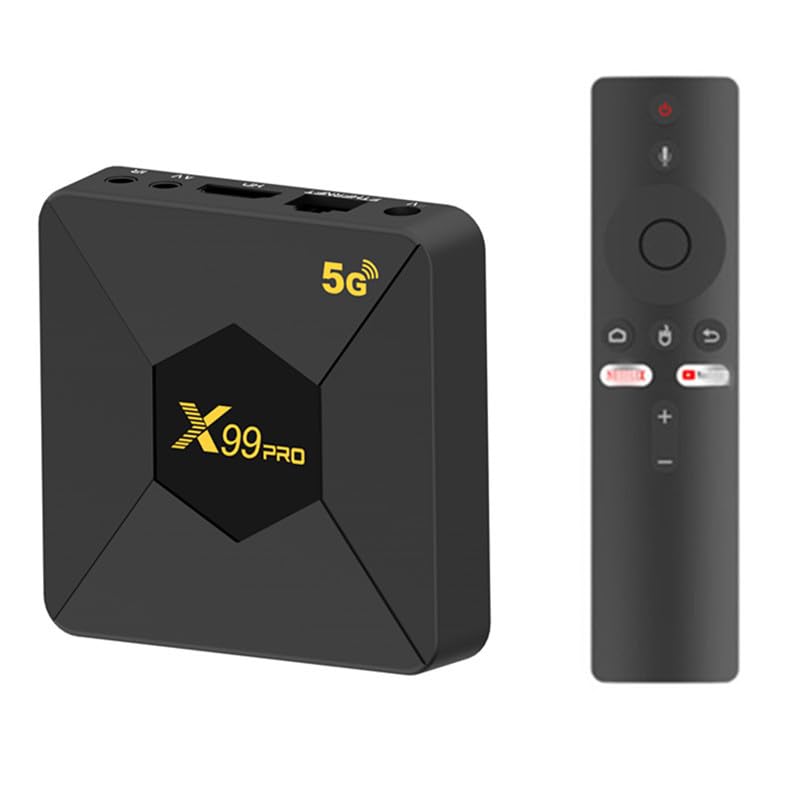
- 1 x CHROX X99 Pro Android 13.0 TV Box
- 1 x Захранващ адаптер
- 1 x Дистанционно управление
- 1 x HDMI кабел
- 1 x Ръководство за потребителя (този документ)
3. Продуктът свършиview
The CHROX X99 Pro TV Box is equipped with advanced hardware to deliver a smooth and responsive user experience. Below is an overview of the device and its ports.

Фигура 3.1: Отгоре view of the CHROX X99 Pro Android TV Box, showing the 'X99 Pro' logo and '5G' indicator.
3.1 Front and Side Panels

Фигура 3.2: Страна view of the CHROX X99 Pro Android TV Box, highlighting the USB ports and TF card slot.
The side panel features two USB ports (one USB 3.0 and one USB 2.0) for connecting external storage devices, keyboards, mice, or other peripherals. A TF card slot is also present for expanding storage.
3.2 Заден панел
Фигура 3.3: Задна част view of the CHROX X99 Pro Android TV Box, showing the power input, Ethernet, HDMI, AV, and IR ports.
The rear panel provides essential connectivity:
- DC 5V захранване: Свържете предоставения захранващ адаптер тук.
- Ethernet (RJ-45): За кабелна мрежова връзка.
- HDMI: Connect to your TV or display for video and audio output.
- НА: Analog video/audio output for older TVs.
- IR: Порт за външен IR приемник (ако е приложимо).
4. Ръководство за настройка
Follow these steps for initial setup of your CHROX X99 Pro TV Box:
- Свързване с телевизор: Use the provided HDMI cable to connect the HDMI port on the TV Box to an HDMI input port on your television. Note the HDMI input number on your TV (e.g., HDMI 1, HDMI 2).
- Свързване към захранване: Plug the power adapter into the DC 5V input port on the TV Box, then plug the adapter into a wall outlet. The device should power on automatically, or you may need to press the power button on the remote control.
- Свързване към мрежа (по избор):
- Кабелна връзка: Свържете Ethernet кабел от вашия рутер към Ethernet порта на телевизионната кутия.
- Безжична връзка: Skip this step for now; you will configure Wi-Fi during the initial software setup.
- Изберете телевизионен вход: Turn on your TV and use its remote control to select the correct HDMI input source that corresponds to where you connected the TV Box.
- Първоначалната настройка: The Android system will boot up. Follow the on-screen prompts to select your language, connect to Wi-Fi (if not using Ethernet), and complete any other initial configuration steps.
5. Инструкции за работа
5.1 Дистанционно управление
The included remote control allows you to navigate the Android interface. Familiarize yourself with its buttons:
- Бутон за захранване: Включва/изключва устройството или го превключва в режим на готовност.
- Бутони за навигация (нагоре/надолу/наляво/надясно): Move cursor or selection.
- Бутон OK: Потвърждава избора или отваря елемент.
- Бутон за връщане назад: Връща се към предишния екран.
- Бутон за начало: Връща към главния начален екран на Android.
- Бутон за меню: Достъп до контекстно-чувствителни менюта.
- Бутони за сила на звука: Регулира силата на звука.
5.2 Навигиране в интерфейса на Android
The CHROX X99 Pro runs on Android 13.0, providing a user-friendly interface. Use the remote control's navigation buttons to move between apps and settings. Press the OK button to launch an application or confirm a selection.
5.3 Инсталиране и управление на приложения
You can install applications from the pre-installed app store or by sideloading APK files. To manage apps:
- Отидете на Настройки > Приложения към view installed applications.
- Select an app to see options like отворено, Принудително спиране, Деинсталиране, Изчистване на данните, или Изчистване на кеша.
5.4 Мрежови настройки
To configure network connectivity:
- Отидете на Настройки> Мрежа и интернет.
- For Wi-Fi, select Wi-Fi, choose your network, and enter the password.
- For Ethernet, ensure the cable is connected; the device should automatically obtain an IP address.
5.5 Bluetooth сдвояване
To connect Bluetooth devices (e.g., headphones, game controllers):
- Отидете на Настройки > Свързани устройства > Сдвояване на ново устройство.
- Поставете вашето Bluetooth устройство в режим на сдвояване.
- Select your device from the list on the TV Box to pair.
6. Спецификации
Detailed technical specifications for the CHROX X99 Pro Android 13.0 TV Box:
| Характеристика | Спецификация |
|---|---|
| Марка | CHROX |
| Име на модела | X99 Pro |
| Операционна система | Android 13.0 |
| CPU | H313 Quad-core Cortex-A53 |
| GPU | Mali-T720MP2 |
| RAM | 2GB DDR3 |
| ROM | 8GB EMMC |
| Wi-Fi | 2.4G/5GHz Dual Band |
| Ethernet | 10/100M RJ-45 |
| Bluetooth | Поддържа се |
| USB хост | 1x USB 3.0, 1x USB 2.0 |
| Видео изход | HDMI 2.0 (up to 8K, 6K@30fps MAX Resolution Output with HDR, CEC, HDCP 2.2) |
| Четец на карти | SD / SDHC / MMC карти |
| Декодиране на видео | 8K H.265, 4K@60fps, 3D support |
| Поддържани видео формати | AVI, RM, RMVB, TS, VOB, MKV, MOV, ISO, WMV, ASF, FLV, DAT, MPG, MPEG |
| Поддържани аудио формати | MP3, WMA, AAC, WAV, OGG, AC3, DDP, TRUEHD, DTS, HD, FLAC, APE |
| Поддържани фото формати | HD JPEG, BMP, GIF, PNG, TIFF |
7. Отстраняване на проблеми
Ако срещнете проблеми с вашия телевизионен бокс, вижте следните често срещани проблеми и решения:
- Без захранване:
- Уверете се, че захранващият адаптер е здраво свързан към телевизионната кутия и работещ електрически контакт.
- Опитайте с друг електрически контакт.
- Няма показване на телевизора:
- Check that the HDMI cable is firmly connected to both the TV Box and the TV.
- Проверете дали вашият телевизор е настроен на правилния HDMI входен източник.
- Опитайте друг HDMI кабел или HDMI порт на вашия телевизор.
- Няма Wi-Fi връзка:
- Отидете на Настройки > Мрежа и интернет > Wi-Fi and ensure Wi-Fi is enabled.
- Check if your Wi-Fi password is entered correctly.
- Рестартирайте вашия Wi-Fi рутер и телевизионната кутия.
- Ensure the TV Box is within range of your Wi-Fi router.
- Дистанционното управление не реагира:
- Сменете батериите в дистанционното управление.
- Ensure there are no obstructions between the remote control and the TV Box's IR receiver.
- Сривове или замръзване на приложенията:
- Отидете на Настройки > Приложения, select the problematic app, and try Изчистване на кеша or Изчистване на данните.
- If the issue persists, try Деинсталиране and then reinstall the app.
- Уверете се, че телевизионният приемник има достатъчно свободно място за съхранение.
8. Поддръжка
To ensure the longevity and optimal performance of your CHROX X99 Pro TV Box, follow these maintenance guidelines:
- Пази чистота: Редовно избърсвайте устройството с мека, суха кърпа. Избягвайте използването на течни почистващи препарати или абразивни материали.
- Вентилация: Уверете се, че устройството е поставено на добре проветриво място, за да предотвратите прегряване. Не блокирайте вентилационните отвори.
- Температура и влажност: Operate the device within recommended temperature and humidity ranges. Avoid extreme heat, cold, or damp среди.
- Правилно изключване: Always power off the device correctly through the system menu or by using the remote control's power button to put it into standby. Avoid simply unplugging it from the power source.
- Софтуерни актуализации: Периодично проверявайте за системни актуализации в Настройки to ensure you have the latest features and security patches.
- Избягвайте физически щети: Do not drop, strike, or attempt to disassemble the device. Unauthorized opening voids any warranty.
9. Гаранция и поддръжка
The CHROX X99 Pro Android 13.0 TV Box comes with a standard manufacturer's warranty. Please refer to the warranty card included in your package for specific terms and conditions, including the warranty period and coverage details.
For technical support, troubleshooting assistance beyond this manual, or warranty claims, please contact the seller or manufacturer directly through the contact information provided at the point of purchase or on the product packaging. When contacting support, please have your product model (X99 Pro) and purchase details readily available.