
Въведение
Thank you for choosing the NEWFAST WiFi 6E PCIe Network Card. This card is designed to provide high-speed wireless connectivity and Bluetooth functionality for your desktop PC. Featuring the Intel AX210 chipset, it supports the latest WiFi 6E standard, offering tri-band operation (2.4GHz, 5.8GHz, and 6GHz) with speeds up to 5374Mbps. The integrated Bluetooth 5.3 ensures fast and reliable connections to your wireless peripherals. This manual will guide you through the installation process, operation, and provide troubleshooting tips.

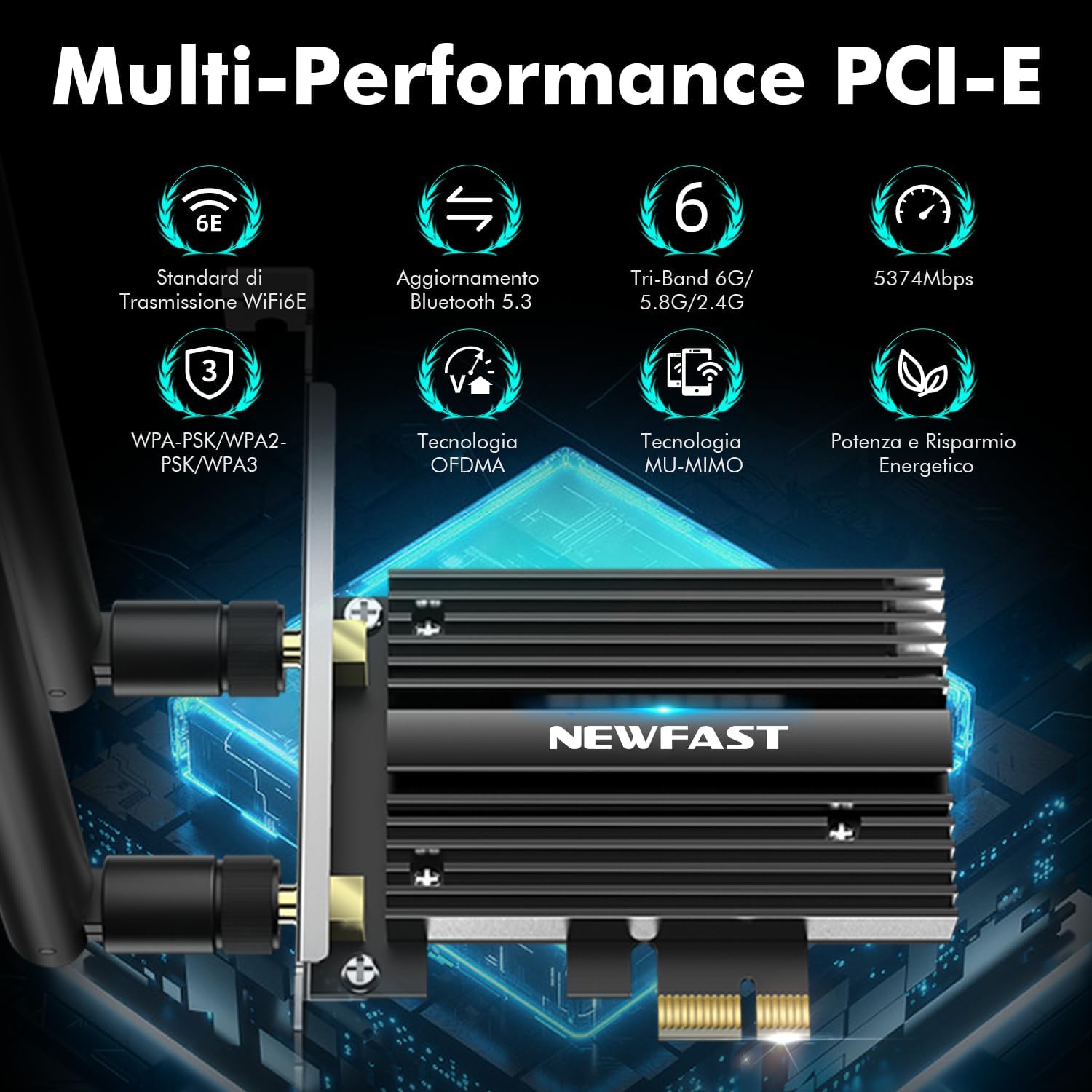
крайview of the NEWFAST WiFi 6E PCIe Card's multi-performance features, including WiFi 6E standard, Bluetooth 5.3 upgrade, Tri-Band support (6GHz/5.8GHz/2.4GHz), 5374Mbps speed, WPA-PSK/WPA2-PSK/WPA3 security, OFDMA, MU-MIMO technology, and power saving capabilities.
Какво има в кутията
Моля, проверете съдържанието на пакета, за да се уверите, че всички елементи са налични:
- 1 x NEWFAST WiFi 6E PCIe Network Card
- 1 x Multi-language Instruction Manual (this document)
- 1 x Bluetooth Cable
- 2 x 5dBi антени
- 2 x винтове
Спецификации
| Характеристика | детайл |
|---|---|
| Марка | NEWFAST |
| Модел | NF-P395 |
| Чипсет | Intel AX210 |
| Wireless Standard | WiFi 6E (IEEE 802.11ax) |
| Протокол за връзка с данни | IEEE 802.11ac/a/b/g/n, IEEE 802.11ax |
| Честотни ленти | 2.4GHz, 5.8GHz, 6GHz (трибандов) |
| Максимална скорост на трансфер на данни | 5374 Mbps (2.4GHz: 574Mbps, 5.8GHz: 2400Mbps, 6GHz: 2400Mbps) |
| Bluetooth версия | Bluetooth 5.3 |
| Хардуерен интерфейс | PCI-E X1, X4, X8, X16 (PCI slots not supported) |
| Антени | 2 x 5dBi външни антени |
| Функции за сигурност | WPA-PSK/WPA2-PSK/WPA3 |
| Поддържана ОС | Windows 10 (64-битов), Windows 11 (64-битов) |
| Размери (Опаковка) | 19.9 х 11.9 х 3.4 см |
| Тегло на артикула | 230 гр |

Detailed breakdown of WiFi 6E speeds across 6GHz, 5.8GHz, and 2.4GHz bands, highlighting the Intel AX210 chip and Bluetooth 5.3 capabilities.
Инструкции за настройка
1. Инсталиране на хардуер
- Изключете компютъра си: Before starting, ensure your computer is completely powered off and unplugged from the power outlet.
- Отворете кутията на компютъра: Отстранете страничния панел на корпуса на компютъра, за да получите достъп до дънната платка.
- Locate a PCI-E Slot: Find an available PCI-E X1, X4, X8, or X16 slot on your motherboard. Note: Standard PCI slots are not compatible.
- Поставете WiFi картата: Carefully align the NEWFAST WiFi 6E PCIe card with the chosen PCI-E slot and press it firmly until it is securely seated.
- Защитете картата: Use the provided screw to fasten the card's bracket to your PC case.
- Свържете Bluetooth кабела: Connect one end of the provided Bluetooth cable to the 9-pin USB header on the WiFi card and the other end to an available F_USB header on your motherboard. This connection is essential for Bluetooth functionality.
- Прикрепете антени: Screw the two 5dBi external antennas onto the connectors at the back of the WiFi card. Adjust their orientation for optimal signal reception.
- Затвори кутията на компютъра: Replace the side panel of your computer case and reconnect the power cable.

Illustration of compatible PCI-E slots on a desktop motherboard.
The NEWFAST WiFi 6E PCIe Card with its two external antennas.
2. Инсталиране на драйвер
After hardware installation, power on your PC. You will need to install the drivers for both WiFi and Bluetooth functionality. Drivers are typically available on the manufacturer's website. If you do not have internet access, you may need to download them on another device and transfer them via USB.
- Изтегляне на драйвери: Visit the NEWFAST official website or the Intel support page for the AX210 chipset to download the latest WiFi and Bluetooth drivers for Windows 10 (64-bit) or Windows 11 (64-bit).
- Инсталирайте WiFi драйвер: Locate the downloaded WiFi driver file (usually an executable .exe file) and run it. Follow the on-screen instructions to complete the installation.
- Инсталирайте Bluetooth драйвер: Similarly, locate and run the Bluetooth driver file. Follow the installation wizard.
- Рестартирайте компютъра: След като инсталирате и двата драйвера, рестартирайте компютъра си, за да сте сигурни, че всички промени ще влязат в сила.

The WiFi card supports Windows 10 (64-bit) and Windows 11 (64-bit).
Инструкция за работа
1. Свързване към WiFi мрежа
- Достъп до мрежови настройки: On your Windows desktop, click the WiFi icon in the system tray (usually bottom-right corner).
- Изберете мрежа: A list of available WiFi networks will appear. Select your desired network.
- Въведете парола: Ако бъдете подканени, въведете ключа за мрежова сигурност (парола) и щракнете върху „Свързване“.
- Проверете връзката: Once connected, the WiFi icon will indicate an active connection. You can now browse the internet.
2. Using Bluetooth 5.3
Ensure the Bluetooth cable is correctly connected to your motherboard's F_USB header for Bluetooth functionality.
- Активиране на Bluetooth: Go to Windows Settings > Devices > Bluetooth & other devices. Ensure Bluetooth is turned 'On'.
- Pair a Device: Кликнете върху „Добавяне на Bluetooth или друго устройство“ и изберете „Bluetooth“.
- Make Device Discoverable: Put your Bluetooth device (e.g., headphones, mouse, controller) into pairing mode. Refer to your device's manual for specific instructions.
- Изберете и свържете: Your PC will scan for nearby Bluetooth devices. Select your device from the list and follow any on-screen prompts to complete pairing.

The Bluetooth 5.3 feature allows connection to various peripherals with improved speed and range.
Поддръжка
The NEWFAST WiFi 6E PCIe Network Card is designed for reliable, long-term performance with minimal maintenance. Follow these guidelines:
- Поддържайте актуализирани драйвери: Редовно проверявайте NEWFAST или Intel website for the latest WiFi and Bluetooth drivers to ensure optimal performance and security.
- Осигурете подходящ въздушен поток: Make sure your PC case has adequate ventilation to prevent overheating, which can affect the card's performance. The card's aluminum heatsink is designed for efficient heat dissipation.
- Clean Antennas: Occasionally wipe the antennas with a soft, dry cloth to remove dust.
- Избягвайте физически щети: Handle the card with care during installation and avoid bending or stressing the antennas.
Отстраняване на неизправности
If you encounter issues with your NEWFAST WiFi 6E PCIe Network Card, refer to the following common problems and solutions:
- Няма WiFi връзка:
- Ensure the card is properly seated in the PCI-E slot.
- Verify that WiFi drivers are correctly installed and updated.
- Check if the antennas are securely attached.
- Confirm that your router is powered on and broadcasting a WiFi signal.
- Try restarting your PC and router.
- No Bluetooth Functionality:
- Ensure the Bluetooth cable is securely connected to both the WiFi card and the motherboard's F_USB header. This is crucial for Bluetooth.
- Verify that Bluetooth drivers are correctly installed and updated.
- Check Windows Bluetooth settings to ensure Bluetooth is enabled.
- Опитайте да рестартирате компютъра си.
- Slow WiFi Speeds:
- Ensure you are connected to a WiFi 6E compatible router for optimal speeds.
- Проверете за смущения от други електронни устройства.
- Регулирайте ориентацията на антената за по-добро приемане на сигнала.
- Актуализирайте фърмуера на вашия рутер.
- Ensure your PC is within a reasonable range of your WiFi router.
- Устройството не е открито:
- Double-check all physical connections, including the PCI-E slot and Bluetooth cable.
- Ensure your operating system is Windows 10 (64-bit) or Windows 11 (64-bit).
- Check Device Manager in Windows for any unknown devices or driver errors.
Гаранция и поддръжка
NEWFAST products are designed for quality and reliability. For specific warranty information, please refer to the warranty card included with your product or visit the official NEWFAST webсайт.
If you encounter any configuration issues, technical problems, or require further assistance, please do not hesitate to contact NEWFAST customer support. Our team is ready to help you.
- Онлайн помощ: Visit the NEWFAST official webсайт за често задавани въпроси, изтегляния на драйвери и информация за контакт с поддръжка.
- Поддръжка по имейл: Вижте опаковката на продукта или официалните webсайт за имейл адреса за поддръжка на клиенти.