
Въведение
This manual provides essential information for the setup, operation, maintenance, and troubleshooting of your Onn 22 inch 1080P 100 Hz FHD LED Monitor. Please read this guide thoroughly before using the product to ensure optimal performance and safety.
The Onn 22 inch FHD LED Monitor is designed for a variety of applications, offering a vivid 1920x1080 resolution, a 100Hz refresh rate, and a 6.5ms response time for efficient performance. Its slim profile and T-shaped base are ideal for saving desk space.
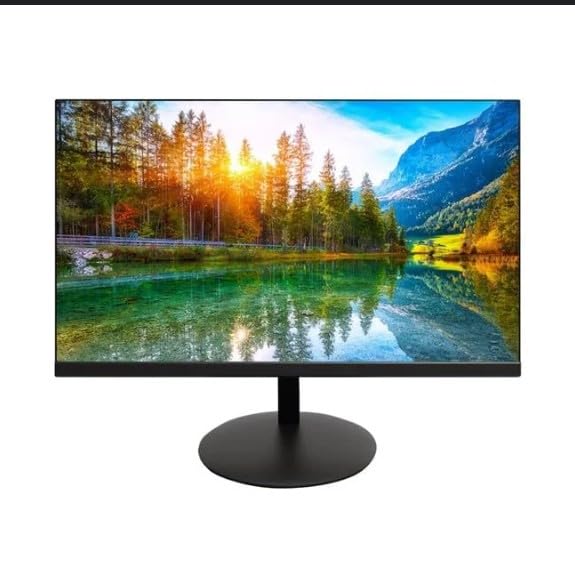
The image shows the Onn 22 inch FHD LED Monitor, highlighting its 100Hz refresh rate and 1080p resolution. The monitor features a slim design and a T-shaped base.
Инструкции за настройка
- Разопаковане: Carefully remove the monitor and all accessories from the packaging. Ensure all components are present: monitor, T-shaped base, HDMI cable, and power adapter.
- Сглобяване на стойката: Attach the T-shaped base to the monitor. The design is screw-less for easy assembly. Ensure it is securely fastened.
- Свързване към устройство:
The monitor supports both HDMI and VGA inputs. Connect the provided HDMI cable from your computer's HDMI output to the HDMI IN port on the monitor. Alternatively, use a VGA cable for VGA input.

This image displays the rear panel of the Onn monitor, illustrating the available input ports: HDMI IN, VGA IN, and the DC 12V power input. These ports are essential for connecting the monitor to a computer or other devices.
- Захранване: Connect the power adapter to the DC 12V input port on the monitor, then plug the adapter into a power outlet.
- Регулиране на монитора: The monitor is capable of swivel, tilt, rotation, and height adjustment. Adjust the screen to your preferred viewъгъл за ергономичен комфорт.
- Настройка на двоен монитор: This monitor is suitable for a fully functioning dual monitor setup. Connect a second monitor using the appropriate cables and configure your operating system's display settings.
Инструкция за работа
- Включване/изключване: Натиснете бутона за захранване, обикновено разположен отдолу или отзад на монитора, за да го включите или изключите.
- Избор на вход: If the monitor does not automatically detect the input source, use the On-Screen Display (OSD) menu buttons to manually select between HDMI and VGA inputs.
- Навигация в екранното меню: Use the physical buttons on the monitor (typically on the back or bottom edge) to navigate the OSD menu. This allows you to adjust settings such as brightness, contrast, color temperature, and input source.
- Резолюция и честота на опресняване: The monitor supports a native resolution of 1920x1080 at a 100Hz refresh rate. Ensure your computer's display settings are configured to these specifications for the best visual experience.
- Адаптивна синхронизация: The monitor features Adaptive Sync for gaming, which helps to reduce screen tearing and stuttering. Ensure this feature is enabled in your graphics card settings if supported.
Поддръжка
- Почистване на екрана: Внимателно избършете екрана с мека кърпа без власинки. За упорити петна, лекоampen the cloth with water or a non-abrasive, monitor-specific cleaning solution. Avoid spraying liquids directly onto the screen.
- Почистване на Casing: Използвайте мека, суха кърпа за почистване на монитора casinж. Не използвайте силни препарати или разтворители, тъй като те могат да повредят покритието.
- Вентилация: Уверете се, че вентилационните отвори на монитора не са блокирани, за да предотвратите прегряване.
- Съхранение: Когато не се използва за продължителни периоди, съхранявайте монитора на хладно и сухо място, далеч от пряка слънчева светлина и екстремни температури.
Отстраняване на неизправности
- Без захранване:
- Проверете дали захранващият кабел е здраво свързан както към монитора, така и към електрическия контакт.
- Проверете дали електрическият контакт работи правилно.
- Няма сигнал:
- Ensure the video cable (HDMI or VGA) is firmly connected to both the monitor and the computer.
- Изберете правилния входен източник, като използвате екранното меню на монитора.
- Проверете дали компютърът ви е включен и не е в режим на заспиване.
- Flickering Screen or Poor Image Quality:
- Проверете видеокабела за повреди или хлабави връзки.
- Регулирайте разделителната способност и честотата на опресняване на компютъра си, така че да съответстват на спецификациите на монитора (1920x1080, 100Hz).
- Нулирайте настройките на монитора до фабричните настройки чрез екранното меню.
- Бутоните не реагират:
- Unplug the monitor from the power outlet, wait for 30 seconds, and then plug it back in.
If problems persist, please refer to the support information provided in the "Support and Warranty" section.
Спецификации
| Марка | Onn |
| Номер на модела | 100140681 |
| Име на модела | ОТО |
| Размер на екрана | 21.5 инча |
| Тип дисплей | LED, LCD |
| Резолюция | 1920 x 1080 (FHD 1080p) |
| Честота на опресняване | 100 Hz |
| Време за реакция | 6.5 милисекунди |
| Хардуерен интерфейс | HDMI, VGA |
| Специални функции | Регулиране на височината |
| Viewъгъл на ъгъл | 160 градуса |
| Съотношение на страните | 16:9 |
| Размери на продукта | 49.2 х 20 х 37.2 см; 3.24 кг |
Поддръжка и гаранция
For technical support, product inquiries, or warranty information, please visit the official Onn support webсайт или се свържете с тяхното обслужване на клиенти.
- Официална поддръжка Webсайт: onnsupport.ca
- Гаранция: Specific warranty details may vary by region and purchase date. Please refer to the documentation included with your product or visit the support webсайт за найактуална информация за гаранцията.