1. Въведение
Thank you for choosing the Dierya x TMKB M1 Wireless Gaming Mouse. This manual provides detailed instructions on how to set up, operate, and maintain your new gaming mouse. The M1 mouse offers versatile connectivity, high-precision tracking, and customizable features to enhance your gaming and productivity experience.
2. Продуктът свършиview
2.1 Компоненти и контроли
Familiarize yourself with the various buttons and features of your Dierya M1 mouse:
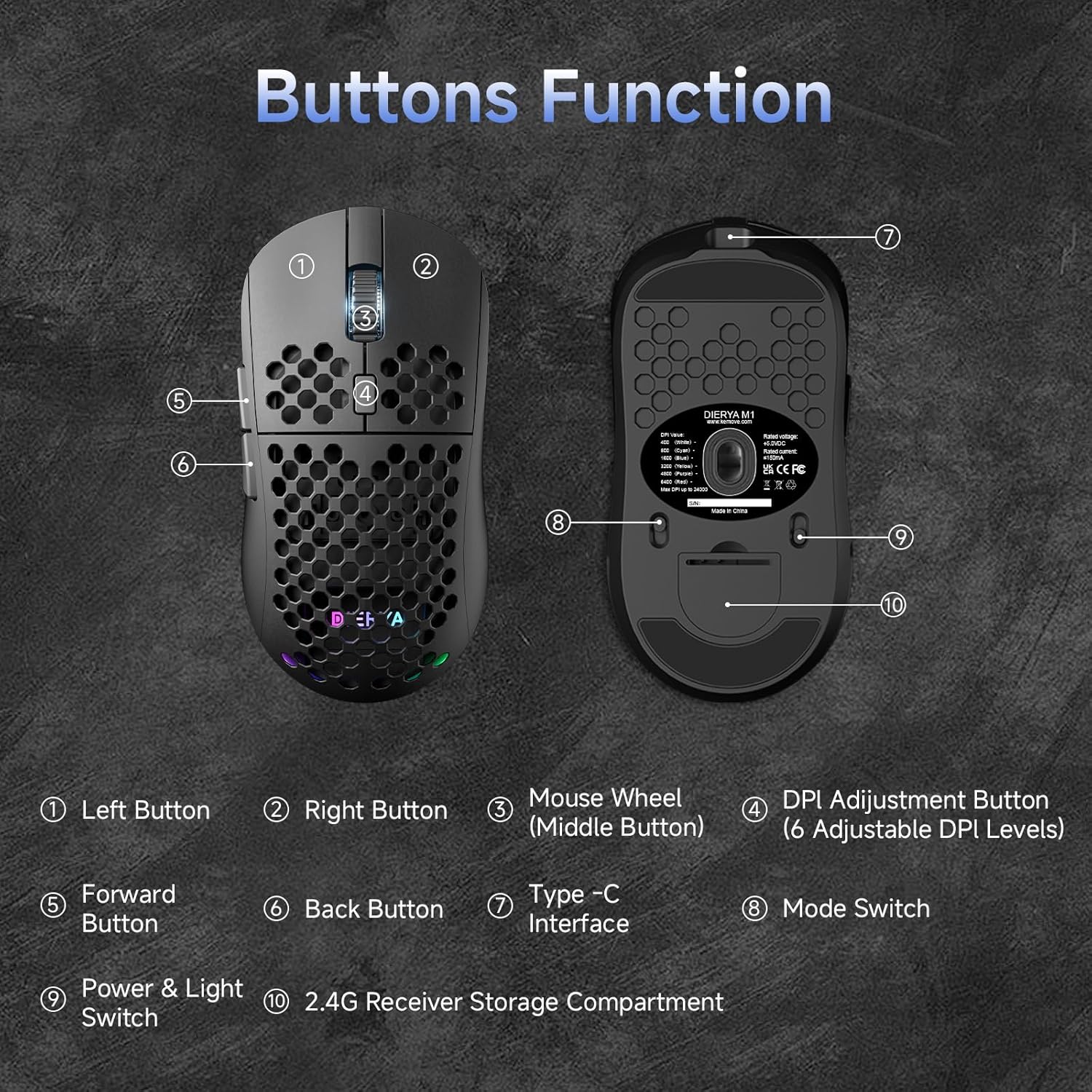
This diagram illustrates the various components of the Dierya M1 wireless gaming mouse. It highlights the Left Button (1), Right Button (2), Mouse Wheel (Middle Button) (3), DPI Adjustment Button (4) with 6 adjustable DPI levels, Forward Button (5), Back Button (6), Type-C Interface (7) for charging and wired connection, Превключвател на режима (8) for selecting connection type, Power & Light Switch (9), и 2.4G Receiver Storage Compartment (10) разположен от долната страна.
2.2 Основни характеристики
- Оптичен сензор с 24,000 DPI: Adjustable DPI range from 200 to 24,000, with 6 preset levels (400-6400 DPI).
- Трирежимна свързаност: Supports ultra-fast 2.4GHz wireless, energy-efficient Bluetooth 5.2, and stable USB-C wired connections.
- Дълъг живот на батерията: 1000mAh battery provides up to 180 hours in ECO mode or 48 hours with RGB lighting, with 1-hour fast charging.
- Лек и ергономичен дизайн: Weighs only 90g with a honeycomb shell for breathability and a symmetrical design (125x63x41 mm).
- Програмируеми бутони: 6 customizable buttons via the M1 Driver software (Windows only).
- Динамично RGB осветление: 13 integrated RGB lighting effects with 16.8 million customizable colors.
- Висока производителност: 125-1000 Hz polling rate, 300 IPS tracking speed, and 35G acceleration.
- Издръжливи превключватели: Equipped with Huano switches rated for 20 million clicks and 100% PTFE feet for smooth gliding.
3. Настройка
3.1 Зареждане на мишката
Before first use, it is recommended to fully charge the mouse. Connect the provided USB-C cable to the Type-C Interface (7) on the mouse and the other end to a USB power source (e.g., computer USB port, USB wall adapter).
- The mouse charges in approximately 1 hour.
- The scroll wheel LED will indicate charging status (e.g., red for charging, green for fully charged).
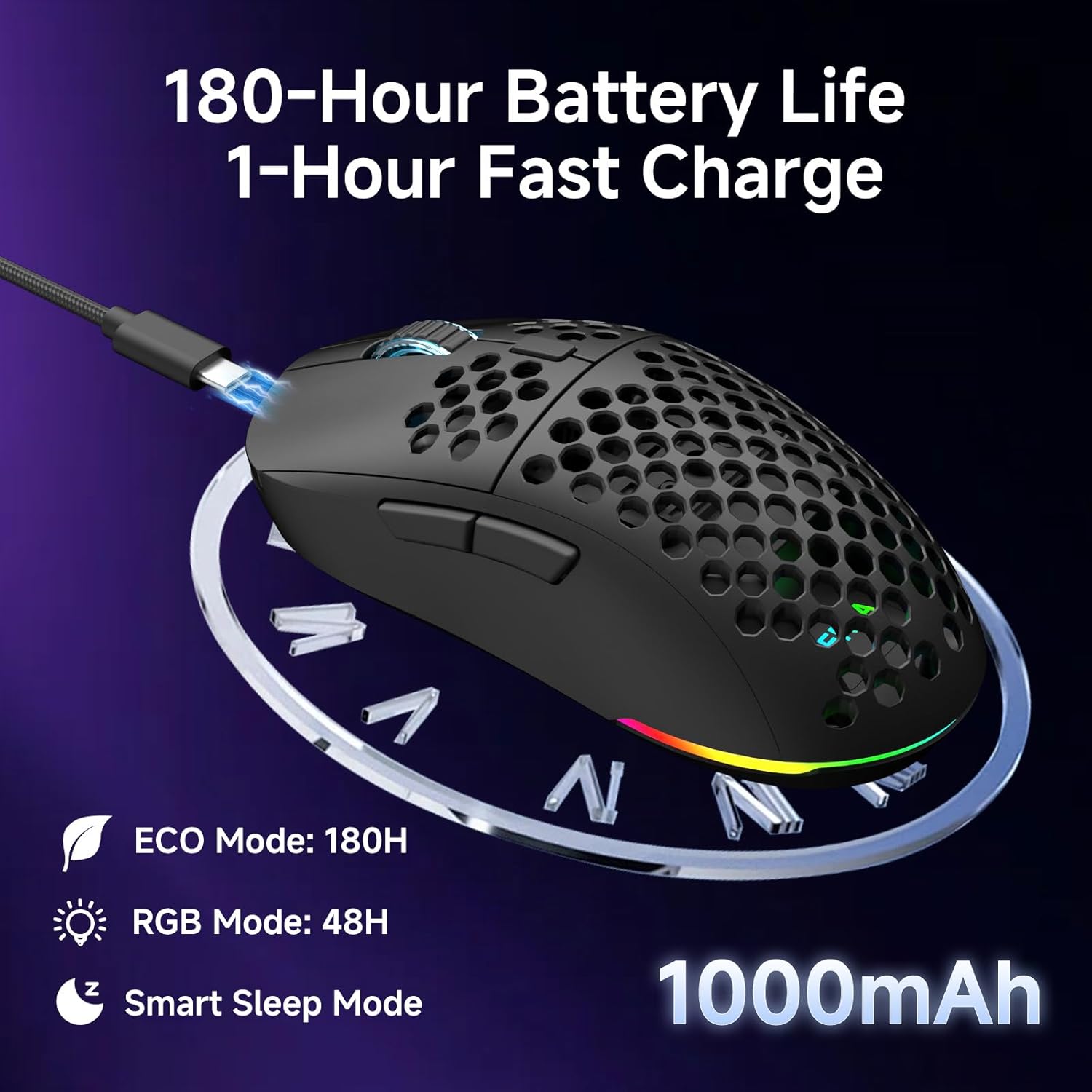
The Dierya M1 mouse features a 1000mAh battery, providing up to 180 hours of use in ECO mode or 48 hours with RGB lighting enabled. It supports fast charging, reaching full capacity in approximately 1 hour via the included USB-C cable. The mouse also includes a smart sleep mode to conserve power during inactivity.
3.2 Свързване на мишката
The Dierya M1 mouse offers three connection modes: 2.4GHz Wireless, Bluetooth 5.2, and USB-C Wired.

The Dierya M1 mouse supports three flexible connection modes: Bluetooth 5.2 for energy-efficient pairing with up to two devices, 2.4GHz Wireless via a USB dongle for ultra-fast response, and a stable USB-C Wired connection for charging and direct use. Each mode offers a different polling rate, with 2.4GHz and wired modes providing 1000Hz, and Bluetooth offering 125Hz.
3.2.1 2.4GHz безжична връзка
- Locate the 2.4G receiver in the storage compartment (10) on the underside of the mouse.
- Включете 2.4G приемника в свободен USB порт на вашия компютър.
- Set the Mode Switch (8) on the underside of the mouse to the '2.4G' position.
- The mouse should connect automatically. The polling rate for this mode is 1000 Hz.
3.2.2 Bluetooth 5.2 връзка
- Set the Mode Switch (8) on the underside of the mouse to the 'BT' position.
- На вашия компютър или устройство отворете настройките за Bluetooth и потърсете нови устройства.
- Select 'Dierya M1' from the list of available devices to pair.
- The mouse supports Bluetooth 5.2 and has a polling rate of 125 Hz in this mode.
3.2.3 USB-C кабелна връзка
- Connect the USB-C cable to the Type-C Interface (7) on the mouse.
- Свържете другия край на USB-C кабела към свободен USB порт на вашия компютър.
- The mouse will automatically switch to wired mode and begin charging. The polling rate for this mode is 1000 Hz.
4. Инструкции за работа
4.1 Настройка на DPI
The Dierya M1 mouse features a dedicated DPI Adjustment Button (4) to cycle through preset DPI levels. The scroll wheel LED color indicates the current DPI setting.
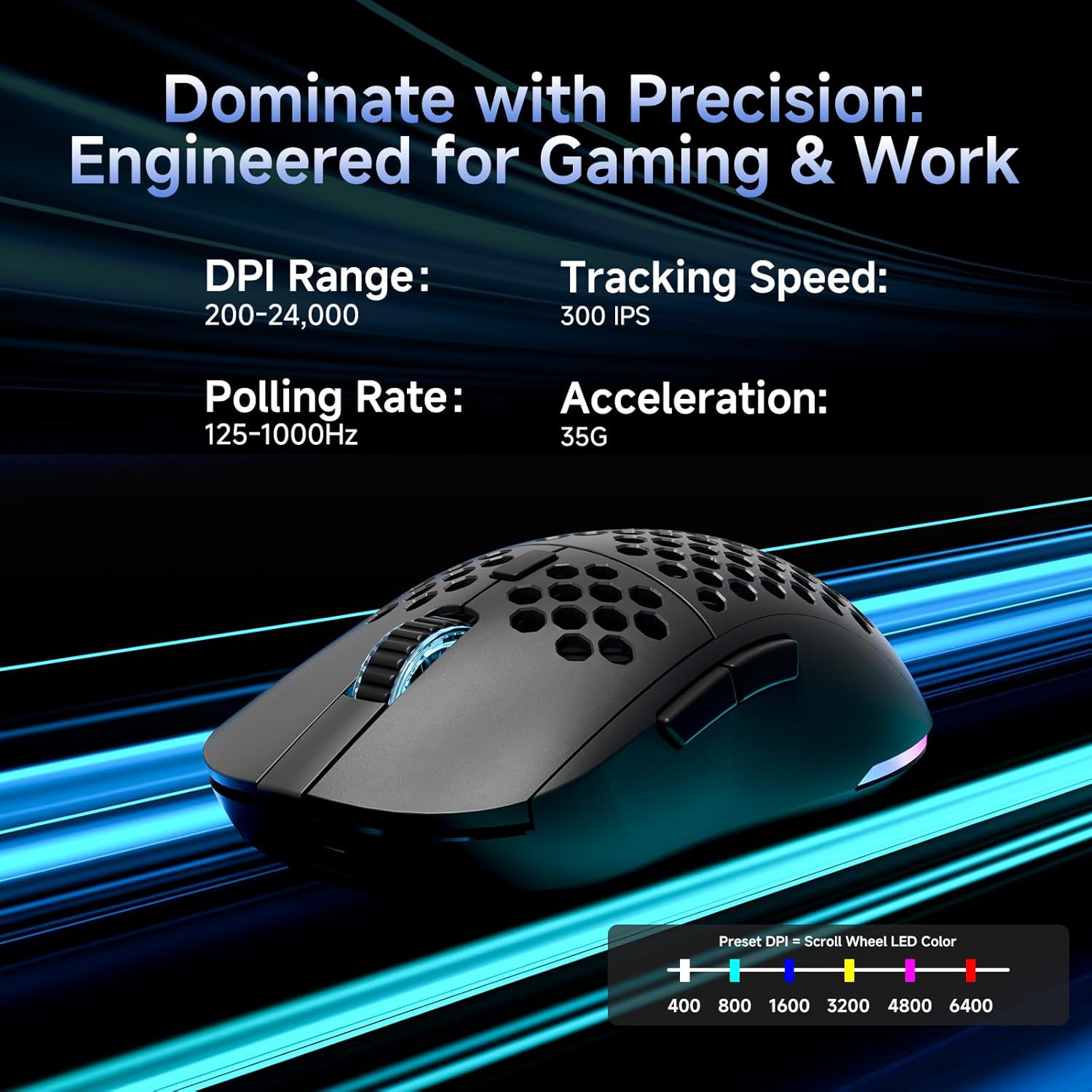
This image details the performance specifications of the Dierya M1 mouse, including a DPI range of 200-24,000, a tracking speed of 300 IPS, a polling rate of 125-1000Hz, and 35G acceleration. It also shows the preset DPI levels (400, 800, 1600, 3200, 4800, 6400) and the color indicators on the scroll wheel for each setting.
- Press the DPI Adjustment Button (4) to cycle through the 6 default DPI settings: 400, 800, 1600, 3200, 4800, and 6400 DPI.
- Each DPI level is indicated by a specific color on the scroll wheel LED.
- For custom DPI settings and a wider range (200-24,000 DPI), use the M1 Driver software.
4.2 Управление на RGB осветлението
The Dierya M1 mouse features dynamic RGB lighting. You can control the lighting effects and colors using the M1 Driver software.
- The mouse has 13 built-in RGB lighting effects.
- Use the M1 Driver software to customize colors (16.8 million options), brightness, and speed of the lighting effects.
- The Power & Light Switch (9) on the underside can be used to turn the lighting on or off.
4.3 Програмируеми бутони и софтуер
The M1 mouse has 6 programmable buttons that can be customized using the dedicated M1 Driver software.

The Dierya M1 driver software, currently available for Windows, allows users to customize various aspects of the mouse. This includes reassigning the 6 programmable buttons, creating macros, adjusting DPI settings, modifying the polling rate, and personalizing the 13 dynamic RGB lighting effects with 16.8 million colors.
- Съвместимост на софтуера: The M1 Driver software is currently only available for Windows operating systems.
- Ключово задание: Reassign functions to any of the 6 programmable buttons (Left, Right, Middle, DPI, Forward, Back).
- Създаване на макроси: Create and assign complex macros to streamline in-game actions or productivity tasks.
- DPI & Polling Rate: Fine-tune DPI settings beyond the presets and adjust the polling rate.
- RGB персонализиране: Personalize lighting effects, colors, and patterns.
- Професионалистfile Управление: Запазване и зареждане на различни професионалистиfileза различни игри или приложения.
4.4 Режими за пестене на енергия
The M1 mouse is designed with automatic power-saving features to extend battery life:
- The mouse will enter an automatic power-saving mode after 1-5 minutes of inactivity.
- This inactivity time can be adjusted via the M1 Driver software.
- To wake the mouse, simply move it or click any button.
5. Поддръжка
Proper maintenance ensures the longevity and optimal performance of your Dierya M1 mouse.
- Почистване: Използвайте мека, суха кърпа, за да избършете повърхността на мишката. За упорити замърсявания, лекоamp cloth can be used, but ensure no moisture enters the mouse. Avoid harsh chemicals or abrasive cleaners.
- Поддръжка на сензора: Поддържайте оптичния сензор от долната страна на мишката чист и без прах или замърсявания, за да осигурите точно проследяване.
- Грижа за батерията: Избягвайте честото пълно разреждане на батерията. За дългосрочно съхранение заредете мишката до около 50% и я съхранявайте на хладно и сухо място.
- Съхранение: Когато не се използва, съхранявайте мишката на чисто и сухо място, далеч от екстремни температури.
6. Отстраняване на проблеми
If you encounter issues with your Dierya M1 mouse, refer to the following common troubleshooting steps:
| проблем | Възможна причина | Решение |
|---|---|---|
| Мишката не реагира (2.4GHz) | Low battery, receiver unplugged, incorrect mode, interference. | Charge the mouse. Ensure 2.4G receiver is securely plugged in. Set Mode Switch to '2.4G'. Try a different USB port. Reduce distance to receiver. |
| Мишката не реагира (Bluetooth) | Low battery, incorrect mode, not paired, Bluetooth off on device. | Charge the mouse. Set Mode Switch to 'BT'. Ensure Bluetooth is enabled on your device. Re-pair the mouse in Bluetooth settings. |
| Мишката не реагира (с кабел) | Cable not connected, faulty cable/port. | Ensure USB-C cable is securely connected to both mouse and computer. Try a different USB port or cable. |
| Inaccurate tracking | Dirty sensor, unsuitable surface, incorrect DPI. | Clean the optical sensor. Use a mouse pad or a clean, non-reflective surface. Adjust DPI settings. |
| RGB осветлението не работи | Lighting switched off, low battery, software issue. | Check Power & Light Switch (9). Charge the mouse. Check settings in M1 Driver software. |
| Бутоните не могат да се програмират | M1 Driver not installed/running, not on Windows. | Ensure M1 Driver software is installed and running (Windows only). Check software settings. |
7. Спецификации
| Име на модела | M1 |
| Марка | Диеря |
| Технология за свързване | 2.4GHz безжична връзка, Bluetooth 5.2, USB-C кабелна връзка |
| Технология за откриване на движение | Оптичен |
| Диапазон на DPI | 200 - 24,000 DPI (6 preset levels: 400, 800, 1600, 3200, 4800, 6400) |
| Процент на гласуване | 125-1000 Hz |
| Скорост на проследяване | 300 IPS |
| Ускорение | 35G |
| Брой бутони | 6 (Програмируеми) |
| Капацитет на батерията | 1000 ма литиево-йонна |
| Живот на батерията | Up to 180 hours (ECO mode), 48 hours (RGB mode) |
| Време за зареждане | Прибл. 1 час |
| Тегло | 90 грама |
| Размери | 125 x 63 x 41 мм |
| Тип превключвател | Huano (20 million clicks) |
| Feet Material | 100% PTFE |
| Съвместимост на операционната система | Windows, macOS, Linux, Chrome OS |
| Driver Software Compatibility | Само Windows |
8. Гаранция и поддръжка
8.1 Гаранция на производителя
The Dierya M1 Wireless Gaming Mouse comes with a 1 година гаранция от производителяТази гаранция покрива дефекти в материалите и изработката при нормална употреба. Моля, запазете доказателството си за покупка за предявяване на гаранционни претенции.
8.2 Поддръжка на клиенти
For further assistance, technical support, or warranty inquiries, please refer to the official Dierya website or contact your retailer. Ensure you have your product model (M1) and proof of purchase ready when seeking support.