Въведение
The ShanWan Wireless Controller is a versatile gaming peripheral designed for use across multiple platforms, including PC, iPhone, Android, Nintendo Switch, and Steam. It offers tri-mode connectivity (Bluetooth, 2.4G wireless, and USB-C wired) to ensure a seamless gaming experience. This manual provides detailed instructions for setup, operation, maintenance, and troubleshooting to help you maximize your controller's performance.
Note: This controller is not compatible with Xbox or PlayStation 4/5 consoles.
Съдържание на пакета
- ShanWan Wireless Controller
- USB-C кабел за зареждане
- 2.4G безжичен адаптер
- Ръководство на потребителя (този документ)
Контролерът свършиview
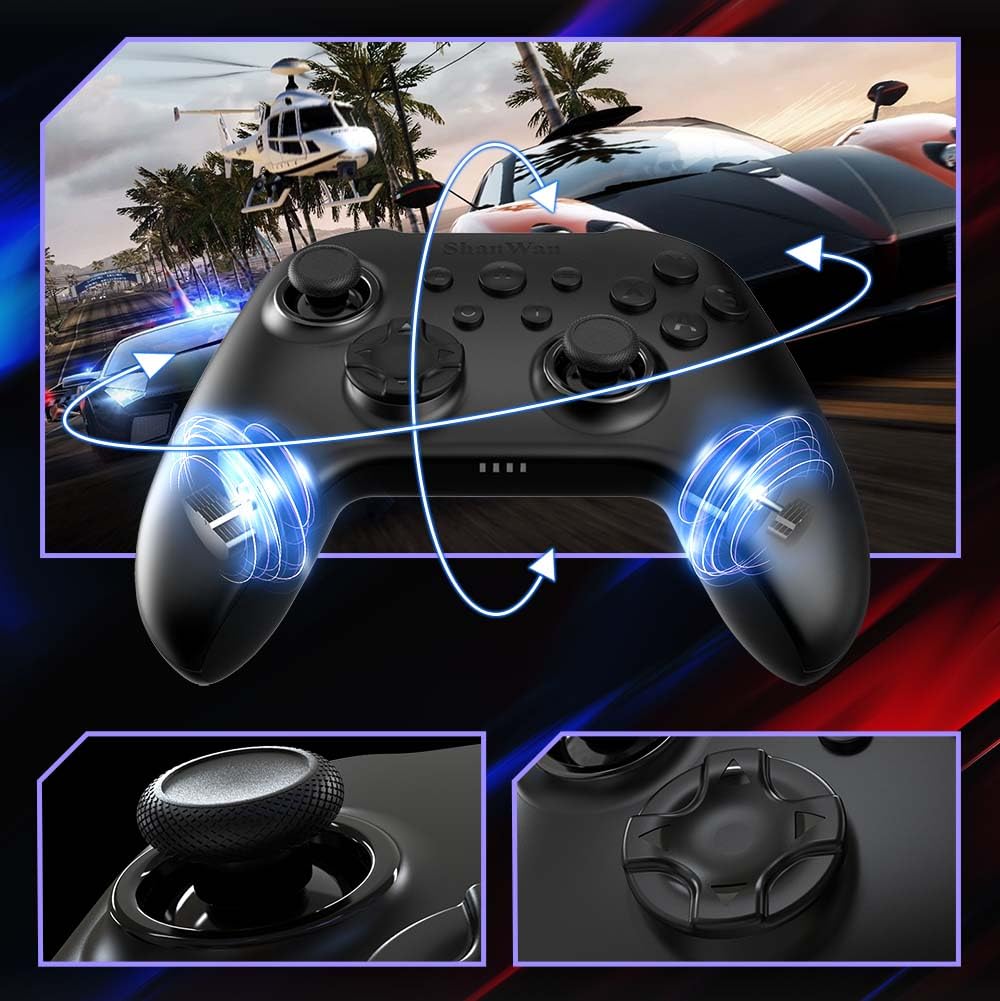
изображение: Отпред view of the ShanWan Wireless Controller, showcasing its ergonomic design, dual joysticks, D-pad, and face buttons (A, B, X, Y).
изображение: Назад view of the ShanWan Wireless Controller, highlighting the mode switch for different platforms (X, D, S).
Ключови характеристики:
- Джойстици с ефект на Хол: Designed for precision with no dead zones and anti-drift capabilities.
- Durable Gel Buttons: Conductive gel buttons tested for 1 million clicks for long-lasting performance.
- 6-осен жироскоп: Provides precise motion sensing for immersive gameplay.
- Двойни вибрационни мотори: Delivers strong and subtle haptic feedback for an enhanced gaming experience.
- Турбо функция: Allows for rapid, repeated button presses.
Настройка
1. Зареждане на контролера
Before initial use, fully charge the controller using the provided USB-C cable. Connect the USB-C end to the controller and the USB-A end to a power source (e.g., computer USB port, USB wall adapter). The charging indicator lights will show charging status and turn off when fully charged.
2. Свързване към устройства
The ShanWan Wireless Controller supports three connection modes: Bluetooth, 2.4G Wireless, and USB-C Wired. Ensure the mode switch on the back of the controller is set to the appropriate platform before attempting to connect.

изображение: Visual representation of the controller's tri-mode connectivity, illustrating Bluetooth, 2.4G wireless, and USB-C wired options.
Mode Switch Settings:
- 'S' Mode: За Nintendo Switch.
- 'X' Mode: For PC (X-input), Android.
- 'D' Mode: For PC (D-input), iOS.
Bluetooth връзка:
- Set the mode switch on the back of the controller to the desired platform ('S', 'X', or 'D').
- Press and hold the pairing button (usually a small button on the top or back) until the indicator lights flash rapidly.
- On your device (PC, iPhone, Android, Switch), go to Bluetooth settings and search for new devices.
- Select "ShanWan Controller" or a similar name from the list to pair.
- Once paired, the indicator lights on the controller will become solid.
2.4G Wireless Connection (for PC/Switch):
- Set the mode switch on the back of the controller to 'X' (for PC) or 'S' (for Switch).
- Insert the 2.4G wireless dongle into a USB port on your PC or Switch dock.
- Press the Home button on the controller to power it on. It should automatically connect to the dongle.
- The indicator lights will become solid once connected.
USB-C кабелна връзка:
- Connect the USB-C cable to the controller and the other end to your PC or Switch dock.
- The controller will automatically be recognized as a wired device.
- No specific mode switch setting is required for wired connection, but setting it to the correct platform mode ('X' for PC, 'S' for Switch) is recommended for optimal compatibility.
Инструкция за работа
Включване/изключване:
- Включване: Press the Home button once.
- Изключване: Press and hold the Home button for 3-5 seconds, or the controller will automatically power off after a period of inactivity.
Контрол на движенията:
The built-in 6-axis gyroscope provides motion control capabilities, particularly useful for games on Nintendo Switch or other compatible platforms. Ensure the game supports motion controls for this feature to function.
Вибрационна обратна връзка:
The dual vibration motors provide haptic feedback during gameplay. The intensity of the vibration can often be adjusted through game settings or the Gamepad Space app.
Турбо функция:
За да активирате функцията Turbo за конкретен бутон:
- Press and hold the button you wish to set to Turbo.
- While holding the button, press the Turbo button (refer to controller layout for location).
- The button will now repeatedly register presses as long as it is held down.
To deactivate Turbo for a button, repeat the process.
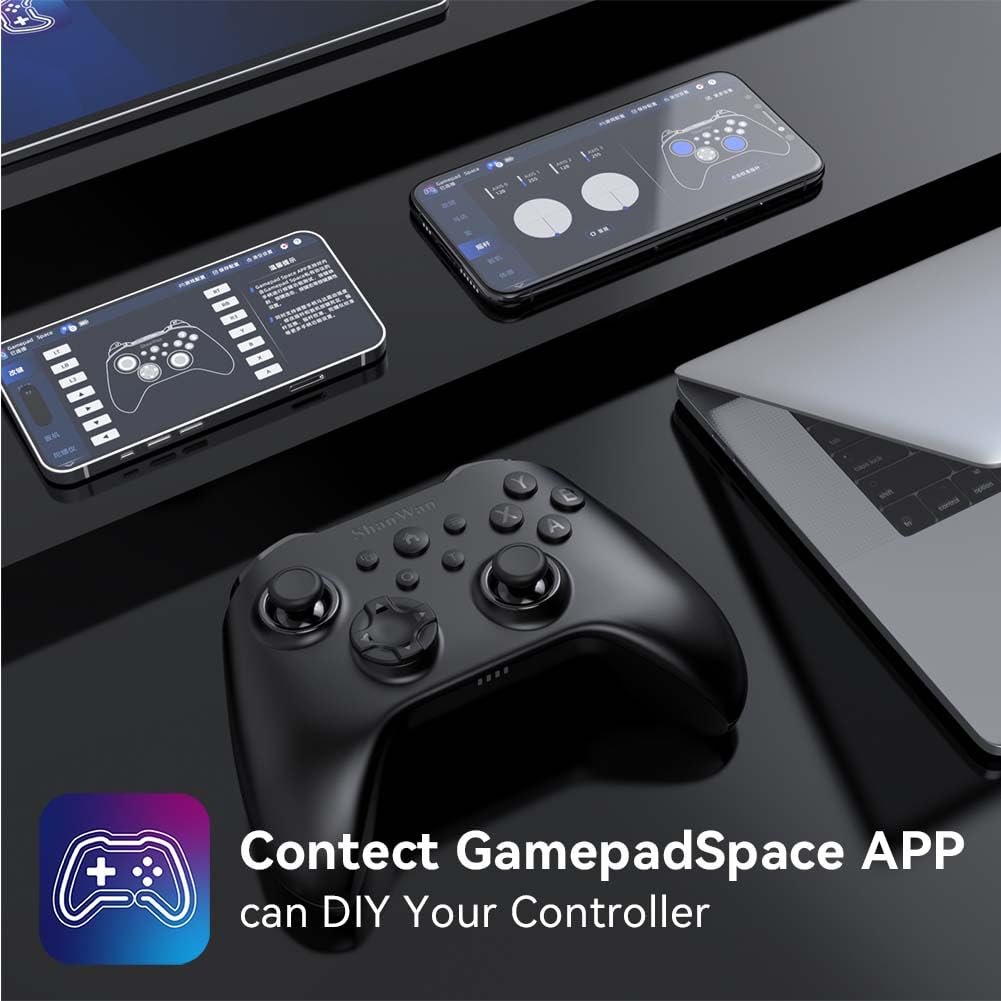
Software Customization (Gamepad Space App):
Enhance your gaming experience by customizing controller settings using the Gamepad Space mobile application.

изображение: A ShanWan controller alongside smartphones displaying the Gamepad Space app, illustrating options for calibration and on-the-fly adjustments.
- Download the "Gamepad Space" app from your mobile device's app store.
- Connect your controller to your mobile device via Bluetooth.
- В приложението можете:
- Надстройте фърмуера.
- Регулирайте мъртвите зони на лоста и спусъка.
- Персонализирайте интензитета на вибрациите.
- Тестови бутони.
Поддръжка
- Почистване: Използвайте мека, суха кърпа за почистване на контролера. Избягвайте използването на агресивни химикали или абразивни материали.
- Съхранение: Съхранявайте контролера на хладно и сухо място, далеч от пряка слънчева светлина и екстремни температури.
- Грижа за батерията: За да удължите живота на батерията, избягвайте честото пълно разреждане на контролера. Зареждайте го редовно, дори и да не го използвате постоянно.
Отстраняване на неизправности
Контролерът не се свързва:
- Уверете се, че контролерът е зареден.
- Verify the mode switch on the back of the controller is set correctly for your platform (S, X, or D).
- За Bluetooth, уверете се, че Bluetooth на устройството ви е включен и контролерът е в режим на сдвояване.
- For 2.4G wireless, ensure the dongle is properly inserted and the controller is in the correct mode.
- Опитайте да рестартирате както контролера, така и устройството си.
Закъснение на входа или прекъсвания:
- Уверете се, че наблизо няма силни електромагнитни смущения.
- Move closer to your device for a stronger wireless signal.
- Уверете се, че батерията на контролера не е изтощена.
- Consider using a wired USB-C connection for the most stable experience.
Joystick Drift or Unresponsive Buttons:
- Calibrate the joysticks and test buttons using the Gamepad Space app.
- Ensure the controller's firmware is up to date via the Gamepad Space app.
- Почистете около бутоните и джойстиците, за да отстраните евентуални замърсявания.
Спецификации
| Модел | B0FS13DT2B |
| Технология за свързване | Bluetooth, 2.4G безжична връзка, USB-C кабел |
| Съвместими устройства | Android, iOS, Nintendo Switch, Nintendo Switch 2, PC |
| Тип контролер | Геймпад |
| Количество бутони | 12 |
| Специални функции | Hall Effect Joysticks, 6-Axis Gyroscope, Dual Vibration, Turbo Function, Software Customization |
| Източник на захранване | Захранван от батерия |
| Тегло на артикула | 300 грама |
| Размери на артикула (Д x Ш x В) | 2.5" x 4" x 6" |
Гаранция и поддръжка
ShanWan products are designed for reliability and performance. For specific warranty information, please refer to the documentation included with your purchase or visit the official ShanWan support website. If you encounter any issues not covered in this manual, please contact ShanWan customer support for assistance.
Онлайн помощ: Visit the ShanWan Store on Amazon