
1. Въведение
This manual provides detailed instructions for the installation, operation, and maintenance of your darkFlash DS900 Air ATX Mid-Tower PC Gaming Case. Please read this manual thoroughly before beginning assembly to ensure proper setup and safe usage. The DS900 Air is designed to offer a clear view of your components with its 270° full-view tempered glass and provides excellent cooling capabilities for high-performance systems.

Figure 1.1: darkFlash DS900 Air ATX Mid-Tower PC Gaming Case with internal components and RGB lighting.
2. Информация за безопасност
Винаги спазвайте следните предпазни мерки по време на монтаж и работа:
- Изключете захранването от контакта, преди да инсталирате или демонтирате каквито и да е компоненти.
- Носете антистатична гривна за китка, за да предотвратите повреда от електростатичен разряд (ESD) на чувствителни компоненти.
- Handle tempered glass panels with care. Avoid impacts or dropping them, as they can shatter.
- Дръжте малките части и винтовете далеч от деца.
- Осигурете добра вентилация около корпуса, за да предотвратите прегряване.
- Do not attempt to modify the case structure, as this may void the warranty and pose safety risks.
3. Спецификации
| Характеристика | Спецификация |
|---|---|
| Име на модела | DS900 Air |
| Тип случай | ATX Mid-Tower |
| Поддръжка на дънна платка | ATX, Micro ATX, Mini ITX |
| Разрешение за дължина на GPU | До 425 мм |
| CPU Cooler Height Clearance | До 170 мм |
| Тип PSU | ATX (Bottom-mounted) |
| Отсеци за задвижване | 2x 3.5" HDD or 2x 2.5" SSD, 2x 2.5" SSD |
| Разширителни слотове | 7 PCIe слота |
| I/O портове | 1x USB-C, 1x USB 3.0, Audio (HD Audio) |
| Поддръжка на фенове | Bottom: 3x 120mm; Top: 3x 120mm or 2x 140mm; Rear: 1x 120mm; Right Side: 2x 120mm |
| Поддръжка на радиатора | Top: Up to 360mm; Side: Up to 240mm |
| Материали | Стомана, Закалено стъкло |
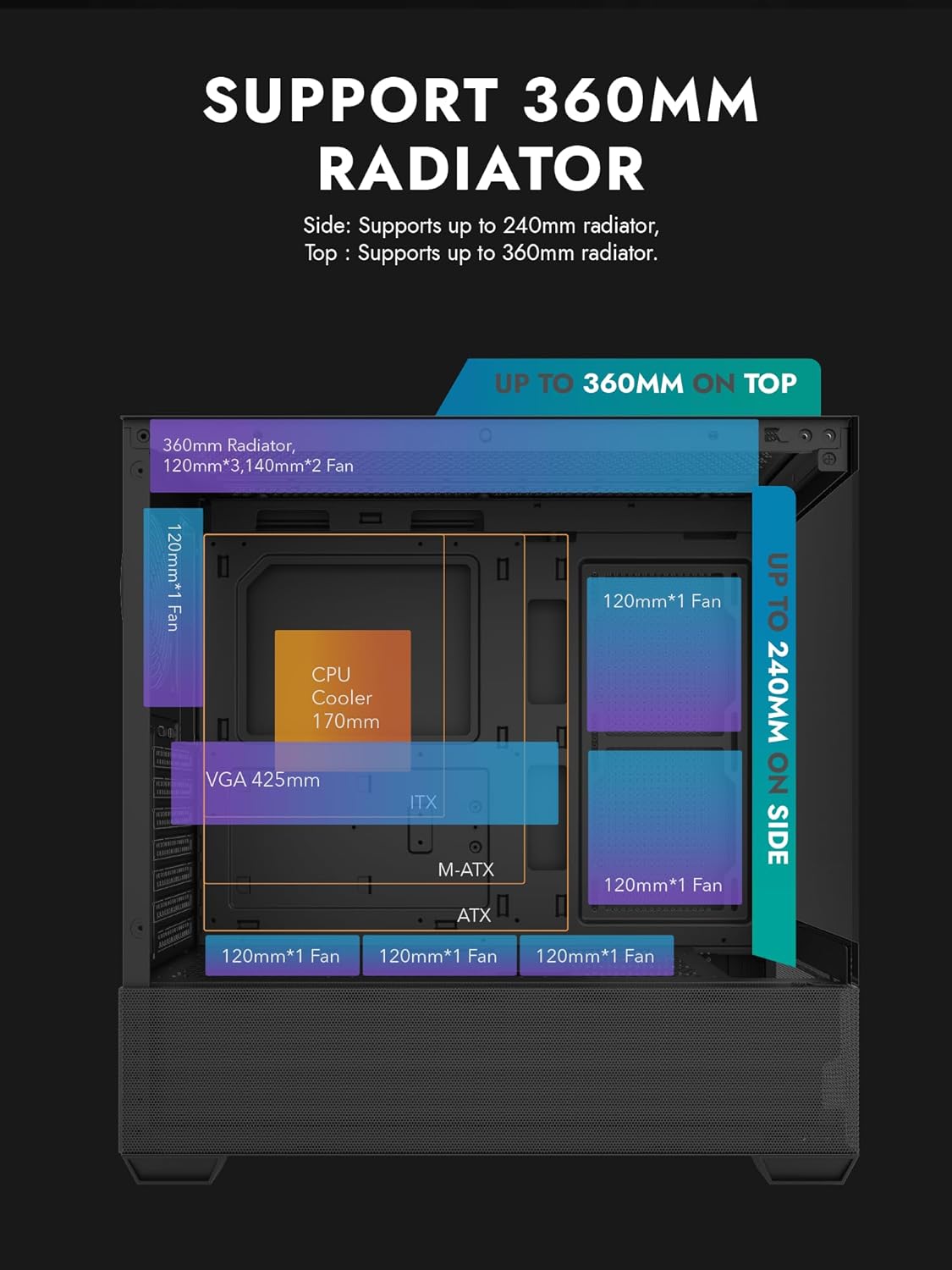
Figure 3.1: Radiator and fan support diagram for the DS900 Air case, illustrating maximum component dimensions.
4. Настройка и инсталация
Follow these steps to assemble your PC components within the darkFlash DS900 Air case.
4.1. Подготовка на делото
- Отстранете страничните панели: The DS900 Air features a tool-free clamshell side panel. Gently pull the top edge of the tempered glass side panel to unlatch it, then lift it off. Repeat for the other side panel if necessary.
- Кутия за аксесоари: Locate the accessory box inside the case, which contains screws, cable ties, and other mounting hardware.
4.2. Инсталиране на дънната платка
- Инсталирайте I/O щита в задния отвор на корпуса.
- Align your ATX, Micro-ATX, or Mini-ITX motherboard with the standoffs inside the case. Ensure the I/O ports align with the I/O shield.
- Закрепете дънната платка с помощта на предоставените винтове.
4.3. Монтаж на захранващ блок (PSU)
- The DS900 Air has a dedicated bottom PSU chamber. Slide your ATX power supply into the chamber from the rear of the case.
- Закрепете захранващия блок с винтове от задната страна на корпуса.
- Route necessary power cables through the cutouts into the main compartment.
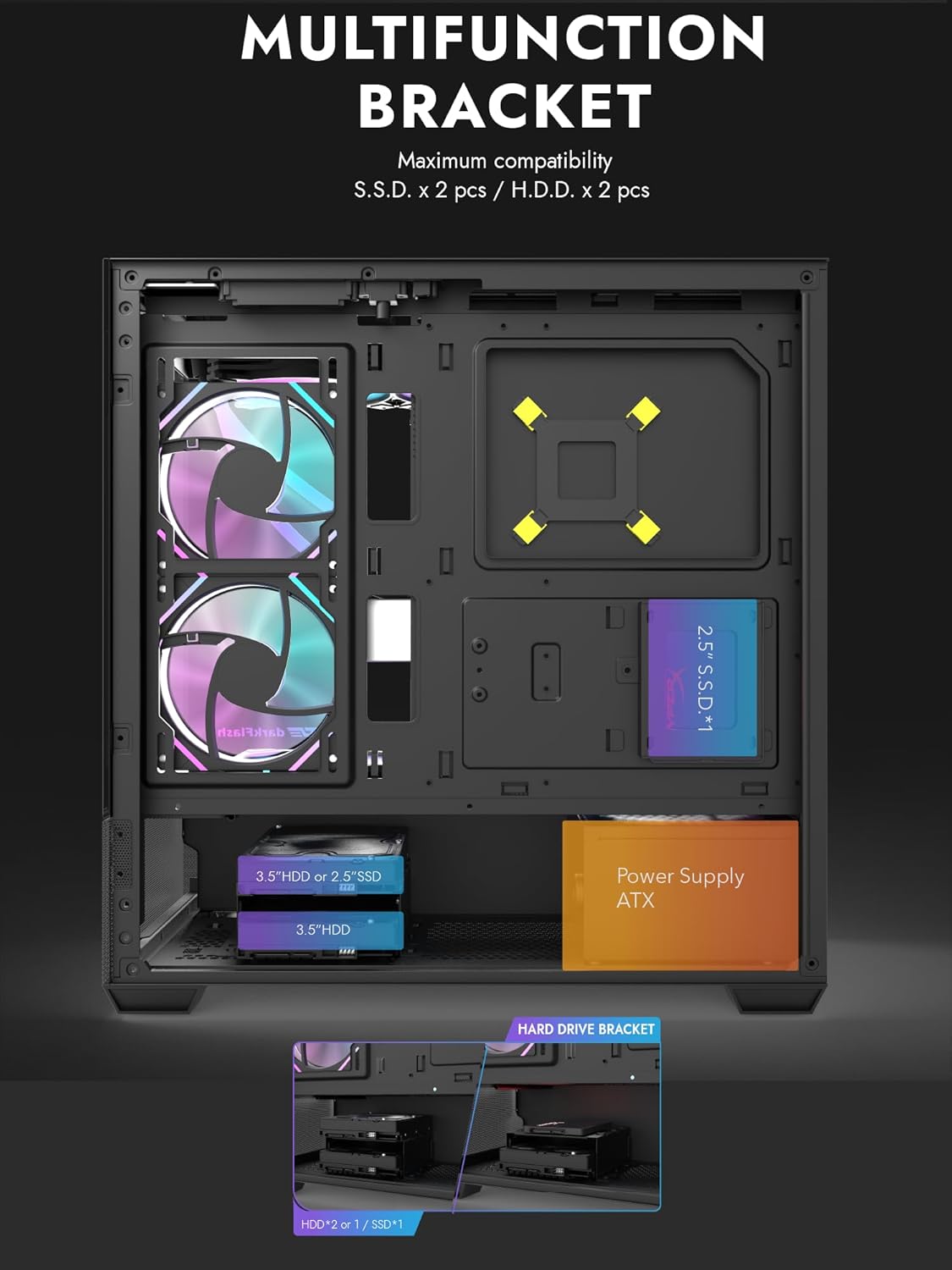
Figure 4.1: Internal layout showing the multifunction drive bracket and the bottom-mounted PSU chamber.
4.4. Инсталиране на устройство за съхранение
The case supports up to two 3.5" HDDs or 2.5" SSDs in the hard drive bracket, and two additional 2.5" SSDs on the multifunction bracket.
- 3.5" твърд диск / 2.5" SSD: Install drives into the removable hard drive bracket located in the PSU chamber. Secure with screws.
- 2.5" SSD: Mount 2.5" SSDs onto the multifunction bracket located on the motherboard tray. Secure with screws.
4.5. Инсталиране на графична карта (GPU)
- Отстранете необходимите капаци на PCIe слотовете от задната част на корпуса.
- Поставете графичната си карта в съответния PCIe слот на дънната платка.
- Secure the graphics card with screws. The case supports GPUs up to 425mm in length.
4.6. Cooling System Installation (Fans/Radiators)
The DS900 Air offers extensive cooling options:
- Най-горе: Supports up to 3x 120mm fans or 2x 140mm fans, or a 360mm radiator.
- отдолу: Поддържа до 3 x 120 мм вентилатора.
- Задна част: Поддържа 1x 120 мм вентилатор.
- Дясна страна: Supports 2x 120mm fans or a 240mm radiator.
Install fans and radiators using the appropriate screws and mounting points. Ensure correct airflow direction for optimal cooling.

Figure 4.2: Fan support locations and quantities within the DS900 Air chassis.

Figure 4.3: Airflow diagram demonstrating optimal cooling paths through the case.
4.7. Connecting Front I/O Cables
Connect the front panel cables (USB-C, USB 3.0, HD Audio, Power, Reset, LED) to their corresponding headers on your motherboard. Refer to your motherboard manual for exact header locations.

Figure 4.4: Top-right I/O panel featuring USB-C and USB 3.0 ports.
4.8. Кабелно управление
Използвайте отворите за насочване на кабелите и точките за закрепване зад тавата на дънната платка, за да ги управлявате. Това подобрява въздушния поток и естетиката.
5. Работа с вашия компютър
Once all components are installed and cables are connected, replace the side panels. Connect your monitor, keyboard, mouse, and power cable. Press the power button on the case to start your system. Ensure all fans are spinning and components are receiving power.
6. Поддръжка
Редовната поддръжка помага да се осигури оптимална производителност и дълготрайност на компонентите на вашия компютър.
- Почистване на прах: Periodically clean dust filters and internal components using compressed air. The DS900 Air features mesh panels that help filter dust.
- Въздушен поток: Ensure no obstructions block the intake or exhaust vents of the case.
- Управление на кабели: Re-evaluate cable routing periodically to ensure no cables are interfering with fan blades or airflow.
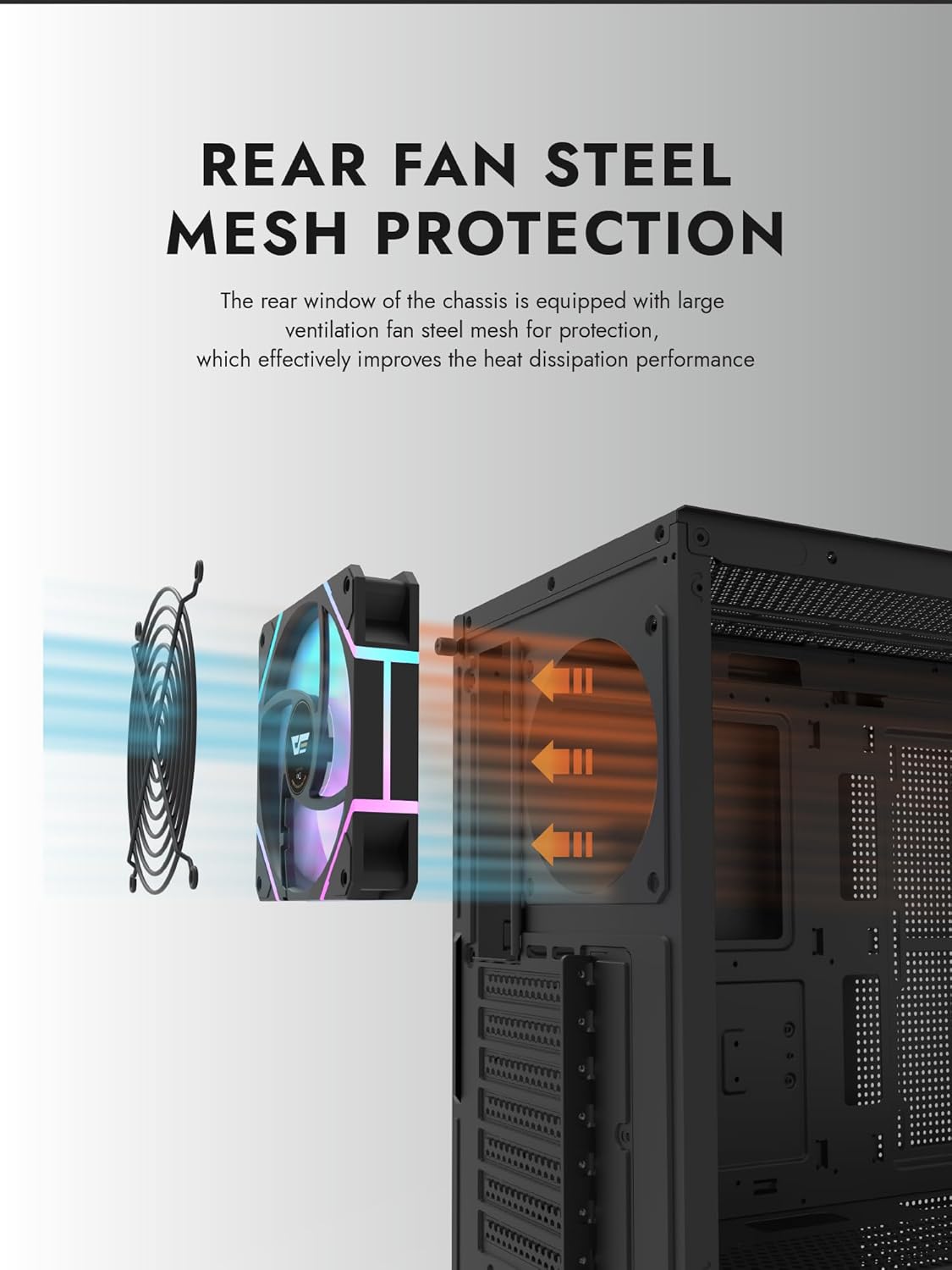
Figure 6.1: Rear fan steel mesh protection, designed to improve heat dissipation.
7. Отстраняване на проблеми
Ако срещнете проблеми със сглобяването на вашия компютър, разгледайте следните често срещани стъпки за отстраняване на неизправности:
- Без захранване: Check all power connections, including the PSU to the wall, PSU to motherboard, and front panel power switch cable to the motherboard.
- Без дисплей: Ensure your monitor is connected to the graphics card (not the motherboard I/O unless using integrated graphics). Reseat the graphics card and RAM.
- Прегряване: Verify all fans are spinning correctly and are oriented for proper airflow. Check CPU cooler installation.
- Компонентът не е открит: Reseat the component (e.g., RAM, GPU, storage drive) and check its power and data connections.
8. Гаранция и поддръжка
darkFlash products are manufactured to high-quality standards. For warranty information or technical support, please refer to the official darkFlash webсайт или се свържете с вашия търговец на дребно. Запазете касовата си бележка за покупка за гаранционни рекламации.