
1. Въведение
The Huawei OptiXstar K251a-21 is a sub-FTTR (Fiber to the Room) unit designed to extend the high-speed network provided by the Huawei FTTR OptiXstar F50 Plus main unit. This device supports ultra-Gigabit high-speed access via upstream fiber optic lines and delivers Ultra Gigabit dual-band Wi-Fi and ultra-Gigabit network ports to users. It integrates next-generation Wi-Fi 7 technology for higher speeds and lower latency, ensuring a superior home network experience.
2. Информация за безопасност
Please read and understand all safety instructions before using this device. Failure to follow these instructions may result in injury, damage to the device, or property damage.
- Използвайте само захранващия адаптер, доставен с устройството.
- Не излагайте устройството на вода, влага или екстремни температури.
- Избягвайте да поставяте устройството близо до източници на топлина или на пряка слънчева светлина.
- Осигурете подходяща вентилация, за да предотвратите прегряване.
- Do not attempt to open or repair the device yourself. Contact qualified service personnel for assistance.
- Пазете устройството далеч от деца и домашни любимци.
3. Съдържание на пакета
Проверете дали всички артикули са налични във вашия пакет:
- Huawei OptiXstar K251a-21 Sub FTTR Device
- Захранващ кабел
- Ръководство за бърз старт (ако е включено)
4. Продуктът свършиview
Запознайте се с компонентите и индикаторите на устройството.
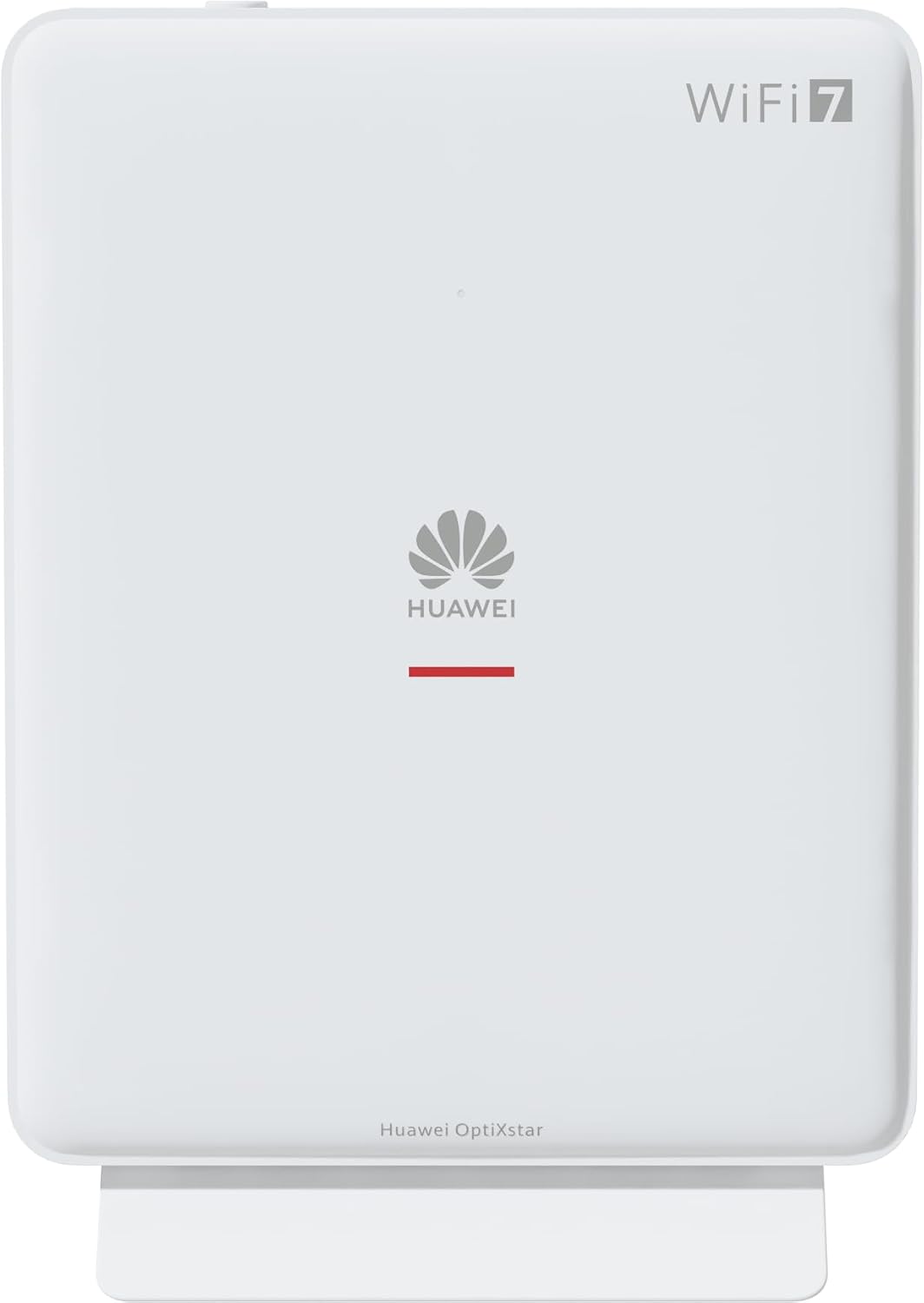
Фигура 1: Отпред view of the Huawei OptiXstar K251a-21 Sub FTTR device, showing the Huawei logo and "WiFi 7" branding.

Figure 2: Angled front-side view of the Huawei OptiXstar K251a-21 Sub FTTR, highlighting its sleek design and ventilation.

Фигура 3: Задна част view of the Huawei OptiXstar K251a-21 Sub FTTR, displaying the ports (Reset, 2-GE, 1-2.5GE, Power, FTTR) and mounting options.

Фигура 4: Страничен професионалистfile of the Huawei OptiXstar K251a-21 Sub FTTR, showing its slim form factor and ventilation grilles.

Фигура 5: Ъглова задна част view of the Huawei OptiXstar K251a-21 Sub FTTR, providing a clear look at the port labels and layout.

Фигура 6: Отгоре view of the Huawei OptiXstar K251a-21 Sub FTTR, featuring the WPS/LED button.
Портове и бутони:
- FTTR Port: Connects to the main FTTR unit via a fiber optic cable.
- 1-2.5GE Port: Gigabit Ethernet port for high-speed wired connections.
- 2-GE Port: Gigabit Ethernet port for wired connections.
- Захранващ порт: Свързва се към захранващия адаптер.
- Бутон за нулиране: Used to restore factory settings (press and hold for 5-10 seconds).
- WPS/LED Button: Initiates Wi-Fi Protected Setup (WPS) for easy device connection and controls LED indicators.
5. Настройка
Follow these steps to set up your Huawei OptiXstar K251a-21 Sub FTTR device:
- Разположение: Choose a central location in your home for optimal Wi-Fi coverage. The device is suitable for various installation scenarios, including vertical placement on a desk, wall-mounting, plugging into a power strip, or mounting in an 86mm junction box with a bracket.
- Свържете оптичен кабел: Connect one end of the fiber optic cable to the FTTR port on the Sub FTTR unit and the other end to the corresponding FTTR port on your Huawei FTTR OptiXstar F50 Plus main unit or wall outlet. Ensure the connection is secure.
- Свържете захранването: Plug the power adapter into the Power port on the Sub FTTR unit, then plug the other end into a power outlet.
- Включване: The device will automatically power on. Wait for the indicator lights to stabilize, typically indicating a successful connection to the main FTTR unit and active Wi-Fi.
- Wired Connections (Optional): For wired devices, connect an Ethernet cable from the 1-2.5GE or 2-GE ports on the Sub FTTR to your computer, gaming console, or other network devices.
6. Работещи
Once set up, your OptiXstar K251a-21 provides seamless Wi-Fi 7 connectivity.
- Wi-Fi връзка: Търсене на the Wi-Fi network name (SSID) broadcast by your FTTR system on your devices (smartphones, laptops, etc.). Enter the Wi-Fi password. The system's unique SRCN (Seamless Roaming Coordinate Network) technology ensures seamless roaming throughout your home.
- C-WAN Architecture: The C-WAN architecture centrally controls and coordinates network-wide Wi-Fi resources via the Main FTTR, providing an ultra-Gigabit high-speed experience.
- IoT Casing: The device features an IoT casing designed to protect home network security and privacy.
- WPS функция: Press the WPS/LED button briefly to use Wi-Fi Protected Setup (WPS) for quick connection of compatible devices without entering the password.
- LED индикатори: The LED indicators provide status information. Refer to the main FTTR unit's manual or the device's specific documentation for detailed LED status meanings.
7. Поддръжка
Regular maintenance helps ensure optimal performance and longevity of your device.
- Почистване: Gently wipe the device with a soft, dry cloth. Do not use liquid cleaners or abrasive materials.
- Актуализации на фърмуера: Huawei periodically releases firmware updates to improve performance and security. These updates are typically managed through the main FTTR unit or a dedicated mobile application. Ensure your system is always running the latest firmware.
- Вентилация: Уверете се, че вентилационните отвори не са блокирани, за да предотвратите прегряване.
- Управление на кабели: Keep fiber optic and power cables neatly organized and free from kinks or excessive bending.
8. Отстраняване на проблеми
Ако срещнете проблеми, опитайте следните стъпки за отстраняване на неизправности:
- Без захранване: Check if the power cable is securely connected to both the device and the power outlet. Try a different outlet.
- Няма интернет връзка:
- Verify that the fiber optic cable is correctly connected to the FTTR port.
- Check the status indicators on both the Sub FTTR and the main FTTR unit.
- Restart both the Sub FTTR and the main FTTR unit by unplugging them from power for 30 seconds and then plugging them back in.
- Ensure your main FTTR unit has an active internet connection.
- Бавна скорост на Wi-Fi:
- Ensure the device is placed optimally, away from obstructions and interference sources.
- Check if too many devices are connected to the network.
- Update the firmware of your FTTR system.
- Consider using a wired connection for bandwidth-intensive tasks.
- Не може да се свърже с Wi-Fi:
- Уверете се, че въвеждате правилната парола за Wi-Fi.
- Try using the WPS button to connect.
- Restart your device and the Sub FTTR unit.
- Фабрично нулиране: If issues persist, you may need to perform a factory reset. With the device powered on, use a pointed object (like a paperclip) to press and hold the Reset button for 5-10 seconds until the indicators change. Note that this will erase all custom settings.
9. Спецификации
| Характеристика | Спецификация |
|---|---|
| Марка | HUAWEI |
| Номер на модела | K8M251a-21G02 |
| Размери (Опаковка) | 24.5 х 23.7 х 7.4 см |
| Тегло (опаковка) | 300 грама |
| Специална функция | Интернет сигурност |
| Клас на честотната лента | Двойна лента |
| Стандарт за безжична комуникация | 802.11ax (Wi-Fi 7 Generation) |
| Съвместими устройства | Персонален компютър |
| Препоръчителни употреби | Начало |
| Включени компоненти | Захранващ кабел |
| Технология за свързване | Ethernet, FTTR, Wi-Fi, Fiberglass |
| Цвят | Бяло |
| Брой портове | 4 (FTTR, 1-2.5GE, 2-GE, Power) |
| Скорост на трансфер на данни | 1 гигабита в секунда |
| Съвместимост с интелигентен дом | Compatible with smart home systems |
| Интернет свързаност | да |
| Протокол за свързване | Wi-Fi |
10. Гаранция и поддръжка
За информация относно гаранцията и техническа поддръжка, моля, обърнете се към официалния уебсайт на Huawei. website or contact your local Huawei customer service. Keep your purchase receipt for warranty claims.
Онлайн ресурси: Посетете официалната страница за поддръжка на Huawei webсайт за често задавани въпроси, актуализирани ръководства и софтуер за изтегляне.
Обслужване на клиенти: Contact details for customer support can typically be found on the Huawei website or in the documentation provided with your main FTTR unit.