1. Въведение
Welcome to the user manual for your Logitech M705 Marathon Wireless Mouse. This document provides essential information for setting up, operating, and maintaining your device, ensuring optimal performance and longevity. The M705 mouse is designed for comfort and efficiency, featuring a long battery life and customizable controls for enhanced productivity.
2. Продуктът свършиview
Ключови характеристики
- Удължен живот на батерията: Enjoy up to 3 years of battery life, reducing the need for frequent replacements.
- Ергономичен дизайн: Sculpted to fit the natural curve of your right hand, providing comfort during prolonged use.
- Хипербързо превъртане: Navigate through long documents and web pages with a single spin of the scroll wheel, or switch to click-to-click scrolling for precision.
- Програмируеми бутони: Five customizable buttons, including forward/back thumb buttons, allow for personalized shortcuts and enhanced control.
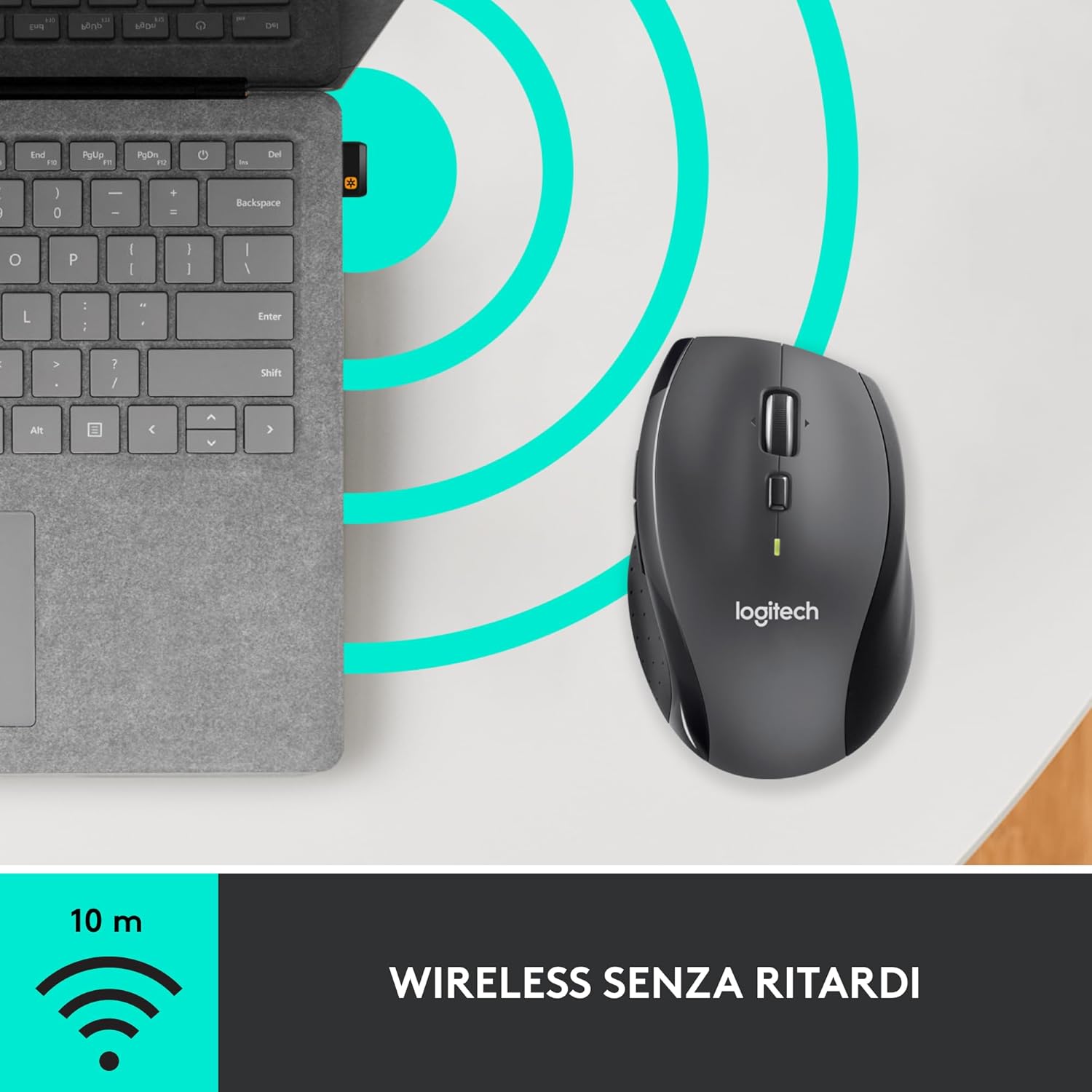
- Обединяващ приемник: A small USB Unifying receiver connects up to six compatible Logitech devices, freeing up USB ports.
- Широка съвместимост: Съвместим с операционни системи Windows, macOS, Chrome OS и Linux.
Съдържание на пакета
The Logitech M705 Marathon Wireless Mouse package typically includes:
- Безжична мишка Logitech M705
- USB приемник Logitech Unifiing
- 2 AA Alkaline Batteries (may vary by region/packaging)

3. Инструкции за настройка
3.1. Инсталиране на батерии
- Turn the mouse over and locate the battery compartment cover on the underside.
- Press the release button or slide the cover to open the compartment.
- Поставете двете батерии тип AA, като внимавате за правилната полярност (+/-).
- Сменете капака на отделението за батерията.

3.2. Свързване на USB Unifying приемника
- Locate the small USB Unifying receiver. It may be stored inside the battery compartment of the mouse.
- Включете USB приемника в наличен USB порт на вашия компютър.
- Включете мишката, като използвате превключвателя за включване/изключване, разположен от долната страна.
- Your computer should automatically detect the mouse. If not, visit the Logitech support website for driver installation.
4. Инструкции за работа
4.1. Основни функции на мишката
The M705 mouse features standard left and right-click buttons, a scroll wheel, and additional programmable buttons.

4.2. Хипер-бързо скролиране
Скролиращият колелце предлага два режима:
- Хипербърз режим: Press the button directly below the scroll wheel to unlock it for smooth, rapid scrolling through long documents or web страници.
- Режим „кликни по клик“: Press the button again to engage precise, stepped scrolling, ideal for navigating lists or image galleries.

4.3. Програмируеми бутони
The M705 features five programmable buttons, including two thumb buttons and tilt-scroll functionality. These can be customized using the Logitech Options software.

5. Персонализиране
To unlock the full potential of your M705 mouse, download and install the Logitech Options software from the official Logitech webсайт. Този софтуер ви позволява да:
- Assign custom functions to the five programmable buttons.
- Adjust tracking speed (DPI).
- Конфигурирайте настройки, специфични за приложението.
- Проверете състоянието на батерията.

6. Поддръжка
6.1. Почистване
За почистване на мишката използвайте мека кърпа без власинки. За упорити замърсявания, леко намажетеampen the cloth with water. Avoid using harsh chemicals or abrasive materials, as these can damage the mouse surface or internal components.
6.2. Смяна на батерията
When the battery indicator light on your mouse begins to flash or if performance degrades, it's time to replace the batteries. Follow the steps in Section 3.1 to replace the two AA batteries. Dispose of old batteries responsibly according to local regulations.
7. Отстраняване на проблеми
7.1. Мишката не реагира
- Уверете се, че мишката е включена.
- Check the battery level and replace batteries if necessary.
- Verify the USB Unifying receiver is securely plugged into a working USB port.
- Опитайте да включите приемника в друг USB порт или друг компютър, за да изолирате проблема.
- Ако използвате USB хъб, опитайте да го свържете директно към компютъра.
7.2. Нестабилно движение на курсора
- Почистете оптичния сензор от долната страна на мишката.
- Ensure you are using the mouse on a suitable surface. Highly reflective or transparent surfaces may cause tracking issues. A mouse pad is recommended.
- Check for interference from other wireless devices. Move the mouse closer to the USB receiver.
7.3. Unifying Receiver Issues
If the mouse loses connection or you need to pair it with a new receiver, download the Logitech Unifying Software from the Logitech support website. This software guides you through the pairing process.
8. Спецификации
| Характеристика | детайл |
|---|---|
| Марка | Logitech |
| Име на модела | M705 |
| Номер на модела | 910-001949 |
| Технология за свързване | Безжичен (2.4 GHz USB Unifying приемник) |
| Технология за откриване на движение | Лазер |
| Резолюция на движение | 1000 DPI (up to 3200 DPI maximum resolution) |
| Брой бутони | 5 Програмируеми бутони |
| Източник на захранване | Battery (2 x AA Alkaline) |
| Среден живот на батерията | До 3 години |
| Безжичен обхват | До 10 метра |
| Форма фактор | Right-hand ergonomic |
| Размери (Д x Ш x В) | 20 x 13 x 12 cm (Product packaging dimensions) |
| Тегло | 136 грама |
| Съвместими операционни системи | Windows 7, 8, 10; macOS 10.11 or later; Chrome OS; Linux |
9. Гаранция и поддръжка
За подробна информация за гаранцията и техническа поддръжка, моля, обърнете се към официалния сайт на Logitech. webсайта или се свържете с отдела за обслужване на клиенти на Logitech. Запазете касовата си бележка за покупка за гаранционни рекламации.


