1. Въведение
The Intel NUC DE3815TYKHE is a compact, fanless mini PC designed for various applications, including thin clients, digital signage, and embedded solutions. This kit provides a flexible platform with support for a 2.5-inch storage drive, offering a customizable computing experience in a small form factor.
2. Съдържание на пакета
Проверете дали всички артикули са налични във вашия пакет:
- Intel NUC DE3815TYKHE Unit
- Захранващ адаптер
- VESA Mounting Bracket (with screws)
- Ръководство за бърз старт (ако е включено)
3. Физически надview
3.1 Преден панел
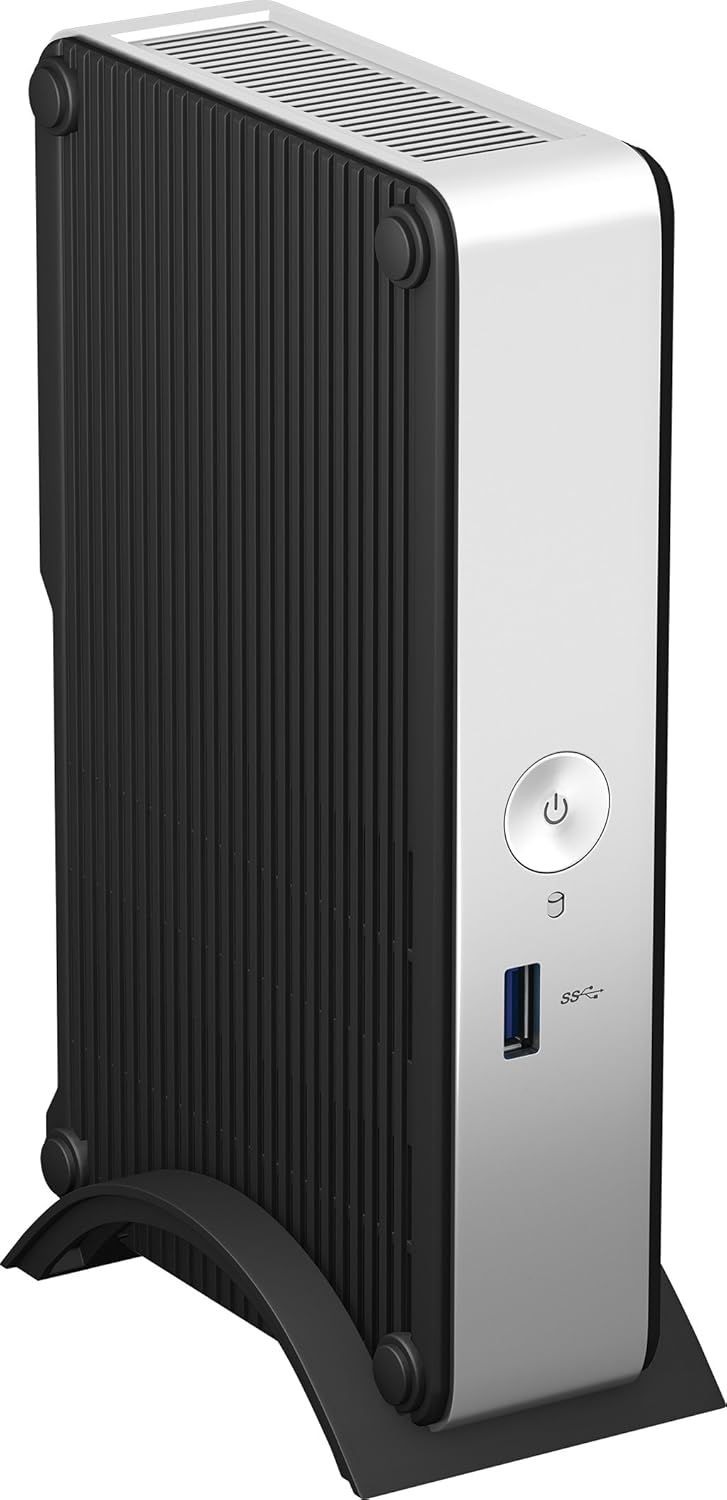
The front panel provides essential connectivity and controls.

Изображение 1: Отпред view of the Intel NUC DE3815TYKHE. This image displays the compact, fanless design of the unit, highlighting the power button and a single blue USB 3.0 port on the front for easy access.
- Бутон за захранване: Използва се за включване или изключване на устройството.
- USB 3.0 порт: За свързване на високоскоростни USB устройства.
3.2 Заден панел
The rear panel houses various ports for display, network, and peripherals.

Изображение 2: Задна view of the Intel NUC DE3815TYKHE. This image details the available rear ports, including VGA, HDMI, two USB ports, an Ethernet port, and a headphone/microphone jack, along with the power input.
- VGA порт: За свързване към по-стари монитори или проектори.
- HDMI порт: For connecting to modern displays with audio support.
- USB 2.0 портове (x2): За свързване на стандартни USB устройства.
- Ethernet порт (RJ-45): За кабелна мрежова свързаност.
- Жак за слушалки/микрофон: За аудио вход и изход.
- Входяща постоянна мощност: За свързване на променливотоковия адаптер.
3.3 Вътрешни компоненти
Accessing the internal components is necessary for memory and storage installation.
Изображение 3: Intel NUC DE3815TYKHE unit displayed alongside its internal motherboard. This view illustrates the compact size of the main unit and the layout of the internal components, including the processor, memory slot, and connectors for storage.
- DDR3L SODIMM Slot: For installing system memory.
- 2.5-inch Drive Bay: For installing a SATA HDD or SSD.
- Безжични антени: Built-in for wireless connectivity.
- eMMC съхранение: 4GB embedded storage for operating system or data.
4. Настройка
Follow these steps to prepare your Intel NUC for operation.
4.1 Инсталиране на памет (RAM)
- Unscrew and remove the bottom cover of the NUC unit.
- Locate the DDR3L SODIMM slot on the motherboard.
- Align the notch on the SODIMM module with the notch in the slot.
- Insert the module at a 45-degree angle and press down until the retaining clips snap into place.
4.2 Installing a 2.5-inch Storage Drive
- With the bottom cover removed, locate the 2.5-inch drive bay.
- Connect the SATA data and power cables from the NUC to your 2.5-inch HDD or SSD.
- Secure the drive within the bay using the provided screws (if applicable).
- Replace the bottom cover and secure it with screws.
4.3 Свързване на периферни устройства
- Дисплей: Connect your monitor to the HDMI or VGA port.
- Клавиатура и мишка: Connect USB keyboard and mouse to any available USB ports.
- мрежа: For wired internet, connect an Ethernet cable to the RJ-45 port. For wireless, ensure antennas are clear.
- аудио: Connect headphones or speakers to the audio jack if needed.
4.4 Включване
- Connect the AC power adapter to the DC power input on the rear panel.
- Включете захранващия адаптер в стенен контакт.
- Press the power button on the front panel to turn on the NUC.
5. Инсталиране на операционна система
The Intel NUC DE3815TYKHE supports multiple operating systems. You will need to install your preferred OS onto the internal eMMC storage or the 2.5-inch drive you installed.
- Prepare a bootable USB drive with your chosen operating system (e.g., Windows, Linux).
- Connect the USB drive to a USB port on the NUC.
- Power on the NUC and enter the BIOS/UEFI setup (usually by pressing F2 during boot) to configure the boot order.
- Следвайте инструкциите на екрана, за да инсталирате операционната система.
6. Поддръжка
The fanless design of the Intel NUC DE3815TYKHE minimizes maintenance requirements.
- Почистване: Periodically wipe the exterior with a soft, dry cloth. Avoid using liquid cleaners directly on the unit.
- Вентилация: Ensure the ventilation slots are not obstructed to allow for proper passive cooling.
- Софтуерни актуализации: Поддържайте операционната си система и драйверите актуализирани за оптимална производителност и сигурност.
7. Отстраняване на проблеми
Ако срещнете проблеми, вижте следните често срещани стъпки за отстраняване на неизправности.
- Без захранване: Ensure the power adapter is securely connected to both the NUC and a working power outlet. Test the outlet with another device.
- Без дисплей: Verify that the monitor is powered on and correctly connected to the NUC's HDMI or VGA port. Try a different cable or monitor if possible.
- Операционната система не се стартира: Check the boot order in the BIOS/UEFI settings. Ensure the installed storage drive is detected and contains a valid operating system.
- Периферното устройство не е открито: Ensure USB devices are properly seated in the ports. Try a different USB port or device.
- Няма мрежова свързаност: For wired connections, check the Ethernet cable and router. For wireless, ensure Wi-Fi is enabled in the OS and the NUC is within range of a network.
8. Спецификации
| Характеристика | детайл |
|---|---|
| Име на модела | DE3815TYKHE |
| Процесор | Intel Atom Processor (e.g., E3815) |
| RAM | 4 GB DDR3L 1333 (SODIMM slot for expansion) |
| Вътрешна памет | 4GB eMMC (embedded MultiMediaCard) |
| Разширяване на съхранението | Internal 2.5-inch SATA HDD/SSD bay |
| Графика | Интегрирана Intel Graphics |
| Видео изход | HDMI, VGA |
| USB портове | 1x USB 3.0 (отпред), 2x USB 2.0 (отзад) |
| аудио | Комбиниран жак за слушалки/микрофон |
| мрежа | Ethernet (RJ-45), Built-in Wireless Antennas |
| Дизайн | Без вентилатор |
| Поддръжка на операционна система | Multiple OS options (e.g., Windows, Linux) |
| Цвят | Metallic gray plastic ring with black sides |
9. Гаранция и поддръжка
За информация относно гаранцията и техническа поддръжка, моля, обърнете се към официалния уебсайт на Intel. webсайт или се свържете с мястото на покупка. Запазете доказателството си за покупка за гаранционни рекламации.
- Онлайн помощ: Посетете Intel Support for DE3815TYKHE for drivers, downloads, and troubleshooting resources.
- Контакт: Refer to the Intel support page for contact options.


