1. Настройка
1.1 Разопаковане на монитора
Внимателно извадете всички компоненти от опаковката. Уверете се, че всички изброени по-долу елементи са налични:
- BenQ EX3501R Monitor
- Стойка за монитор (основа и шия)
- Захранващ адаптер
- Захранващ кабел
- HDMI кабел
- DisplayPort кабел
- USB-C кабел
- Ръководство на потребителя (този документ)
1.2 Сглобяване на стойката
Следвайте тези стъпки, за да прикрепите стойката към монитора си:
- Поставете монитора с екрана надолу върху мека, чиста кърпа, за да предотвратите надраскване.
- Прикрепете стойката към задната част на монитора. Уверете се, че щраква здраво на мястото си.
- Connect the stand base to the neck, tightening any screws as indicated in the quick start guide.

Фигура 1: Отпред view of the BenQ EX3501R monitor with its stand.
1.3 Свързващи кабели
Connect the necessary cables to the monitor and your computer. The monitor supports various input options:
- мощност: Свържете захранващия адаптер към монитора и след това към електрически контакт.
- Video Input: Use either the HDMI, DisplayPort, or USB-C cable to connect your computer to the monitor.
- USB-C: The USB-C port supports video, data transfer, and power delivery, allowing for a single-cable connection with compatible devices.
- USB 3.0 портове: Utilize the integrated USB 3.0 ports for connecting peripherals.
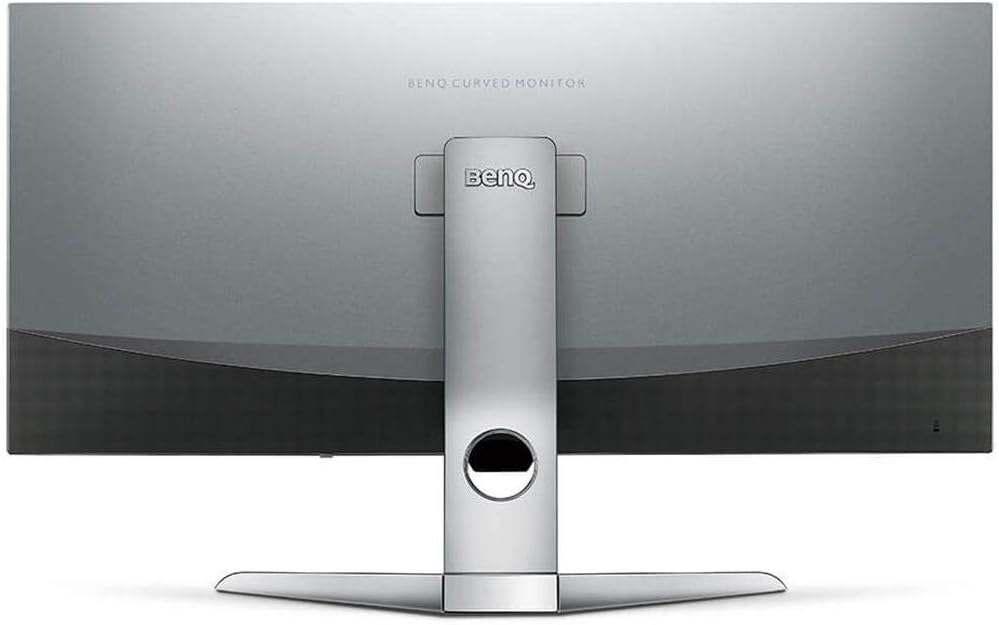
Фигура 2: Задна част view of the monitor displaying the connectivity ports.
2. Работа с монитора
2.1 Включване/изключване
Press the power button, usually located on the bottom right side of the monitor, to turn it on or off. The power indicator light will illuminate when the monitor is active.
2.2 Навигация в екранното меню (OSD)
Use the joystick or buttons located on the monitor's underside to navigate the On-Screen Display (OSD) menu. This menu allows you to adjust various settings such as brightness, contrast, color modes, and input sources.
2.3 Display Features and Eye-Care Technology
The BenQ EX3501R incorporates several technologies designed to enhance viewing experience and reduce eye strain:
- Brightness Intelligence Plus (B.I.+): This patented technology automatically senses ambient lighting conditions and adjusts the screen's brightness and color temperature to provide optimal viewing comfort and protect your eyes during extended use.
- Слаба синя светлина: Filters out harmful blue light emissions to reduce eye fatigue. Multiple levels of blue light reduction are available.
- ZeroFlicker™: Eliminates screen flickering at all brightness levels, further reducing eye strain and discomfort.
- HDR (висок динамичен диапазон): Offers enhanced brightness and contrast, bringing greater detail and vibrancy to HDR video content.
Видео 1: Овърview of BenQ's Eye-Care technology, including Low Blue Light, ZeroFlicker, and Brightness Intelligence Plus, demonstrating how these features work to reduce eye strain and adjust screen settings automatically based on ambient light.
2.4 Разделителна способност и честота на опресняване
The monitor features a QHD (3440x1440) resolution and a 100Hz refresh rate, providing a smooth and detailed visual experience. The 21:9 ultrawide aspect ratio offers ample screen space for multitasking, such as viewing multiple documents side-by-side without needing a second monitor.
2.5 AMD FreeSync
For a fluid gaming experience, the monitor supports AMD FreeSync technology, which synchronizes the monitor's refresh rate with your graphics card's frame rate to eliminate screen tearing and stuttering.
3. Поддръжка
3.1 Почистване на монитора
To maintain optimal performance and appearance, regularly clean your monitor:
- екран: Внимателно избършете екрана с мека кърпа без власинки. За упорити замърсявания използвайте специален почистващ разтвор за монитори, нанесен върху кърпата, а не директно върху екрана.
- Екстериор: Use a soft, dry cloth to wipe dust and debris from the monitor casing and stand.
Avoid using abrasive cleaners, waxes, or solvents as they can damage the monitor's surface.
3.2 Общи съвети за грижа
- Не блокирайте вентилационните отвори на монитора.
- Избягвайте да поставяте монитора на пряка слънчева светлина или в близост до източници на топлина.
- Работете с монитора внимателно, за да предотвратите физическа повреда.
4. Отстраняване на проблеми
If you encounter issues with your BenQ EX3501R monitor, refer to the following common troubleshooting steps:
4.1 No Display or Black Screen
- Уверете се, че захранващият кабел е здраво свързан както към монитора, така и към контакта.
- Verify that the video cable (HDMI, DisplayPort, or USB-C) is firmly connected to both the monitor and your computer.
- Проверете дали в екранното меню на монитора е избран правилният входен източник.
- Рестартирайте компютъра си.
4.2 Flickering or Unstable Image
- Ensure the ZeroFlicker™ feature is enabled in the OSD menu.
- Проверете за хлабави връзки на видео кабела.
- Актуализирайте драйверите на вашата графична карта до най-новата версия.
- Ако използвате AMD FreeSync, уверете се, че е правилно конфигуриран в настройките на вашата графична карта.
4.3 Color or Brightness Issues
- Регулирайте настройките за яркост, контраст и цвят чрез екранното меню.
- Enable or disable Brightness Intelligence Plus (B.I.+) to see if it resolves the issue.
- Извършете фабрично нулиране чрез екранното меню.
5. Спецификации
Key technical specifications for the BenQ EX3501R monitor:
| Характеристика | Спецификация |
|---|---|
| Размер на екрана | 35 инча |
| Максимална разделителна способност на екрана | 3440 x 1440 пиксела (QHD ултраширок екран) |
| Съотношение на страните | 21:9 |
| Честота на опресняване | 100 Hz |
| кривина | 1800R |
| Тип панел | VA (вертикално подравняване) |
| Свързаност | USB-C, HDMI, DisplayPort |
| Специални функции | AMD FreeSync, Brightness Intelligence Plus, Low Blue Light, ZeroFlicker |
| Тегло на артикула | 21.3 паунда |
| Размери на продукта | 6.88 x 3.47 x 12.93 инча |
6. Гаранция и поддръжка
6.1 Гаранция на продукта
The BenQ EX3501R monitor typically comes with a 3-year manufacturer's warranty. Please refer to the warranty card included in your product packaging for specific terms and conditions, or visit the official BenQ webсайт за подробна информация за гаранцията.
6.2 Поддръжка на клиенти
For further assistance, technical support, or warranty claims, please contact BenQ customer service. You can find contact information and support resources on the official BenQ webсайт: www.benq.com/en-us/support.html