Въведение
This manual provides essential information for setting up, operating, and maintaining your Samsung Galaxy Note 10 smartphone. The Galaxy Note 10 (Model SM-N970U) features a 6.3-inch Dynamic AMOLED display, a powerful processor, 256GB of internal storage, a versatile triple camera system, and the iconic S Pen with enhanced capabilities.
Моля, прочетете внимателно това ръководство, за да осигурите правилната употреба и да увеличите максимално потенциала на вашето устройство.
1. Настройка
1.1 Разопаковане и първоначално заплащане
Upon unboxing, ensure all components are present. It is recommended to fully charge your device before first use. Connect the provided charging cable to the USB-C port at the bottom of the phone and plug the adapter into a power outlet.
1.2 Инсталиране на SIM карта
За да инсталирате вашата Nano-SIM карта:
- Намерете тавата за SIM карта в горния ръб на телефона.
- Поставете предоставения инструмент за изваждане на SIM картата в малкия отвор до нея.
- Внимателно натиснете, докато тавата изскочи.
- Поставете вашата Nano-SIM карта в поставката със златните контакти надолу.
- Внимателно поставете обратно поставката в телефона, докато щракне на мястото си.
1.3 Включване/изключване
- За включване: Press and hold the Side key (located on the right side) until the Samsung logo appears.
- За изключване: Press and hold the Side key and Volume Down button simultaneously, then tap 'Power off' on the screen. Alternatively, swipe down from the top of the screen to open the Quick Settings panel, tap the Power icon, and select 'Power off'.
1.4 Първоначална настройка на устройството
Follow the on-screen prompts to complete the initial setup, which includes selecting your language, connecting to Wi-Fi, signing into your Google account, and setting up security features like fingerprint recognition.

Изображение: Отпред view of the Samsung Galaxy Note 10 with the S Pen alongside. This illustrates the device's design and the S Pen's presence.
2. Работа с вашето устройство
2.1 Основна навигация
The Galaxy Note 10 uses a touch-based interface. Swipe, tap, pinch, and spread gestures are used for navigation and interaction. The navigation bar at the bottom of the screen (or full-screen gestures) allows you to go back, go to the home screen, or view скорошни приложения.
2.2 Функционалност на S Pen
The S Pen is an integral part of the Note 10 experience.
- Водене на бележки: Remove the S Pen to automatically launch Air Command, then select 'Create note' or 'Screen off memo' to quickly jot down ideas.
- Въздушни действия: Use the S Pen's Bluetooth capabilities to control your phone remotely. For example, press the S Pen button to take photos, or gesture to navigate presentations. Customize Air Actions in Settings > Advanced features > S Pen > Air actions.
- Интелигентен избор: Capture specific areas of the screen, extract text, or create GIFs.
2.3 Използване на камерата
Your Galaxy Note 10 features a versatile triple-camera system on the rear and a 10MP front camera.
- Стартиране на камерата: Double-press the Side key or tap the Camera app icon.
- Режими: Swipe left or right on the camera screen to switch between modes like Photo, Video, Pro, Live Focus, Super Steady, and Scene Optimizer.
- мащабиране: Pinch the screen or tap the lens icons (wide, telephoto, ultra-wide) to adjust zoom.
2.4 Свързване
- Wi-Fi: Отидете в Настройки > Връзки > Wi-Fi, за да се свържете с наличните мрежи.
- Bluetooth: Go to Settings > Connections > Bluetooth to pair with headphones, speakers, or other devices.
- Мобилни данни: Ensure mobile data is enabled in Quick Settings or Settings > Connections > Data usage for internet access via your cellular network.

Изображение: Отпред view of the Samsung Galaxy Note 10 with its display active, showcasing the Infinity-O design.
3. Поддръжка
3.1 Почистване на устройството
Use a soft, lint-free cloth to clean your phone's screen and body. Avoid harsh chemicals or abrasive materials. For stubborn smudges, slightly dampen кърпата с вода.
3.2 Грижи за батерията
The Galaxy Note 10 is equipped with a 3500 mAh battery. To prolong battery life:
- Избягвайте екстремни температури.
- Optimize battery usage in Settings > Device care > Battery.
- Затворете неизползваните приложения, работещи във фонов режим.
- Намалете яркостта на екрана и времето за изключване на екрана.
3.3 Софтуерни актуализации
Keep your device's software up to date to ensure optimal performance and security. Check for updates in Settings > Software update > Download and install.
3.4 Управление на съхранението
Your device has 256GB of internal storage. Regularly review и изтрийте ненужното files, apps, and media to free up space. You can manage storage in Settings > Device care > Storage.
3.5 Renewed Product Condition
As a renewed product, your Samsung Galaxy Note 10 has been inspected and tested to work and look like new. It comes with generic or original accessories. Cosmetic condition may vary based on the renewed grade (Excellent, Good, Acceptable), but functionality is guaranteed. Battery life is typically greater than 80% of a new equivalent.
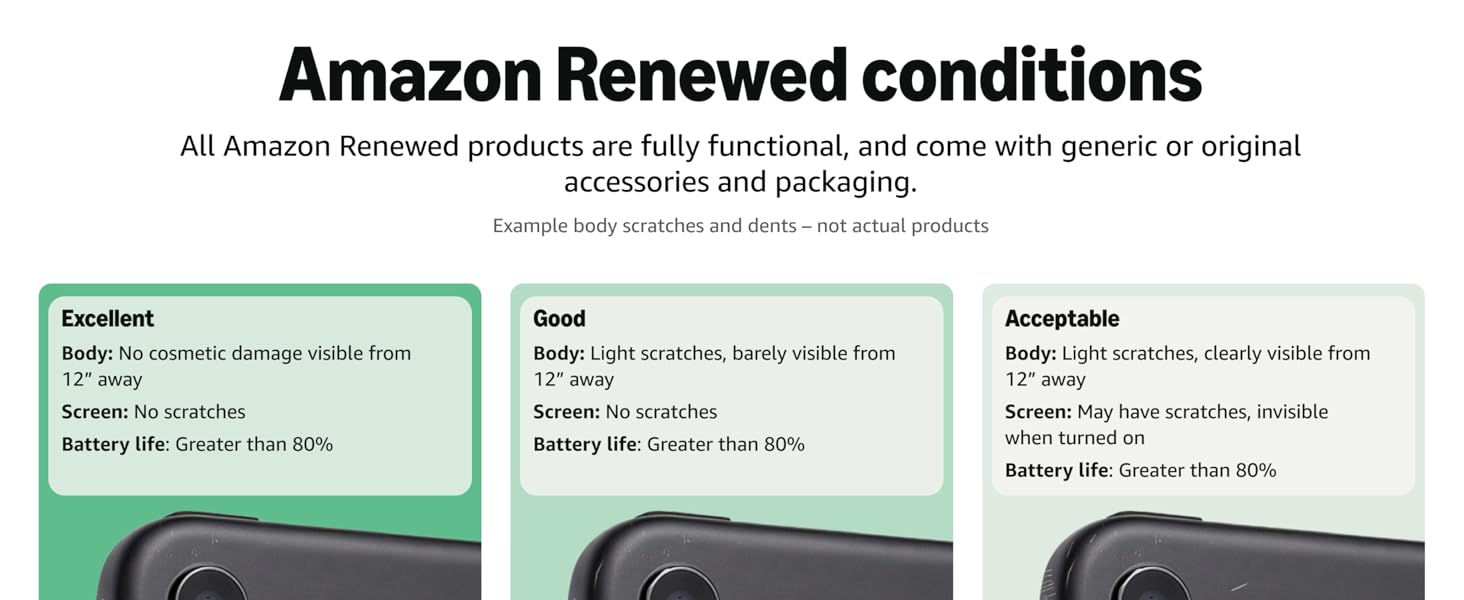
Image: Diagram illustrating Amazon Renewed conditions (Excellent, Good, Acceptable) based on cosmetic damage visibility and battery life.
4. Отстраняване на проблеми
Ако срещнете проблеми с устройството си, опитайте следните решения:
- Устройството не отговаря: Press and hold the Side key and Volume Down button for about 7 seconds to force restart the device.
- Лош живот на батерията:
- Ensure background apps are closed.
- Reduce screen brightness and disable unnecessary features like Always On Display.
- Check battery usage in Settings > Device care > Battery to identify power-hungry apps.
- Consider that renewed devices may have slightly reduced battery capacity compared to new, though it should be above 80%.
- Fingerprint Scanner Issues:
- Уверете се, че пръстът ви и екранът са чисти и сухи.
- Re-register your fingerprints.
- If using a screen protector, ensure it is compatible with the in-display fingerprint sensor. Some screen protectors can interfere with its functionality.
- Проблеми със зареждането:
- Use the original or a certified charging cable and adapter.
- Проверете порта за зареждане за отломки.
- Опитайте с друг електрически контакт.
- Проблеми със свързаността (Wi-Fi/Bluetooth/мобилна мрежа):
- Toggle Wi-Fi, Bluetooth, or Mobile Data off and on.
- Рестартирайте телефона си.
- За Wi-Fi, рестартирайте рутера си.
- For cellular, ensure your SIM card is properly inserted and your plan is active.
- Screen Damage: While renewed products are tested, accidental drops can cause screen damage. Always use a protective case and screen protector to minimize risk.
- Фабрично нулиране: Като последна мярка, ако проблемите със софтуера продължават, можете да извършите фабрично нулиране. Предупреждение: Това ще изтрие всички данни на вашето устройство. Архивирайте важни данни, преди да продължите. Отидете в Настройки > Общи настройки > Нулиране > Фабрични настройки.
5. Спецификации
| Характеристика | детайл |
|---|---|
| Име на модела | Galaxy Note 10 |
| Номер на модела | SM-N970U |
| Дисплей | 6.3-inch Dynamic AMOLED, 2280 x 1080 resolution, 60Hz Refresh Rate |
| Процесор | Snapdragon 855, 1.78 GHz CPU Speed |
| RAM | 8 GB |
| Вътрешна памет | 256 GB |
| Задна камера | Triple Camera System (12MP Wide, 12MP Telephoto, 16MP Ultra-Wide) |
| Предна камера | 10 MP |
| Операционна система | Android |
| Капацитет на батерията | 3500 милиamp Часове (mAh) |
| Свързаност | Cellular, Bluetooth, Wi-Fi, GPS |
| Аудио жак | Няма жак за слушалки |
| Размери (продукт) | 7 x 5 x 4 инча |
| Тегло на артикула | 11 унции |
| Включен в кутия | SIM Tray Ejector (other accessories may be generic) |
6. Гаранция и поддръжка
6.1 Renewed Product Warranty
This Samsung Galaxy Note 10 is a renewed product. It typically comes with a 90-day refund or replacement policy from the seller. Please refer to the specific terms and conditions provided at the time of purchase for detailed warranty information.
6.2 Поддръжка на клиенти
For technical assistance, warranty claims, or further inquiries, please contact the seller from whom you purchased the device. The seller for this product is "WirelessSource". You can usually find their contact information through your purchase history on the platform where you bought the device.
For general information about Samsung products, you may visit the official Samsung support webсайт.


