
Въведение
This manual provides comprehensive instructions for the setup, operation, maintenance, and troubleshooting of your Avision AD340G Compact High Speed Duplex Document Scanner. Please read this manual thoroughly before using the scanner to ensure proper and safe operation.
Информация за безопасност
Спазвайте следните предпазни мерки, за да предотвратите нараняване и повреда на скенера:
- Използвайте само захранващия адаптер, доставен със скенера.
- Не излагайте скенера на вода или прекомерна влажност.
- Поставете скенера върху стабилна, равна повърхност.
- Дръжте скенера далеч от пряка слънчева светлина и източници на топлина.
- Unplug the scanner before cleaning or if it will not be used for an extended period.
Съдържание на пакета
Проверете дали всички елементи са налични в пакета:
- Avision AD340G Document Scanner
- Захранващ адаптер
- USB кабел
- Ръководство за бърз старт
- Компактдиск със софтуер (или инструкции за изтегляне)
Продуктът е свършилview
Familiarize yourself with the main components of the Avision AD340G scanner.
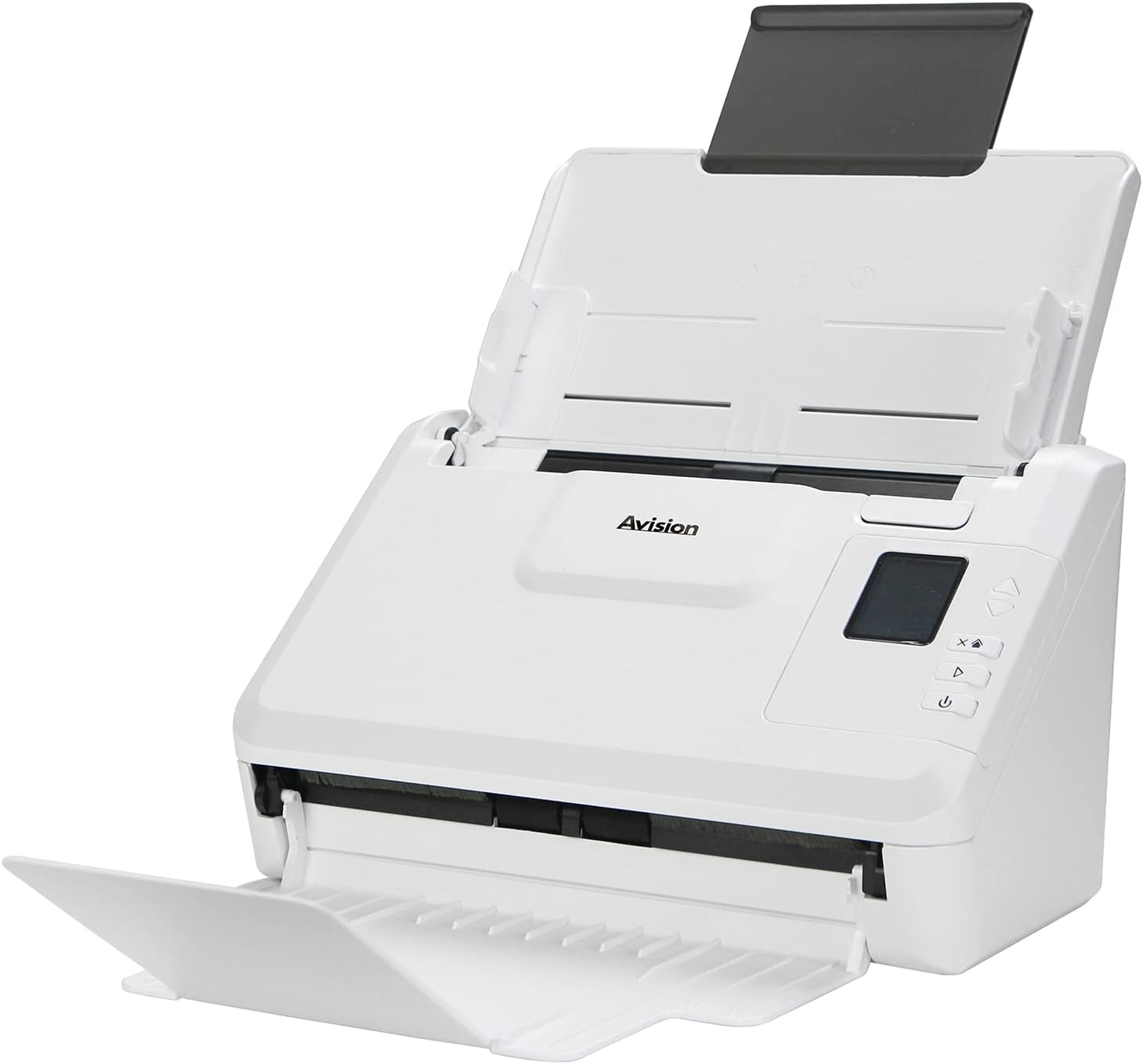
изображение: The Avision AD340G scanner shown with its input and output trays extended, ready for document feeding. This view highlights the compact design and accessible paper path.
- Document Feeder Tray: Where documents are loaded for scanning.
- Изходна тава: Where scanned documents are ejected.
- Контролен панел: Buttons and display for scanner operation.
- USB порт: За свързване към компютър.
- Захранващ порт: За свързване на захранващия адаптер.
Настройка
1. Физическа настройка
- Разопаковайте скенера: Внимателно извадете скенера и всички аксесоари от опаковката.
- Поставете скенера: Position the scanner on a flat, stable surface with adequate space for the input and output trays.
- Свържете захранването:
- Connect the power adapter to the scanner's power port.
- Включете захранващия адаптер в електрически контакт.
- Свързване към компютър:
- Connect one end of the USB cable to the scanner's USB port.
- Свържете другия край на USB кабела към наличен USB порт на вашия компютър.
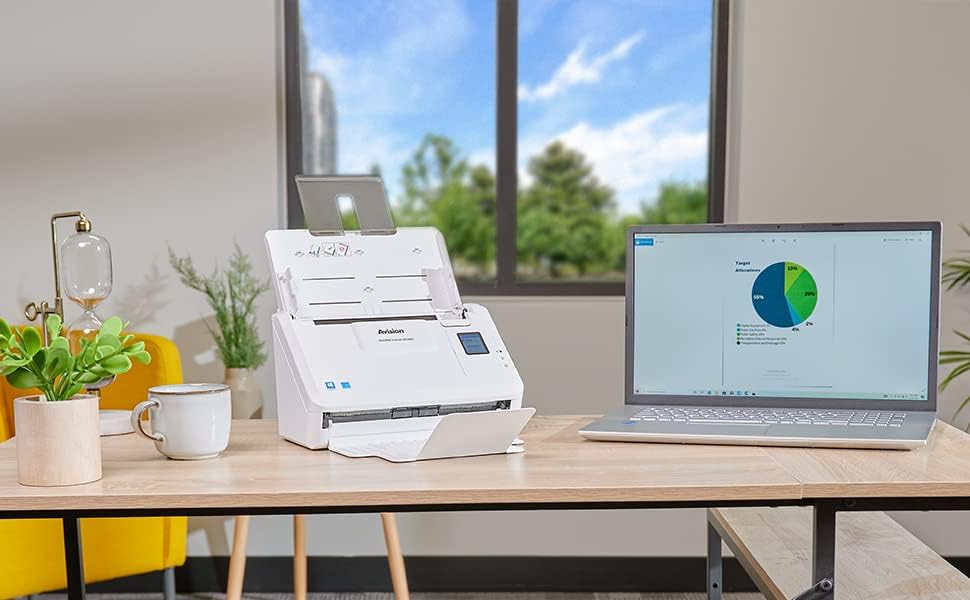
изображение: The Avision AD340G scanner set up on a desk next to a laptop, illustrating a typical connected environment. This shows the scanner's compact footprint when in use.
2. Инсталиране на софтуер
Install the necessary drivers and scanning software from the provided CD or by downloading them from the official Avision webсайт.
- Insert the software CD into your computer's CD/DVD drive, or navigate to the Avision support website to download the latest drivers and utilities for the AD340G model.
- Follow the on-screen instructions to complete the installation. This typically includes installing the TWAIN/ISIS drivers and the Avision scanning utility software.
- Рестартирайте компютъра си, ако бъдете подканени.
Работа със скенера
1. Зареждане на документи
- Open the document feeder tray and extend the output tray.
- Регулирайте водачите за хартия, за да съответстват на ширината на документите ви.
- Place the documents face-down in the input tray, ensuring they are neatly stacked and aligned. The scanner supports up to 50 sheets.

изображение: A hand carefully placing a stack of documents into the input tray of the Avision AD340G scanner, demonstrating the correct loading procedure.
2. Scanning Procedure
- Включете скенера, като натиснете бутона за захранване.
- Launch the Avision scanning software on your computer.
- Изберете желания от вас професионалист за сканиранеfile (e.g., color, grayscale, black & white, resolution). The AD340G supports duplex scanning (both sides simultaneously).
- Click the "Scan" button in the software or press the scan button on the scanner's control panel.
- The scanner will feed and process the documents. Once scanning is complete, the images will appear in the software.
- Review the scanned images, make any necessary adjustments (e.g., rotate, crop), and save them to your desired location and format (e.g., PDF, JPEG, TIFF).
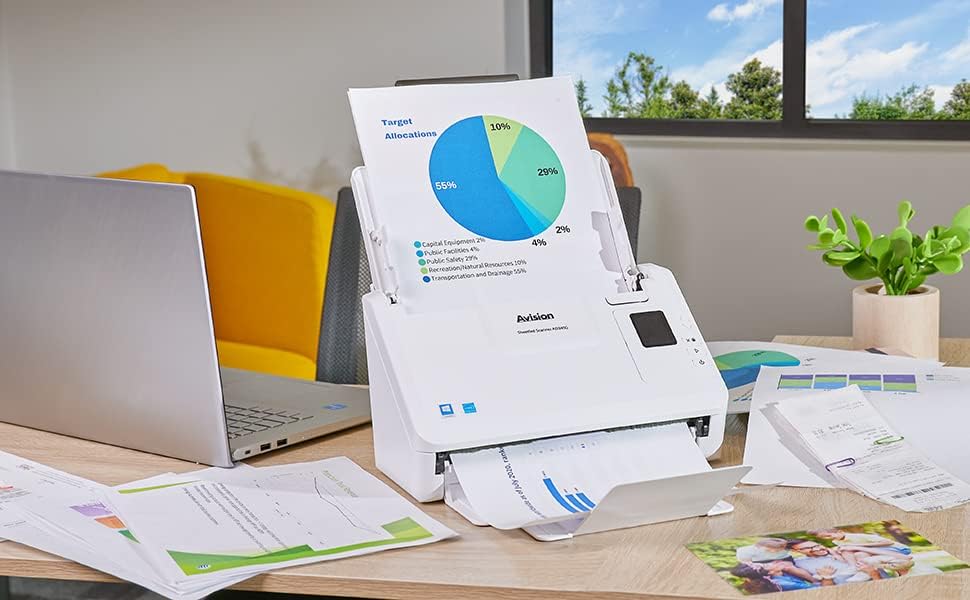
изображение: The Avision AD340G scanner in operation, feeding a document with a pie chart. This illustrates the scanner's ability to handle various document types efficiently.
Поддръжка
Почистване на скенера
Редовното почистване осигурява оптимална производителност и удължава живота на вашия скенер.
- Изключване и изваждане от контакта: Always turn off the scanner and disconnect the power adapter and USB cable before cleaning.
- Изчистен екстериор: Wipe the exterior of the scanner with a soft, lint-free cloth lightly dampс вода или мек, неабразивен почистващ препарат.
- Clean Interior (Rollers and Glass):
- Open the scanner cover to access the rollers and glass scanning surfaces.
- Gently wipe the feed rollers with a clean, lint-free cloth. If necessary, use a small amount of isopropyl alcohol on the cloth for stubborn residue.
- Clean the glass scanning strips with a soft cloth and glass cleaner (non-ammonia based).
- Allow all components to dry completely before closing the cover and reconnecting power.
Отстраняване на неизправности
| проблем | Възможна причина | Решение |
|---|---|---|
| Скенерът не се включва. | Захранващият кабел не е свързан; проблем с контакта. | Уверете се, че захранващият кабел е правилно свързан. Опитайте с друг контакт. |
| Documents jam frequently. | Misaligned paper guides; worn rollers; dirty rollers. | Adjust paper guides. Clean the feed rollers. If problem persists, rollers may need replacement. |
| Сканираните изображения са размазани или имат линии. | Dirty scanning glass; incorrect resolution settings. | Clean the scanning glass. Adjust scanning resolution in the software. |
| Скенерът не е открит от компютъра. | USB cable disconnected; driver not installed or corrupted. | Проверете връзката на USB кабела. Преинсталирайте драйверите на скенера. Опитайте с друг USB порт. |
Спецификации
Key technical specifications for the Avision AD340G Document Scanner:
- модел: AD340G
- Тип скенер: ADF Duplex Document Scanner
- Свързване: USB
- Резолюция: 600 dpi (оптична)
- Скорост на сканиране: 40 ppm (pages per minute) / 80 ipm (images per minute)
- Дълбочина на цвета: 48 bits input / 24 bits output
- Стандартен капацитет на листа: 50 листа
- Оптична сензорна технология: CIS (сензор за изображение за контакт)
- Размери на продукта: 11 x 6.1 x 6.5 инча
- Тегло на артикула: 8 паунда
- Минимални системни изисквания: Windows XP/7/8/10
Гаранция и поддръжка
For warranty information, technical support, or service inquiries, please refer to the warranty card included with your product or visit the official Avision website. Contact information for customer support can typically be found on the manufacturer's webсайт.
Avision Official Webсайт: www.avision.com


