1. Въведение
Thank you for choosing the iPega PG-P4008 Wireless Game Controller. This manual provides detailed instructions on how to set up, operate, and maintain your controller. The PG-P4008 offers broad compatibility with PS4, PS3, Android (10.0+), iOS (13.0+), and Windows PC, connecting wirelessly via Bluetooth for an enhanced gaming experience.
2. Продуктът свършиview
The iPega PG-P4008 is designed for versatile gaming across multiple platforms. It features a comfortable ergonomic design, responsive controls, and several advanced functionalities to immerse you in your games.
Ключови характеристики:
- Wireless Bluetooth connectivity (BT2.1+EDR) with up to 8 meters range.
- No driver installation required for connection.
- Integrated colored LED light indicator for operational status.
- Dual motors for realistic vibration feedback during gameplay.
- Built-in three-dimensional acceleration sensor and gyroscope sensor with six-axis induction.
- Integrated speaker and 3.5mm earphone jack for game audio.
- Dual-point capacitive touchpad for enhanced control.
- Compatible with PS4, PS3, Android (10.0+), iOS (13.0+), and Windows PC.
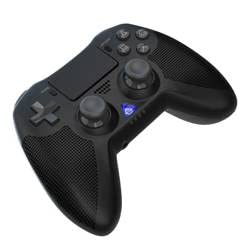
Изображение 1: Отпред view of the iPega PG-P4008 Wireless Game Controller. This image displays the controller's ergonomic design, dual analog sticks, D-pad, action buttons, touchpad, and the central LED indicator.
3. Настройка и свързване
The PG-P4008 controller connects wirelessly via Bluetooth. Follow these steps to pair your controller with your device:
- Включване: Ensure the controller is charged. Press and hold the Бутон PS (or equivalent power button) to turn on the controller.
- Режим на сдвояване:
- For PS4/PS3: Connect the controller to the console using a USB cable. Once recognized, you can disconnect the cable for wireless play. The connection method is similar to the official P4 controller.
- For Android/iOS: Activate Bluetooth on your mobile device. On the controller, press and hold the SHARE button + PS button simultaneously until the LED indicator flashes rapidly, indicating pairing mode. Select "PG-P4008" (or similar) from your device's Bluetooth list to connect.
- For Windows PC: Ensure your PC has Bluetooth capability. On the controller, press and hold the PS button + OPTIONS button simultaneously until the LED indicator flashes rapidly. On your PC, go to Bluetooth settings, add a new device, and select "PG-P4008" (or similar) to pair.
- Успешна връзка: Once connected, the LED indicator on the controller will change to a solid color, indicating a successful pairing.
Забележка: No additional driver software is required for operation. The controller supports a stable connection up to 8 meters.
4. Инструкции за работа
LED индикатор:
The built-in colored LED light indicates the controller's operational status and player assignment, similar to the official PS4 controller. Different colors will signify different stages or player numbers.
Вибрационна обратна връзка:
The controller features dual motors embedded in the handles, providing tactile vibration feedback to enhance your gaming immersion. This feedback will vary based on in-game events.
Тъчпад:
The dual-point capacitive touchpad allows for intuitive control in games that support touch input, offering an additional layer of interaction.
Audio Functionality:
Connect your 3.5mm earphones to the integrated jack on the controller to experience game audio directly, providing a private and immersive sound experience.
5. Поддръжка
- Keep the controller dry and away from moisture to prevent damage to internal components.
- Почиствайте контролера редовно с мека, суха кърпа. Избягвайте използването на агресивни химикали или абразивни материали.
- Съхранявайте контролера на хладно и сухо място, когато не го използвате.
- Avoid exposing the controller to extreme temperatures or direct sunlight.
- Do not attempt to disassemble or modify the controller, as this will void any potential warranty and may cause damage.
6. Отстраняване на проблеми
- Контролерът не се свързва:
- Уверете се, че контролерът е напълно зареден.
- Проверете дали Bluetooth е активиран на вашето устройство.
- Make sure the controller is in the correct pairing mode for your device (refer to Section 3).
- Опитайте да рестартирате както контролера, така и устройството си.
- Премахнете предишните сдвоявания от списъка с Bluetooth на устройството си и опитайте да сдвоите отново.
- Закъснение или прекъсване на входа:
- Ensure you are within the 8-meter operating range.
- Минимизирайте смущенията от други безжични устройства.
- Check for any physical obstructions between the controller and the device.
- Вибрацията не работи:
- Уверете се, че играта, която играете, поддържа вибрационна обратна връзка.
- Проверете настройките в играта, за да се уверите, че вибрацията е активирана.
- Audio not working via 3.5mm jack:
- Ensure your earphones are properly plugged in.
- Check the volume settings on your device and in-game.
- Test with another pair of earphones to rule out earphone issues.
7. Спецификации
| Номер на модела | PG-P4008 |
| Марка | iPega |
| Свързаност | Bluetooth (BT2.1+EDR) |
| Безжичен обхват | До 8 метра |
| Съвместими устройства | PS4, PS3, Android (10.0+), iOS (13.0+), Windows PC |
| Специални функции | Wireless, Touchpad, Vibration, 6-axis Gyroscope, Built-in Speaker, 3.5mm Audio Jack |
| Количество бутони | 17 |
| Източник на захранване | Захранван от батерия |
8. Гаранция и поддръжка
Информация относно гаранцията на продукта и обслужването на клиенти не е предоставена в това ръководство. Моля, вижте опаковката на продукта или инструкциите на търговеца. webсайт за подробности относно гаранционното покритие и как да се свържете с отдела за обслужване на клиенти за съдействие.


