1. Въведение
The PikDik Mini Portable Photo Printer PD-Q2 is a compact thermal printer designed for on-the-go printing. It connects via Bluetooth to compatible Android and iOS devices, allowing users to print photos, labels, lists, and more without the need for ink cartridges. This manual provides essential information for setting up, operating, maintaining, and troubleshooting your PD-Q2 printer.
2. Информация за безопасност
- Не излагайте принтера на вода или прекомерна влага.
- Avoid extreme temperatures. Operate and store the printer within recommended environmental conditions.
- Използвайте само предоставения кабел за зареждане и препоръчаните източници на захранване.
- Да се пази от деца.
- Не се опитвайте сами да разглобявате или ремонтирате принтера. Свържете се с отдела за обслужване на клиенти за съдействие.
3. Съдържание на пакета
Моля, проверете опаковката за следните артикули:
- PikDik Mini Portable Photo Printer PD-Q2
- USB кабел за зареждане Type-C
- Roll of Thermal Photo Paper
- Ръководство за потребителя
4. Продуктът свършиview
The PD-Q2 printer features a compact design with a single power/function button and a paper output slot. It utilizes thermal printing technology, eliminating the need for ink. The device is powered by a built-in rechargeable lithium battery.
5. Ръководство за настройка
5.1 Зареждане на принтера
Before first use, fully charge the printer. Connect the provided USB Type-C cable to the printer's charging port and a compatible USB power adapter. The LED indicator will show charging status.
5.2 Зареждане на термохартия
- Отворете капака на отделението за хартия на принтера.
- Insert a new roll of thermal paper, ensuring the printing side faces the print head.
- Pull a small length of paper out of the slot and close the cover securely.
5.3 Инсталиране на приложение и Bluetooth връзка
The PikDik PD-Q2 printer requires the "Meta Print" application for operation. Follow these steps to connect your device:
- Включете принтера: Натиснете и задръжте бутона за захранване, докато индикаторната лампичка светне.
- Download and Install the "Meta Print" APP: Търсене на "Meta Print" on your smartphone's app store (Google Play for Android or App Store for iOS) and install it.
- Активиране на Bluetooth: On your phone or tablet, go to your device's settings and ensure Bluetooth is turned on.
- Connect in the APP: Open the "Meta Print" app. The app will guide you to link the printer via Bluetooth. Select the PD-Q2 from the list of available devices.
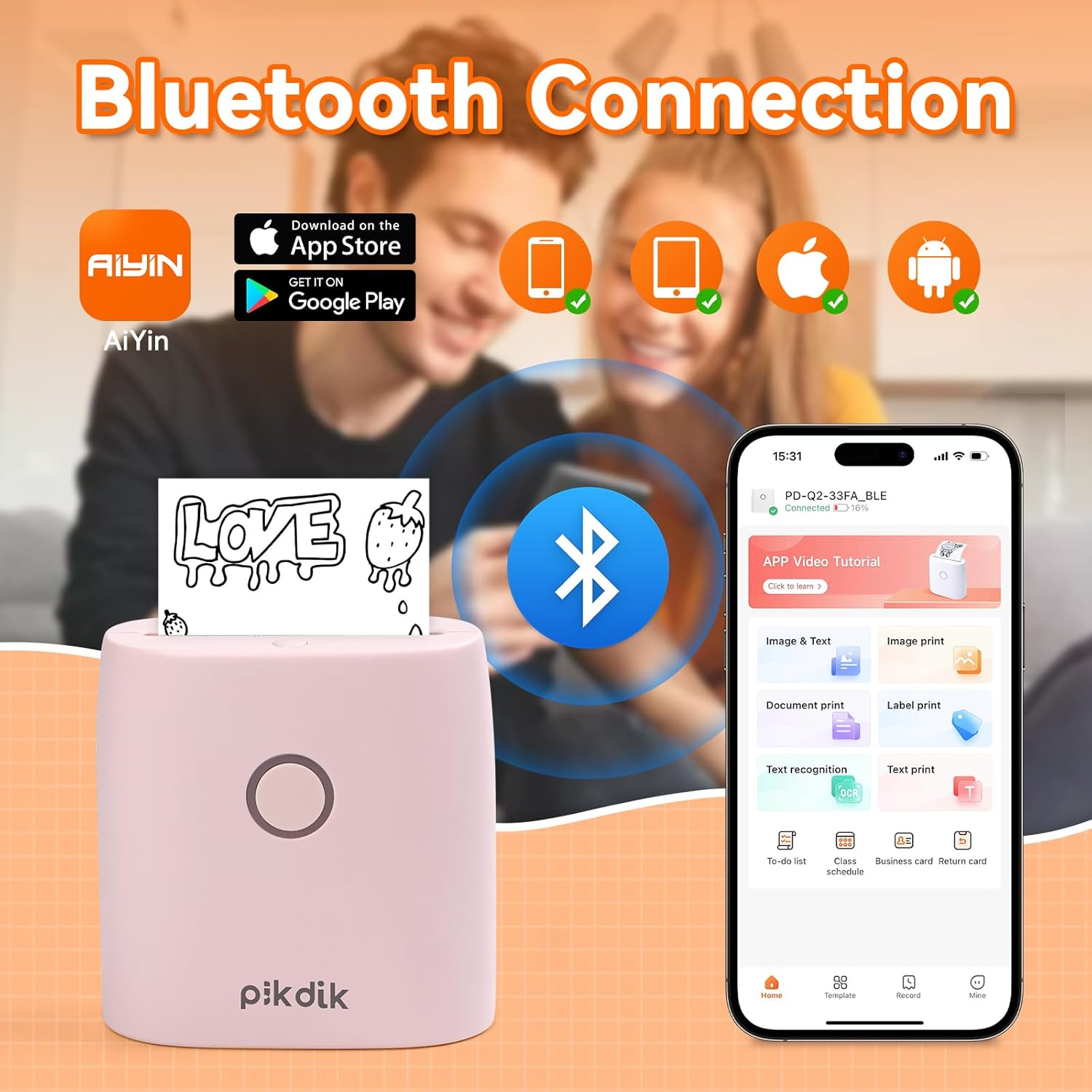
Image: The printer connects to your smartphone via Bluetooth using the Meta Print app, available on both Android and iOS.
6. Инструкции за работа
6.1 Printing Content
Once connected to the "Meta Print" app, you can select various content types for printing:
- Image & Text: Print photos, graphics, or combine them with text.
- Печат на документ: Print documents or notes.
- Label Print: Create and print custom labels.
- Разпознаване на текст: Convert images of text into editable text for printing.
- Шаблони: Utilize pre-designed templates for to-do lists, business cards, emojis, and more.
After selecting and editing your content within the app, tap the print button to initiate printing. The printer will output the thermal paper with your printed content.

Image: The printer is suitable for various applications such as journaling, scrapbooking, printing shopping lists, and notes.
6.2 Print Quality and Limitations
The PD-Q2 printer offers a 300 DPI resolution for clear and detailed black and white prints. As a thermal printer, it does not support color printing.
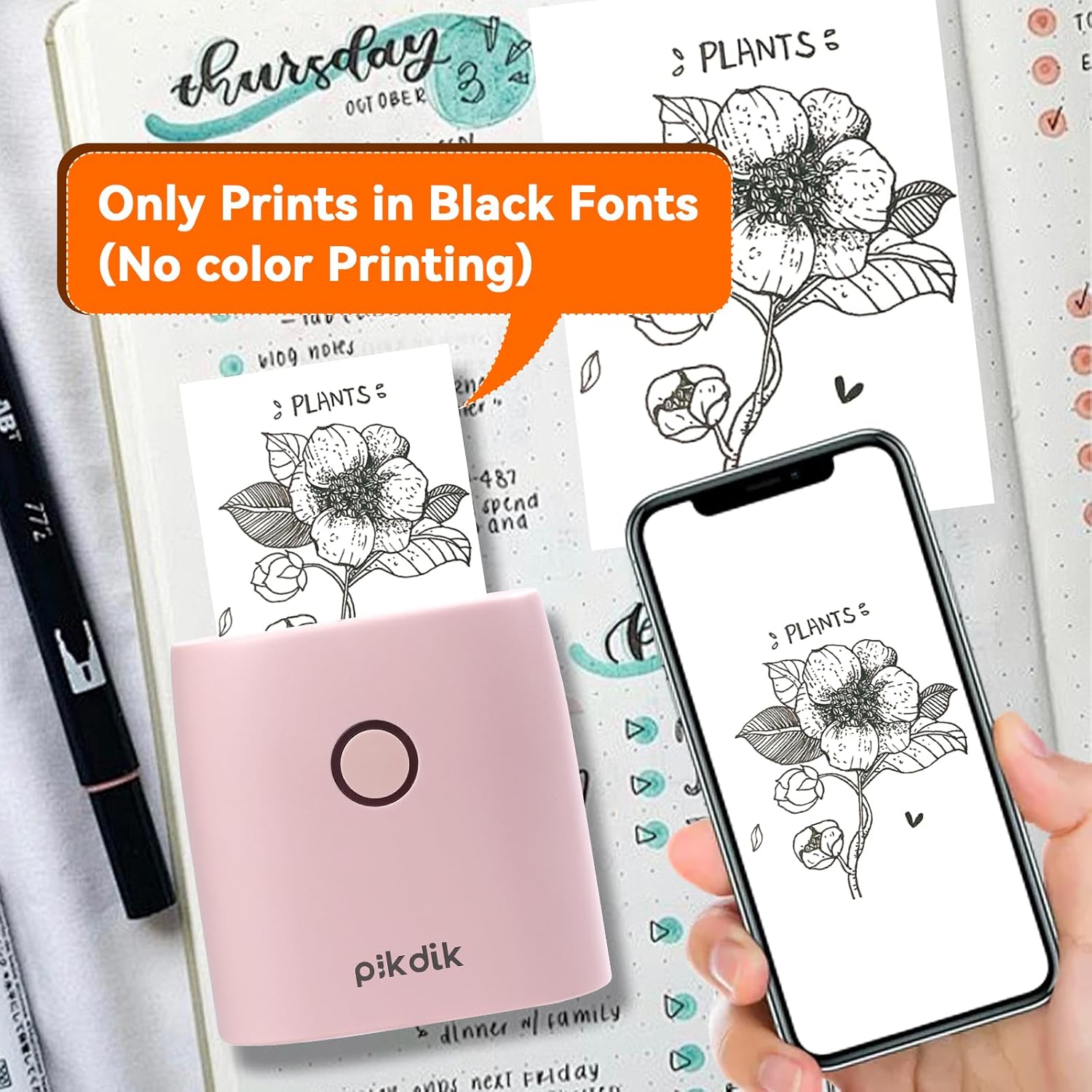
Image: The printer produces prints exclusively in black and white, as shown with a plant illustration.

Image: The 300 DPI resolution of the Q2 printer provides enhanced clarity and detail in prints compared to lower resolution alternatives.
7. Поддръжка
7.1 Почистване на принтера
За да поддържате оптимално качество на печат, почиствайте периодично печатащата глава. Използвайте мека кърпа без власинки, леко намокрена.ampened with isopropyl alcohol. Gently wipe the print head surface. Ensure the printer is turned off and completely dry before use.
7.2 Смяна на термохартия
When the paper roll is depleted, replace it by following the steps in Section 5.2. Use only thermal paper compatible with the PD-Q2 printer to ensure proper function and print quality.
8. Отстраняване на проблеми
| проблем | Възможна причина | Решение |
|---|---|---|
| Принтерът не се включва | Ниска батерия; Бутонът за захранване не е натиснат правилно | Charge the printer; Press and hold the power button for a few seconds. |
| Не може да се свърже чрез Bluetooth | Bluetooth off on phone; Printer not in pairing mode; App issue | Ensure phone Bluetooth is on; Restart printer and app; Re-pair device in app. |
| Poor print quality (faint, pixelated) | Low battery; Print head dirty; Incorrect paper type; Image resolution too low | Charge printer; Clean print head (Section 7.1); Use correct thermal paper; Use higher resolution images. |
| Засядане на хартия | Paper not loaded correctly; Foreign object in paper path | Open cover, remove jammed paper, reload correctly; Check for obstructions. |
| Принтерът не отговаря | Системна грешка | Perform a soft reset by turning the printer off and on again. If issue persists, contact support. |
9. Спецификации
| Характеристика | детайл |
|---|---|
| Модел | Q2 |
| Размери (Д х Ш х В) | 4.1 x 8.4 x 8.4 см (1.6 x 3.3 x 3.3 инча) |
| Тегло | 0.57 паунда (приблизително 258.55 г) |
| Печатна технология | Термичен |
| Резолюция на печат | 300 DPI (Monochrome) |
| Свързаност | Bluetooth |
| Съвместими устройства | Smartphones, Tablets (Android, iOS) |
| Максимален размер на носителя | 2 инча |
| Източник на захранване | Built-in Lithium Polymer Battery (Rechargeable via USB Type-C) |
| Име на приложението | Meta Print |
10. Гаранция и поддръжка
For warranty information and technical support, please refer to the warranty card included with your product or contact PikDik customer service directly. Keep your purchase receipt as proof of purchase.