1. Въведение
This manual provides essential instructions for setting up, operating, maintaining, and troubleshooting your HP ProDesk 600 G3 Desktop PC. This system is equipped with an Intel i5-6th Gen processor, 16GB DDR4 RAM, a 256GB SSD, and comes with a 22-inch monitor, gaming keyboard, mouse, and built-in WiFi, running Windows 11.

Image 1.1: Complete HP ProDesk 600 G3 Desktop PC setup.
2. Какво има в кутията
Моля, проверете дали всички следващи артикули са включени във вашия пакет:
- HP ProDesk 600 G3 Desktop PC Tower
- 22-инчов монитор
- RGB клавиатура за игри
- RGB мишка за игри
- Високоговорители
- Захранващ кабел(и)
- Built-in WiFi Adapter (pre-installed)

Image 2.1: Included RGB Gaming Keyboard, Mouse, and Speakers.
3. Ръководство за настройка
3.1 Identifying Ports
Before connecting, familiarize yourself with the available ports on your desktop PC.

Image 3.1: Front and Rear Port Layout.
Предни портове: Power Button, Universal Audio Jack, USB 2.0 Ports, USB 3.0 Ports.
Задни портове: Display Port, Ethernet RJ-45 Port, USB 2.0 Ports, USB 3.0 Ports, Power Connection.
3.2 Свързване на периферни устройства
- монитор: Connect the 22-inch monitor to a Display Port on the rear of the PC using a compatible cable.
- Клавиатура и мишка: Plug the USB cables of the gaming keyboard and mouse into any available USB ports (preferably USB 3.0 for better performance) on the front or rear of the PC.
- Говорители: Connect the speakers to the Universal Audio Jack on the front of the PC.
- мощност: Connect the power cord to the power connection port on the rear of the PC, then plug the other end into a wall outlet. Connect the monitor's power cord similarly.
3.3 Първоначално включване
Press the power button located on the front of the PC tower. The system will boot up, and Windows 11 will load. Follow any on-screen prompts for initial setup, such as language selection and user account creation.
3.4 Свързване към WiFi
Your HP ProDesk 600 G3 has built-in WiFi. To connect to a wireless network:
- Once Windows 11 has loaded, click on the network icon (usually a globe or WiFi symbol) in the taskbar.
- Изберете желаната WiFi мрежа от списъка с налични мрежи.
- Въведете ключа за мрежова сигурност (парола), ако бъдете подканени, след което щракнете върху „Свързване“.

Image 3.2: Wireless WiFi connectivity.
4. Инструкции за работа
4.1 Основна операция
The HP ProDesk 600 G3 runs on Windows 11. Familiarize yourself with the operating system's interface, Start Menu, and basic navigation. For detailed information on Windows 11, refer to Microsoft's official documentation.
4.2 Dual Monitor Support
This system supports dual monitors, allowing for an expanded workspace. To set up a second monitor:
- Connect the second monitor to an available Display Port on the rear of the PC.
- Right-click on an empty area of your desktop and select 'Display settings'.
- Windows 11 should automatically detect the second monitor. You can then arrange the displays, choose their orientation, and select display modes (e.g., Extend, Duplicate) within the display settings.
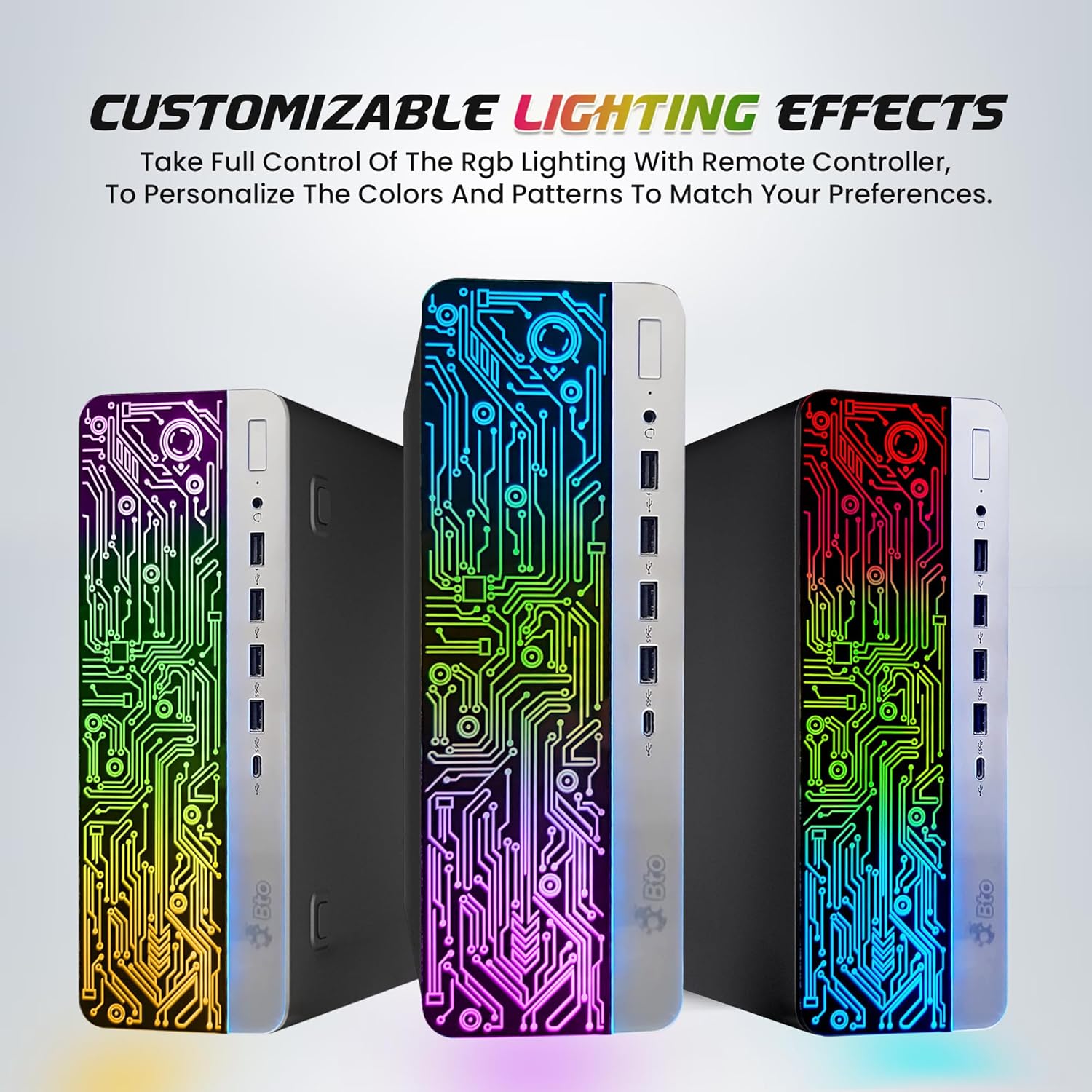
Image 4.1: Dual monitor setup for enhanced productivity.
4.3 Персонализируеми светлинни ефекти
The HP ProDesk 600 G3 features customizable RGB lighting effects on the PC tower. Use the provided remote controller to adjust colors and patterns according to your preference.

Image 4.2: Customizable RGB lighting effects on the PC tower.
5. Поддръжка
5.1 Почистване
- Винаги изключвайте компютъра от захранването и от контакта преди почистване.
- Използвайте леко мека кърпа без мъх dampened with water or a mild cleaning solution to wipe exterior surfaces. Avoid harsh chemicals.
- Use compressed air to clear dust from vents and ports periodically to ensure proper airflow and prevent overheating.
- Clean the monitor screen with a specialized screen cleaner and a microfiber cloth.
5.2 Софтуерни актуализации
Regularly update your Windows 11 operating system and drivers to ensure optimal performance, security, and compatibility. Windows Update typically handles this automatically, but you can manually check for updates via 'Settings > Windows Update'.
6. Отстраняване на проблеми
6.1 Без захранване
- Ensure the power cord is securely connected to both the PC and a working electrical outlet.
- Проверете дали електрическият контакт работи, като включите друго устройство.
- Verify the power button on the PC tower is fully pressed.
6.2 Няма изображение на монитора
- Confirm the monitor's power cord is connected and the monitor is turned on.
- Ensure the video cable (Display Port) is securely connected to both the PC and the monitor.
- Опитайте да свържете монитора към друг видео порт на компютъра, ако има такъв.
- If using multiple monitors, ensure the correct input source is selected on the monitor.
6.3 Няма интернет връзка
- Check if your router/modem is powered on and functioning correctly.
- Verify that the WiFi is enabled in Windows settings.
- Уверете се, че сте въвели правилната парола за WiFi.
- Restart your PC and your router/modem.
6.4 Клавиатурата/мишката не реагира
- Ensure the USB cables for the keyboard and mouse are securely plugged into the PC.
- Опитайте да ги включите в различни USB портове.
- Рестартирайте компютъра.
7. Спецификации
| Компонент | Спецификация |
|---|---|
| Модел | HP ProDesk 600 G3 Desktop RGB Computer |
| Процесор | Intel Core i5-6500 6th Gen (3.2 GHz base, up to 3.60 GHz turbo) |
| RAM | 16GB DDR4 SDRAM |
| Съхранение | 256GB твърдотелен диск (SSD) |
| Графика | Intel HD Graphics 530 (вградена) |
| Операционна система | Windows 11 Pro |
| Монитор | 22-inch IPS Display (1920 x 1080 resolution) |
| Свързаност | Built-in WiFi (2.4G/5G), Ethernet RJ-45 |
| Портове | USB 3.0, USB 2.0, Display Port, Universal Audio Jack |
| Размери (ДxШxВ) | 23.5 x 15.5 x 10 инча |
8. Гаранция и поддръжка
This product is a renewed item. For specific warranty details and support, please refer to the documentation provided by the seller or contact the seller directly through your purchase platform. Renewed products typically come with a limited warranty from the refurbisher or seller.