1. Въведение
This manual provides detailed instructions for the setup, operation, and maintenance of your Zenwire E520h projector. Please read this manual thoroughly before using the device to ensure proper functionality and to maximize your viewопит.
The Zenwire E520h is a Full HD 1080p projector with 4K support, featuring Android 9.0, dual-band WiFi (2.4/5 GHz), and Bluetooth 5.0 for versatile home theater entertainment.
2. Съдържание на пакета
Проверете дали всички елементи са налични в пакета:
- Zenwire E520h Projector
- Дистанционно управление (батериите не са включени)
- Захранващ кабел
- HDMI кабел
- AV Cable (stereo)
- Ръководство за потребителя

The image above displays the Zenwire E520h projector along with its standard accessories: a remote control, power cable, HDMI cable, and AV cable. These components are essential for setting up and operating your projector.
3. Продуктът свършиview
Familiarize yourself with the various parts and connections of your Zenwire E520h projector.

Това изображение предоставя изчерпателна представа view of the projector from different angles, highlighting the lens, control panel, ventilation grilles, and various input/output ports located on the sides and rear of the device.

The Zenwire E520h projector supports a wide range of multimedia devices, including streaming sticks (Roku, Fire TV, Chromecast), external audio systems, USB storage, gaming consoles (Xbox, PlayStation), mobile devices (phones, tablets), DVD players, and computers (laptops, desktops) via its various input ports.
4. Настройка
4.1 Поставяне
Position the projector on a stable, flat surface. Ensure adequate ventilation around the device. The optimal projection distance ranges from 1.2 to 6 meters, allowing for screen sizes from 36 to 200 inches.

This image demonstrates how varying the distance between the projector and the screen affects the projected image size, showing examples for 45, 120, and 200-inch displays.
4.2 Захранване
Connect the power cable to the projector's power input and then plug it into a suitable electrical outlet.
4.3 Първоначално включване
Натиснете бутона за захранване на проектора или дистанционното управление, за да включите устройството. Проекторът ще се стартира с операционната система Android 9.0.
5. Инструкции за работа
5.1 Фокус и корекция на трапецовидното изкривяване
Adjust the focus ring around the lens until the image is clear. Use the 4D keystone correction feature to adjust the image shape if the projector is not perfectly perpendicular to the screen. This can be done via the remote control or on-screen settings.

This image illustrates the process of adjusting the focus ring on the projector lens and demonstrates the effect of keystone correction on the projected image, ensuring a rectangular display even when the projector is angled.
5.2 Android 9.0 Smart System
The projector runs on Android 9.0, allowing direct access to streaming applications like YouTube, Netflix, HBO, and Spotify. Navigate the interface using the remote control.

The image above shows the projector's smart interface, featuring a grid of popular streaming applications, demonstrating the integrated Android 9.0 system's capability to run apps directly.
5.3 Безжична свързаност (WiFi и Bluetooth)
WiFi: Connect to your home network using the integrated 2.4/5 GHz WiFi. This enables Miracast and Airplay for wireless screen mirroring from iOS, Android, and Windows devices.

This image illustrates the projector's wireless connectivity, showing it mirroring content from a smartphone and tablet, and highlighting its compatibility with iOS, Android, and Windows 10 devices for screen sharing.
Bluetooth 5.0: Pair with external Bluetooth speakers, soundbars, or headphones for enhanced audio. Go to the settings menu to manage Bluetooth devices.
5.4 Кабелна свързаност
The projector features multiple ports for wired connections:
- HDMI (x2): Connect laptops, gaming consoles, Blu-ray players, or streaming devices.
- USB: Възпроизвеждайте медийни файлове директно от USB устройства.
- НА: Свържете по-стари устройства, като използвате включения AV кабел.
- Mini-Jack: За външен аудио изход.
- Micro-SD/TF Card Reader: За възпроизвеждане на медийни файлове от карти с памет.
6. Поддръжка
6.1 Почистване на обектива
Внимателно избършете обектива на проектора с мека кърпа без власинки, специално предназначена за оптични повърхности. Не използвайте абразивни почистващи препарати или прекомерна сила.
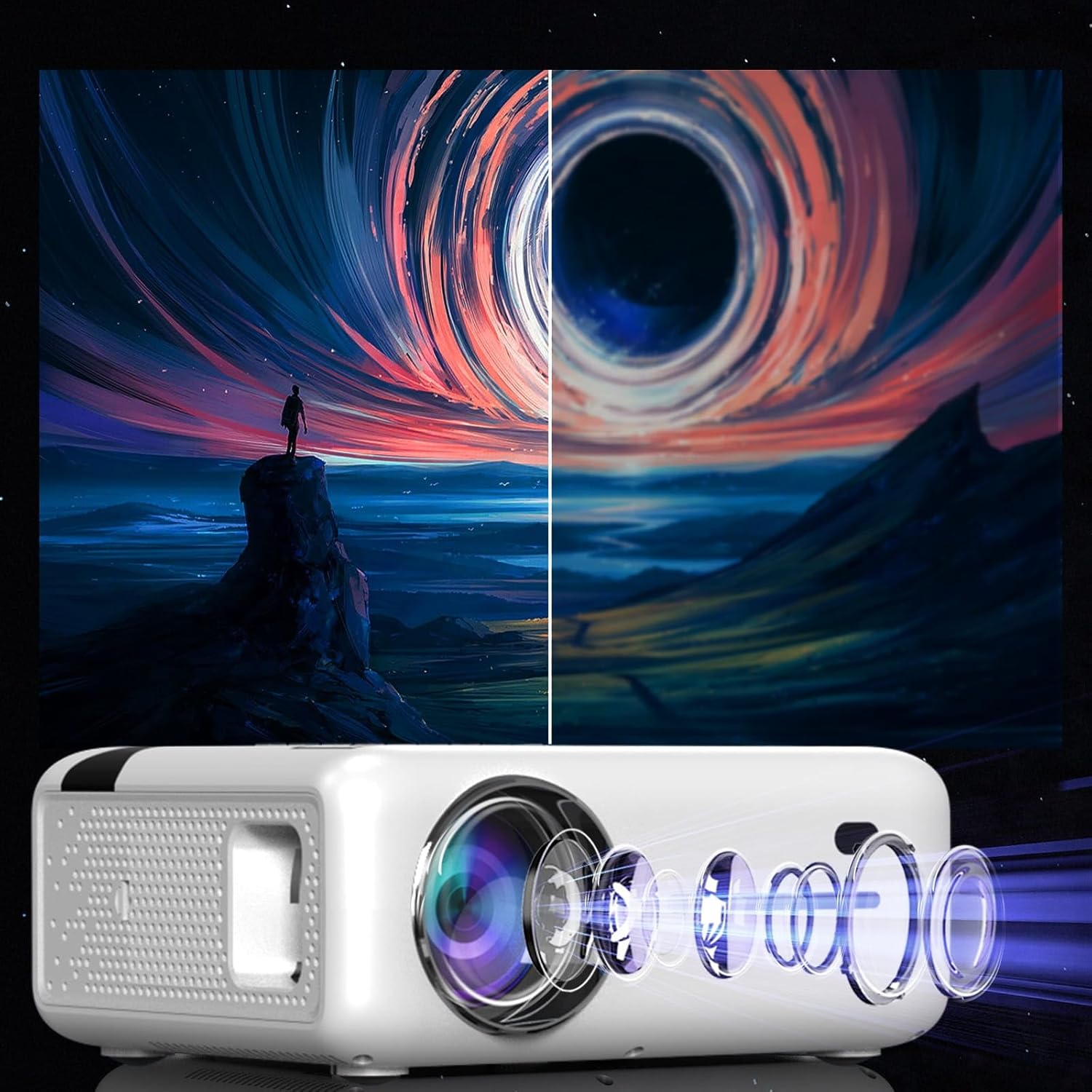
This diagram illustrates the multi-element lens system of the projector, highlighting the precision optics that require careful handling during cleaning to maintain image quality.
6.2 Вентилация
Ensure that the projector's ventilation openings are not blocked to prevent overheating. Regularly check for dust accumulation and clean if necessary using compressed air.
6.3 Съхранение
When not in use for extended periods, store the projector in a cool, dry place, away from direct sunlight and excessive dust. Use the original packaging or a protective case.
7. Отстраняване на проблеми
| проблем | Възможна причина | Решение |
|---|---|---|
| Не се показва изображение | Захранващият кабел е изключен, входният източник е неправилен, капачката на обектива е поставена. | Check power connection, select correct input source (HDMI, USB, etc.), remove lens cap. |
| Замъглено изображение | Focus not adjusted, keystone incorrect. | Adjust the focus ring, use keystone correction. |
| Без звук | Volume too low, incorrect audio output selected, external device muted. | Increase projector volume, check audio settings, ensure external device is not muted. |
| Проблеми с WiFi връзката | Incorrect password, router too far, interference. | Verify WiFi password, move projector closer to router, check for other wireless devices. |
8. Спецификации
| Характеристика | детайл |
|---|---|
| Модел | Zenwire E520h |
| Естествена разделителна способност | 1920 x 1080p (Full HD) |
| Поддържана резолюция | До 4K |
| Яркост | 9000 лумена (300 ANSI) |
| Контрастно съотношение | 2000:1 |
| Операционна система | Android 9.0 |
| WiFi | 2.4/5 GHz (Miracast, Airplay support) |
| Bluetooth | 5.0 |
| Свързаност | 2x HDMI, USB, AV, Mini-Jack, Micro-SD/TF |
| Размер на проекцията | 36 - 200 инча |
| Проекционно разстояние | 1.2 - 6 метра |
| Корекция на Keystone | 4D (manual and auto) |
| Voltage | 230 волта |
| Размери (Опаковка) | 23 х 18.5 х 10.5 см |
| Тегло (опаковка) | 1.2 кг |
9. Гаранция и поддръжка
For warranty information and technical support, please refer to the contact details provided with your purchase documentation or visit the official Zenwire webсайт. Запазете доказателството си за покупка за гаранционни рекламации.