1. Продуктът свършиview
The Brother DCP-L2680DW is a versatile multi-function mono laser printer designed for efficient printing, scanning, and copying. This device offers high-speed monochrome printing, automatic duplex printing, and various connectivity options including Ethernet, USB, and Wi-Fi.
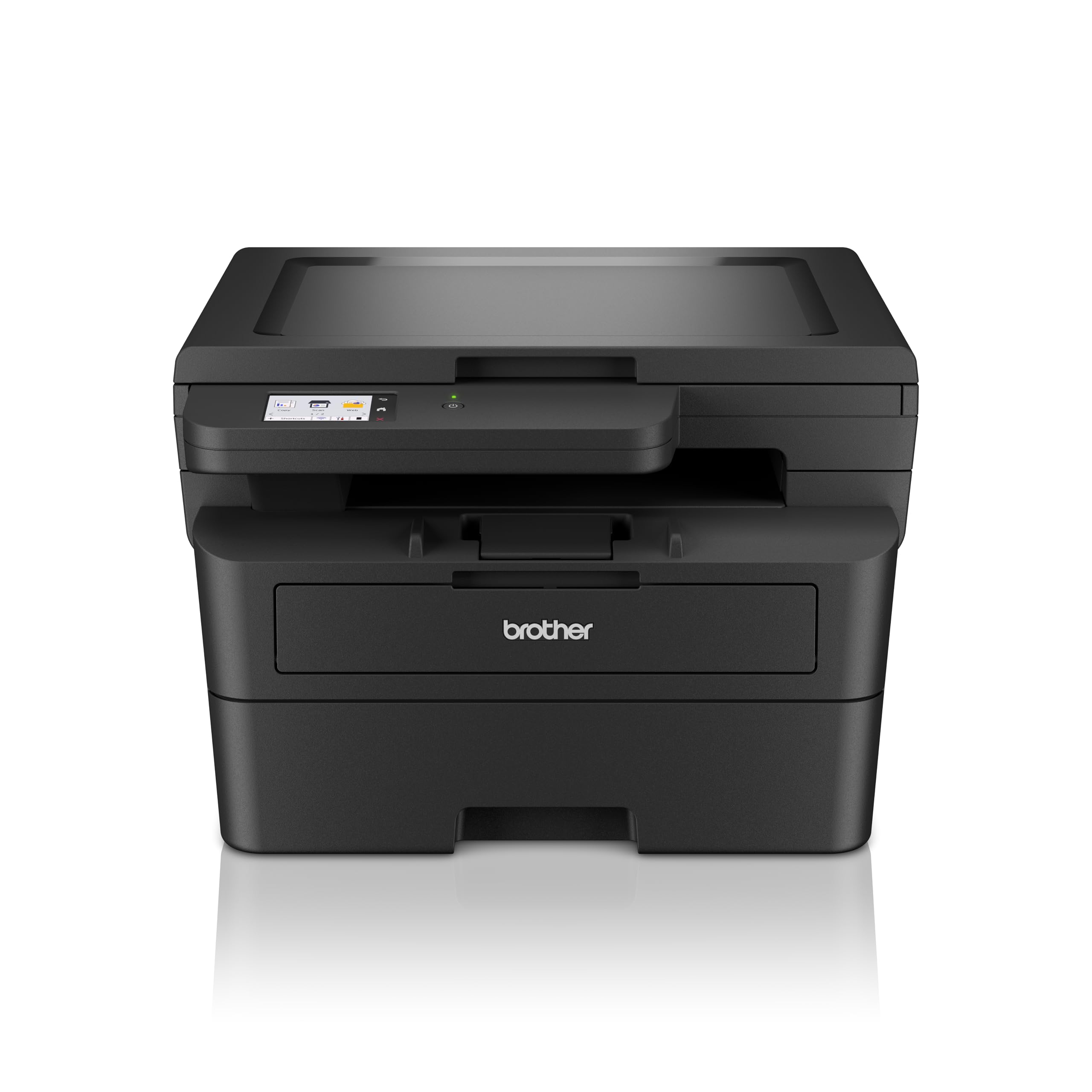
Изображение 1.1: Предна част view of the Brother DCP-L2680DW printer.
Ключови характеристики:
- Print, Scan, Copy: Integrated functionality for diverse office tasks.
- Up to 36 ppm: Fast monochrome printing speed.
- Automatic 2-sided (Duplex) Print: Saves paper and time.
- Мобилен печат: Print directly from compatible mobile devices.
- Свързване: Supports Ethernet, USB, and Wi-Fi connections.
- 2.7" Touchscreen Colour LCD Display: Intuitive control panel for easy navigation.
2. Първоначална настройка
Follow these steps to set up your Brother DCP-L2680DW printer for the first time.
2.1 Разопаковане на принтера
- Внимателно извадете принтера от опаковката му.
- Отстранете всички защитни ленти и опаковъчни материали от външната и вътрешната страна на принтера.
- Поставете принтера върху стабилна, равна повърхност с адекватна вентилация.
2.2 Installing the Toner Cartridge and Drum Unit
- Отворете предния капак на принтера.
- Remove the drum unit and toner cartridge assembly from its protective bag.
- Insert the toner cartridge firmly into the drum unit until it locks into place.
- Slide the drum unit and toner cartridge assembly back into the printer until it clicks.
- Затворете предния капак.
2.3 Зареждане на хартия
- Издърпайте напълно тавата за хартия.
- Adjust the paper guides to fit the size of the paper you are loading.
- Load paper into the tray, ensuring it is flat and below the maximum paper mark.
- Внимателно натиснете тавата за хартия обратно в принтера.
2.4 Свързване на захранването и първоначално включване
- Свържете захранващия кабел към принтера и след това към заземен електрически контакт.
- Натиснете бутона за захранване, за да включите принтера.
- Follow the on-screen instructions on the LCD display to select your language and region.
2.5 Свързване към компютър/мрежа
The DCP-L2680DW supports USB, Ethernet, and Wi-Fi connectivity.
- USB връзка: Свържете USB кабел от принтера към компютъра.
- Ethernet връзка: Свържете Ethernet кабел от принтера към мрежовия рутер или комутатор.
- Wi-Fi връзка: On the printer's control panel, navigate to Network settings, then WLAN, and follow the instructions to connect to your wireless network.
After connecting, install the printer drivers from the official Brother support webсайт (www.brother.com) or the included installation CD (if applicable).
3. Инструкции за работа
This section covers basic operations of your multi-function printer.
3.1 Печат на документи
- Уверете се, че принтерът е включен и свързан с вашето устройство.
- Отворете документа, който искате да отпечатате, на компютъра или мобилното си устройство.
- Изберете опцията за печат от приложението си.
- Choose the Brother DCP-L2680DW from the list of available printers.
- Настройте настройките за печат (напр. брой копия, размер на хартията, двустранен печат), ако е необходимо.
- Кликнете върху „Печат“.
3.2 Сканиране на документи
- Поставете документа с лицето надолу върху стъклото на скенера.
- На контролния панел на принтера изберете „Сканиране“.
- Choose your desired scan destination (e.g., PC, Email, USB).
- Регулирайте настройките за сканиране, като например резолюция, цветен режим и file формат.
- Press "Start" to begin scanning.
3.3 Копиране на документи
- Поставете документа с лицето надолу върху стъклото на скенера.
- На контролния панел на принтера изберете „Копиране“.
- Enter the number of copies required using the numeric keypad or arrow buttons.
- Adjust copy settings (e.g., reduce/enlarge, quality) if necessary.
- Натиснете „Старт“, за да започнете копирането.
4. Поддръжка
Редовната поддръжка осигурява оптимална производителност и дълготрайност на вашия принтер.
4.1 Смяна на тонер касетата
When the "Toner Low" or "Replace Toner" message appears on the display:
- Отворете предния капак.
- Remove the drum unit and toner cartridge assembly.
- Press the green lock lever and pull the toner cartridge out of the drum unit.
- Unpack a new toner cartridge and shake it gently side to side several times.
- Insert the new toner cartridge firmly into the drum unit until it locks.
- Slide the drum unit and new toner cartridge assembly back into the printer.
- Затворете предния капак.
4.2 Replacing the Drum Unit
The drum unit is a consumable item that needs replacement after a certain number of pages. The printer will indicate when replacement is due.
- Follow steps 1-3 from "Replacing the Toner Cartridge" to remove the old toner and drum unit.
- Unpack a new drum unit.
- Insert the existing toner cartridge into the new drum unit until it locks.
- Slide the new drum unit and toner cartridge assembly back into the printer.
- Затворете предния капак.
- Reset the drum counter via the printer's menu (refer to the on-screen instructions or full manual for specific steps).
4.3 Почистване на принтера
- Екстериор: Избършете външната част на принтера с мека кърпа без власинки. Не използвайте абразивни почистващи препарати или разтворители.
- Стъкло на скенера: Use a soft, dry cloth or a cloth dampened with glass cleaner (non-ammonia based) to clean the scanner glass.
5. Отстраняване на проблеми
Този раздел разглежда често срещани проблеми, които може да срещнете с вашия принтер.
5.1 Засядане на хартия
If a paper jam occurs, the printer's display will show an error message and indicate the location of the jam.
- Изключете принтера и извадете захранващия кабел.
- Open the indicated cover or tray.
- Внимателно издърпайте заседналата хартия по посока на пътя на хартията. Внимавайте да не я разкъсате.
- Уверете се, че всички парчета хартия са отстранени.
- Close all covers and plug in the power cord, then turn on the printer.
5.2 Проблеми с качеството на печат
- Избледнели отпечатъци: Проверете нивото на тонер касетата. Сменете, ако е ниско.
- Streaks or Spots: Clean the drum unit. Refer to the full user manual for detailed cleaning instructions for the drum unit's corona wire.
- Uneven Density: Ensure the paper type setting matches the paper loaded in the tray.
5.3 Проблеми със свързаността
- USB: Уверете се, че USB кабелът е правилно свързан както към принтера, така и към компютъра. Опитайте с друг USB порт или кабел.
- Ethernet: Verify the Ethernet cable is properly connected to the printer and the network device. Check network settings on the printer.
- Wi-Fi: Confirm the printer is connected to the correct wireless network. Restart your router and the printer. Ensure the printer is within range of the Wi-Fi signal.
6. Спецификации
Detailed technical specifications for the Brother DCP-L2680DW printer.

Image 6.1: Dimensions of the Brother DCP-L2680DW printer (H: 272mm, W: 410mm, D: 399mm).
| Характеристика | Спецификация |
|---|---|
| Марка | Братко |
| Име на модела | DCP-L2680DW |
| Технология за свързване | Ethernet, USB, Wi-Fi |
| Печатна технология | Лазер |
| Изход на принтер | Едноцветен |
| Максимална скорост на монохромен печат | 36 ppm |
| Тегло на артикула | 9 килограма |
| Размери на продукта (Д x Ш x В) | 41 Д x 27.2 Ш x 39.9 В сантиметра |
| Тип скенер | Плосък |
| Тип дисплей | LCD |
| Резолюция | 1200 x 1200 dpi |
| Контролен метод | Докосване |
| Максимален капацитет на листове | 250 листа |
| Двустранен печат | Да (автоматичен двустранен печат) |
7. Гаранционна информация
The Brother DCP-L2680DW printer comes with a 3-year onsite warranty. Please retain your proof of purchase for warranty claims. For detailed terms and conditions, refer to the warranty documentation included with your product or visit the official Brother webсайт.
8. Поддръжка на клиенти
For further assistance, technical support, or product-related information, please contact Brother customer service.

Image 8.1: Brother customer support contact details.
Информация за контакт:
- Безплатни номера:
- 1-800-222-422 (For MTNL and BSNL users)
- 1-800-209-8904 (For Others and all Mobiles)
- Поддръжка по имейл: customercare@brother.in
- Поддръжка на WhatsApp: 7045 450 450
- Чатбот: Предлага се на www.brother.in
- Webсайт: www.brother.in
Support hours are typically Monday to Friday: 8:30 AM - 6:30 PM, and Saturday: 9:00 AM - 6:00 PM (local time).