Въведение
This manual provides detailed instructions for the TECKNET Wireless Mouse (Model B0DP2DCC6N). It covers setup, operation, maintenance, and troubleshooting to ensure optimal performance and user experience. This mouse offers dual connectivity (2.4G USB A and Bluetooth 5.0/3.0) and adjustable DPI settings for versatile use across various devices and operating systems.

Figure 1: TECKNET Wireless Mouse (Pink)
Съдържание на пакета
- Безжична мишка TECKNET
- USB A Receiver (stored inside the mouse)
- Ръководство на потребителя (този документ)
Забележка: 2 AAA batteries are not included and must be purchased separately.
Характеристики на продукта
- Dual Device Connection: Bluetooth (5.0/3.0) and 2.4G USB A.
- 6 Adjustable DPI Levels: 800/1200/1600/2400/3200/4800.
- Silent Click Operation: Designed for quiet environments.
- Ergonomic Design: Shaped for comfortable use.
- Automatic Sleep Technology: Extends battery life.
- Wide Compatibility: Supports Windows, macOS, Chrome, Linux. (Side buttons are not compatible with macOS).

Figure 2: Dual Connection Modes (2.4G USB A and Bluetooth)

Figure 3: Adjustable DPI Settings for Precise Control
Инструкции за настройка
1. Инсталиране на батерията
- Намерете отделението за батерии от долната страна на мишката.
- Отворете капака на батерията.
- Поставете две батерии AAA, като внимавате за правилната полярност (+/-).
- Затворете здраво капака на батерията.
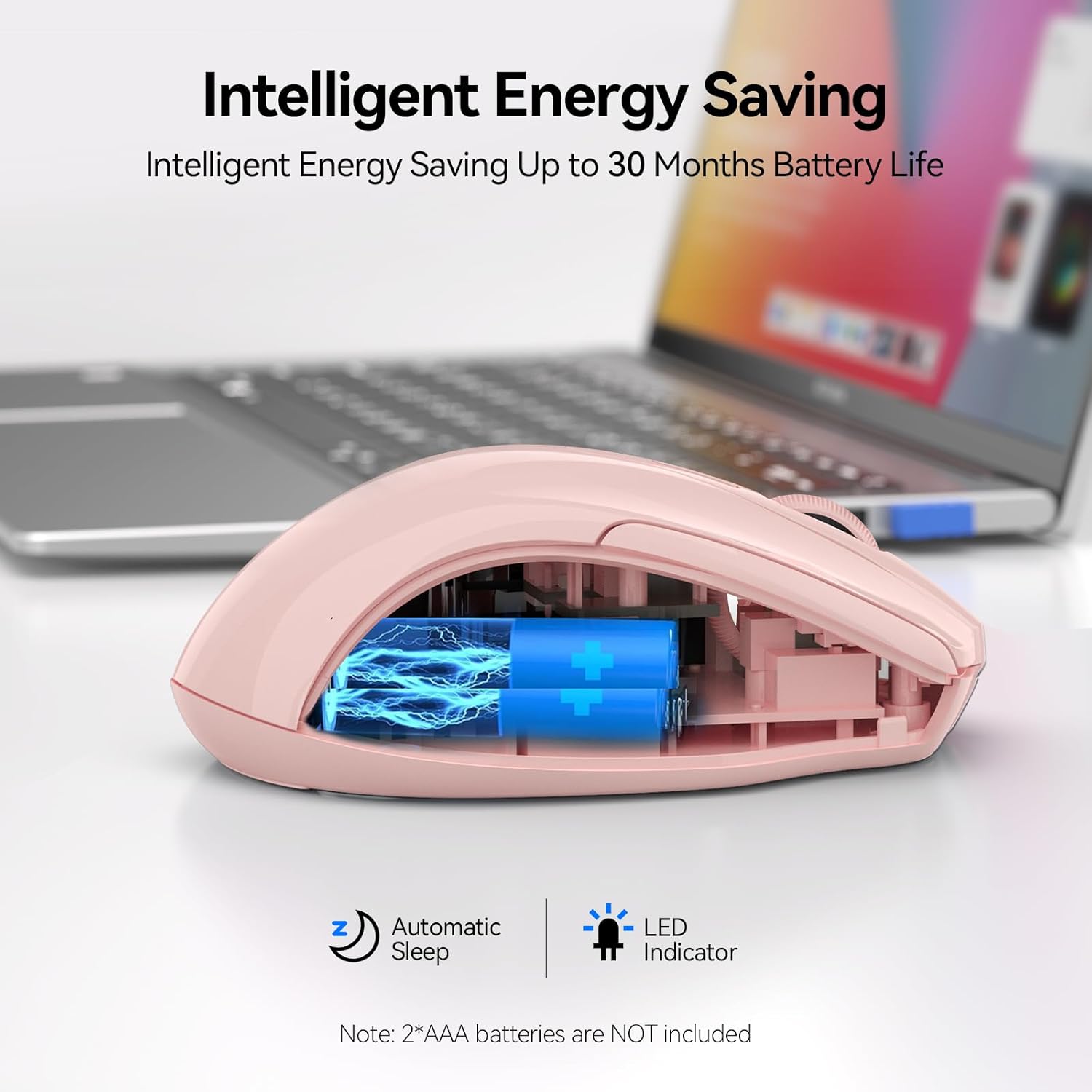
Figure 4: Battery Compartment (2 AAA batteries required)
2. Свързване на мишката
The TECKNET Wireless Mouse offers two connection methods: 2.4G USB A and Bluetooth.
2.1. 2.4G USB A Connection
- Locate the USB A receiver stored in the battery compartment of the mouse.
- Remove the USB A receiver.
- Plug the USB A receiver into an available USB port on your computer.
- Slide the power switch on the bottom of the mouse to the "2.4G" position.
- Мишката трябва да се свърже автоматично.
Figure 5: 2.4G USB A Connection
2.2. Bluetooth връзка
- Slide the power switch on the bottom of the mouse to the "BT" position.
- Press and hold the Bluetooth pairing button (usually a small button near the power switch) until the LED indicator light starts blinking (blue).
- На вашия компютър или устройство отворете настройките за Bluetooth.
- Търсене на new devices and select "TECKNET Mouse" (or similar) from the list.
- Следвайте подканите на екрана, за да завършите процеса на сдвояване.

Фигура 6: Bluetooth връзка
Video 1: Demonstration and setup of the Bluetooth wireless mouse.
Инструкция за работа
1. Регулиране на чувствителността на DPI
The mouse features a DPI switch button, typically located near the scroll wheel. Press this button to cycle through 6 adjustable DPI settings (800/1200/1600/2400/3200/4800) to match your preference for cursor speed and precision.
Figure 7: DPI Switch Button for Sensitivity Adjustment
2. Функция за безшумно щракване
This mouse is designed with silent click buttons, providing a quiet user experience. This is particularly beneficial in environments where noise reduction is desired, such as libraries or shared offices.

Фигура 8: Безшумно щракване
Видео 2: Реview highlighting the silent click feature and ease of pairing.
3. Режими на пестене на енергия
The mouse incorporates automatic sleep technology to conserve battery life. After a period of inactivity, the mouse will enter a sleep mode. To reactivate, simply click any button.

Figure 9: Automatic Sleep Technology for Power Saving
Поддръжка
- Почистване: Use a soft, dry cloth to clean the mouse. Avoid harsh chemicals or abrasive materials.
- Смяна на батерията: Replace batteries when the low battery indicator lights up or when performance degrades. Refer to the "Battery Installation" section for instructions.
- Съхранение: When not in use for extended periods, turn off the mouse to further conserve battery life.
Отстраняване на неизправности
1. Мишката не реагира
- Проверете дали мишката е включена.
- Уверете се, че батериите са правилно поставени и не са изтощени. Сменете ги, ако е необходимо.
- For 2.4G connection, ensure the USB A receiver is securely plugged into a working USB port.
- For Bluetooth connection, verify that Bluetooth is enabled on your device and the mouse is paired. Try re-pairing if connection is lost.
- Try connecting the mouse to a different USB port or another device to rule out port or device issues.
2. Cursor Movement is Erratic or Slow
- Почистете оптичния сензор в долната част на мишката.
- Ensure you are using the mouse on a suitable surface. Optical mice perform best on non-reflective, uniform surfaces.
- Adjust the DPI sensitivity using the DPI switch button on the mouse.
3. Side Buttons Not Working on macOS
- As noted in the product features, side buttons are not compatible with macOS. This is expected behavior.
Спецификации
| Характеристика | детайл |
|---|---|
| Модел | BM307 (Internal Model) / B0DP2DCC6N (ASIN) |
| Технология за свързване | Bluetooth (5.0/3.0), 2.4G Wireless (USB A) |
| DPI нива | 800, 1200, 1600, 2400, 3200, 4800 |
| Технология за откриване на движение | Оптичен |
| Специални функции | Ergonomic Design, Silent Click, Automatic Sleep |
| Източник на захранване | 2 x AAA батерии (не са включени) |
| Тегло на артикула | 3.52 унции |
| Размери на опаковката | 4.49 x 3.23 x 1.73 инча |
| Съвместимост | Windows, macOS (side buttons not compatible), Chrome, Linux |
Гаранция и поддръжка
TECKNET предлага Гаранция 36 месеца for registered products. If you encounter any problems using the product, please contact our professional customer service team for assistance.
Информация за контакт: Refer to the product packaging or the official TECKNET webсайт за най-актуалните данни за контакт с поддръжката.


