1. Въведение
Thank you for choosing the ILEBYGO Mini Projector B0F83Q1HHT. This portable projector is designed to provide a versatile entertainment experience with its Android 13 operating system, WiFi 6, Bluetooth 5.0, 1080P Full HD resolution with 4K support, 320 ANSI lumens brightness, 270-degree rotation, auto keystone correction, and autofocus. This manual provides essential information for setting up, operating, and maintaining your projector.
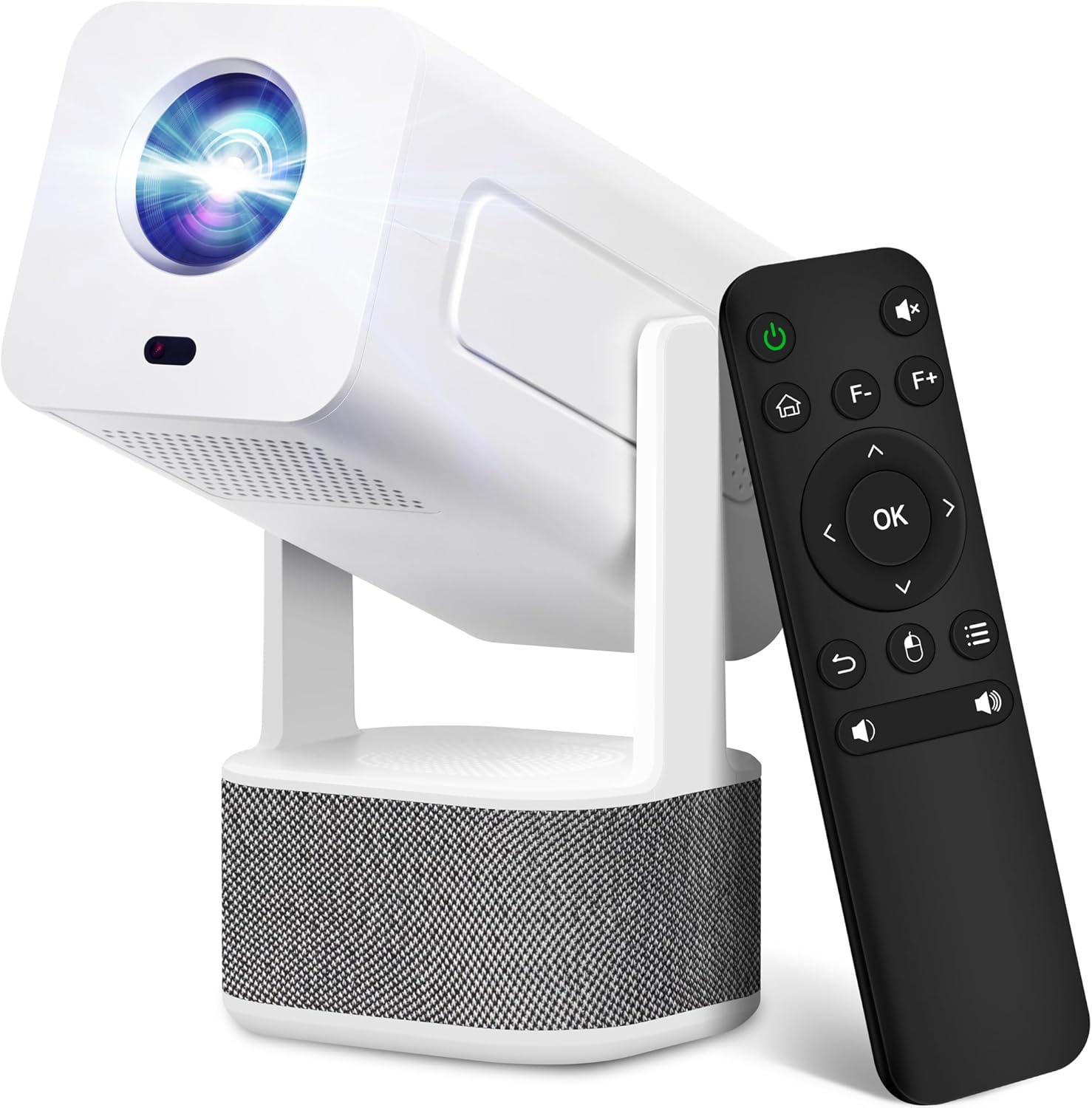
Image 1.1: ILEBYGO Mini Projector and Remote Control
The ILEBYGO Mini Projector B0F83Q1HHT offers a projection size ranging from 30 to 200 inches, making it suitable for various environments from small rooms to outdoor settings. Its dual 5W speakers deliver integrated audio, and multiple connectivity options ensure compatibility with a wide range of devices.
2. Какво има в кутията
Моля, проверете съдържанието на пакета. Ако някои от артикулите липсват или са повредени, свържете се с отдела за обслужване на клиенти.
- 1x ILEBYGO Mini Projector
- 1x ръководство за потребителя
- 1x захранващ адаптер
- 1x дистанционно управление
3. Ръководство за настройка
3.1. Включване
- Свържете захранващия адаптер към входния DC порт на проектора.
- Включете захранващия адаптер в стенен контакт.
- Натиснете бутона за захранване на проектора или дистанционното управление, за да включите устройството.

Image 3.1: Projector Connectivity Ports (DC, HDMI, USB, Audio)
3.2. Първоначално поставяне и корекция
The projector features a 270-degree rotatable design, allowing flexible placement.
- Поставете проектора върху стабилна повърхност.
- Adjust the projector's angle to direct the image onto your desired projection surface (wall, screen, ceiling).
- The projector will automatically perform keystone correction and autofocus to optimize the image clarity and shape.
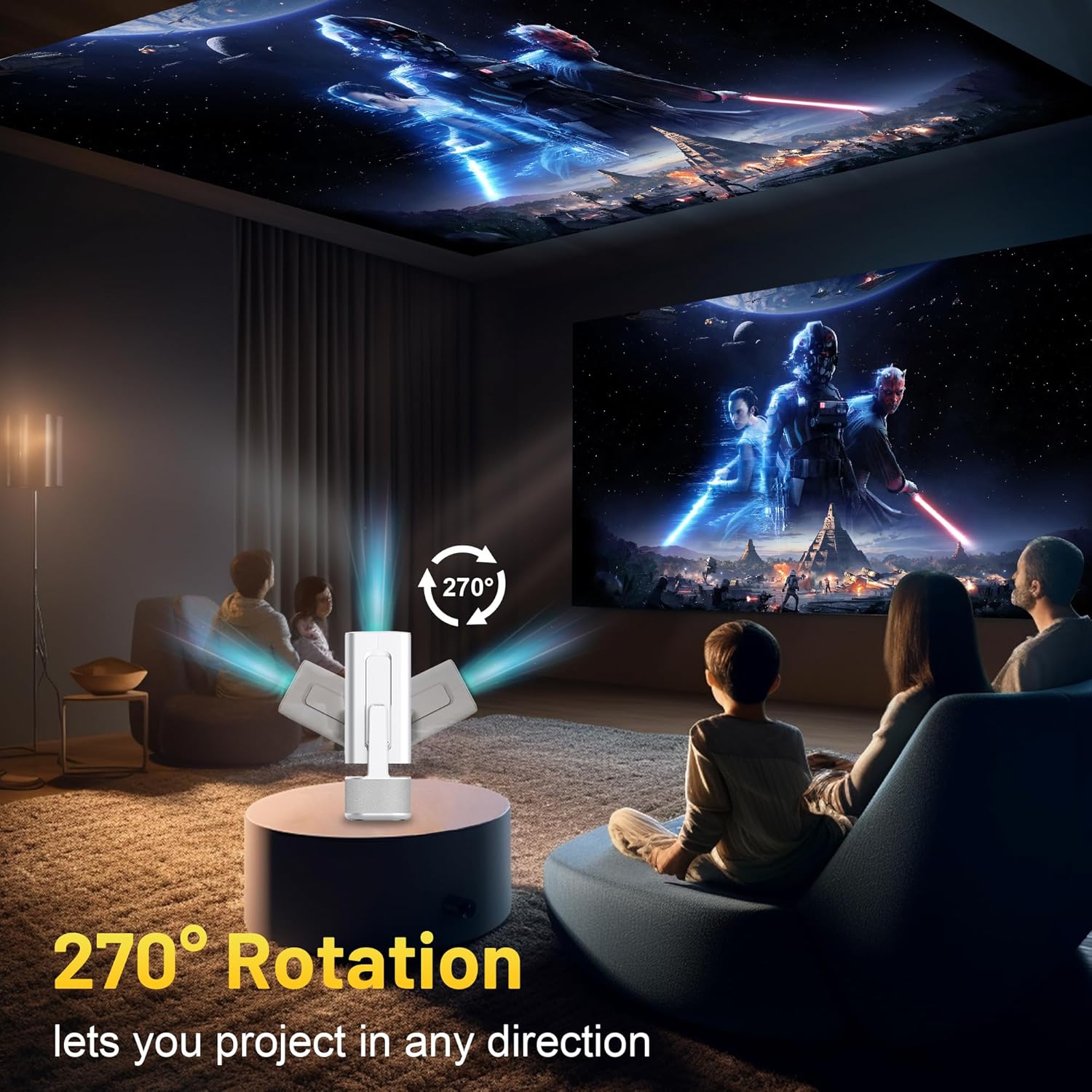
Image 3.2: 270-Degree Rotation Capability
3.3. Мрежова връзка (WiFi)
За достъп до онлайн съдържание и стрийминг услуги, свържете проектора към Wi-Fi мрежа.
- От началния екран отидете на „Настройки“.
- Изберете „Мрежа и интернет“.
- Включете Wi-Fi и изберете желаната мрежа от списъка.
- Въведете паролата за Wi-Fi, ако бъдете подканени, и се свържете.

Image 3.3: Dual Band WiFi 6 and Bluetooth 5.0
3.4. Bluetooth сдвояване
Pair Bluetooth devices like external speakers or headphones for enhanced audio.
- От началния екран отидете на „Настройки“.
- Изберете „Свързани устройства“ или „Bluetooth“.
- Включете Bluetooth.
- Поставете вашето Bluetooth устройство в режим на сдвояване.
- Изберете устройството си от списъка с налични устройства на екрана на проектора, за да го сдвоите.
4. Инструкции за работа
4.1. Навигация
Use the included remote control to navigate the projector's interface. The directional buttons, 'OK' button, 'Back' button, and 'Home' button are primary controls.
4.2. App Usage (Android 13)
The projector runs on Android 13 and comes with pre-installed streaming applications.
- From the home screen, select the desired application (e.g., Netflix, YouTube, Prime Video).
- Влезте с идентификационните данни за акаунта си, ако е необходимо.
- Browse and play content as you would on any Android smart device.
- Additional apps can be downloaded from the Google Play Store.

Image 4.1: Built-in Android 13 System with Apps
4.3. Screen Mirroring/Casting
Безжично дублирайте съдържание от вашия смартфон, таблет или компютър.
- Уверете се, че и проекторът, и вашето устройство са свързани към една и съща Wi-Fi мрежа.
- On the projector, select the screen mirroring/casting application (e.g., Miracast, AirPlay).
- On your mobile device, enable screen mirroring or casting and select the projector from the list of available devices.
4.4. External Device Connection (HDMI, USB)
Connect external devices such as laptops, gaming consoles, or USB drives.
- HDMI: Connect an HDMI cable from your device to the HDMI port on the projector. Select the HDMI input source from the projector's input menu.
- USB: Insert a USB drive into the USB port. The projector's file manager will typically open automatically, allowing you to browse and play media files.

Image 4.2: Multi-Device Compatibility
4.5. Корекция на изображението
The projector features automatic adjustments for convenience.
- Автоматична трапецовидна корекция: The projector automatically corrects vertical image distortion. If manual adjustment is needed, navigate to 'Settings' > 'Projection Settings' > 'Keystone Correction'.
- Автофокус: The image will automatically focus when the projector is moved or powered on. Manual focus adjustment can be found in 'Settings' > 'Projection Settings' > 'Focus'.
- мащабиране: Adjust the projection size from 50% to 100% without moving the projector. This setting is typically found in 'Settings' > 'Projection Settings' > 'Zoom'.

Image 4.3: Auto Keystone Correction and Autofocus
5. Поддръжка
5.1. Почистване
- Обектив: Използвайте мека кърпа без власинки, специално предназначена за оптични лещи. Избягвайте абразивни материали или агресивни химикали.
- Екстериор: Избършете външната част на проектора с мека, суха кърпа. Не използвайте течни почистващи препарати директно върху устройството.
- Вентилация: Уверете се, че вентилационните отвори са чисти от прах и препятствия, за да предотвратите прегряване.
5.2. Съхранение
Когато не се използва, съхранявайте проектора на хладно и сухо място, далеч от пряка слънчева светлина и екстремни температури. Използвайте оригиналната опаковка или защитен калъф, за да предотвратите натрупване на прах и физически повреди.
6. Отстраняване на проблеми
Вижте таблицата по-долу за често срещани проблеми и техните решения.
| Издаване | Възможна причина | Решение |
|---|---|---|
| Без захранване | Power cable not connected; Power outlet malfunction | Уверете се, че захранващият кабел е правилно свързан. Опитайте с друг контакт. |
| Няма изображение | Incorrect input source; Device not connected; Projector in standby mode | Select correct input source (HDMI, USB). Ensure external device is powered on and connected. Press power button to wake projector. |
| Замъглено изображение | Out of focus; Keystone not corrected | Allow autofocus to adjust. Manually adjust focus in settings if needed. Check keystone correction settings. |
| Няма звук | Volume too low; Muted; External audio device not connected/paired | Increase volume. Unmute projector. Ensure Bluetooth audio device is paired and connected, or external speakers are properly connected via audio jack. |
| Проблеми с Wi-Fi връзката | Incorrect password; Network interference; Router issues | Проверете паролата за Wi-Fi. Преместете проектора по-близо до рутера. Рестартирайте рутера. |
| Неуспешно сдвояване с Bluetooth | Device not in pairing mode; Interference; Device too far | Ensure Bluetooth device is in pairing mode. Keep devices close. Turn off other Bluetooth devices to reduce interference. |
7. Спецификации
| Характеристика | детайл |
|---|---|
| Марка | ИЛЕБИГО |
| Модел | B0F83Q1HHT |
| Резолюция на дисплея | 1920 x 1080 (Full HD), 4K Support |
| Яркост | 320 ANSI лумена |
| Технология за свързване | Bluetooth 5.0, HDMI, USB, Wi-Fi 6 (2.4G+5G) |
| Операционна система | Android 13 |
| Специални функции | Auto Keystone Correction, Autofocus, 270° Rotation, Built-in Dual 5W Speakers |
| Размер на проекцията | 30''-200'' |
| Съотношение на страните | 16:9 / 4:3 |
| Тегло на артикула | 2.72 паунда |
| Размери на опаковката | 13.54 x 5.39 x 5.2 инча |
8. Гаранция и поддръжка
The ILEBYGO Mini Projector B0F83Q1HHT comes with a standard manufacturer's warranty. Please refer to the warranty card included in your package for specific terms and conditions.
For technical support, troubleshooting assistance, or warranty claims, please contact ILEBYGO customer service through the retailer's platform or the contact information provided in your product documentation.


