1. Важна информация за безопасност
Моля, прочетете всички инструкции за безопасност, преди да използвате проектора. Запазете това ръководство за бъдещи справки.
- Не блокирайте вентилационните отвори. Осигурете достатъчно пространство около проектора за правилен въздушен поток.
- Избягвайте директно излагане на светлината от обектива на проектора.
- Не поставяйте проектора близо до източници на топлина или на пряка слънчева светлина.
- Използвайте само захранващия адаптер, предоставен с устройството.
- Не се опитвайте сами да отваряте или ремонтирате проектора. За всички видове сервизно обслужване се обърнете към квалифициран персонал.
- Дръжте проектора далеч от вода или други течности.
2. Съдържание на пакета
Проверете дали всички елементи са налични в пакета:
- Aurzen Roku TV Smart Projector (D1R Cube)
- Захранващ кабел
- Remote Control (2 AAA Batteries Required, not included)
- Ръководство на потребителя (този документ)
3. Продуктът свършиview
The Aurzen D1R Cube is a compact smart projector featuring built-in Roku TV for integrated streaming. It offers 1080P Full HD resolution, Dolby Audio, and a sealed optical engine for enhanced durability and clarity.
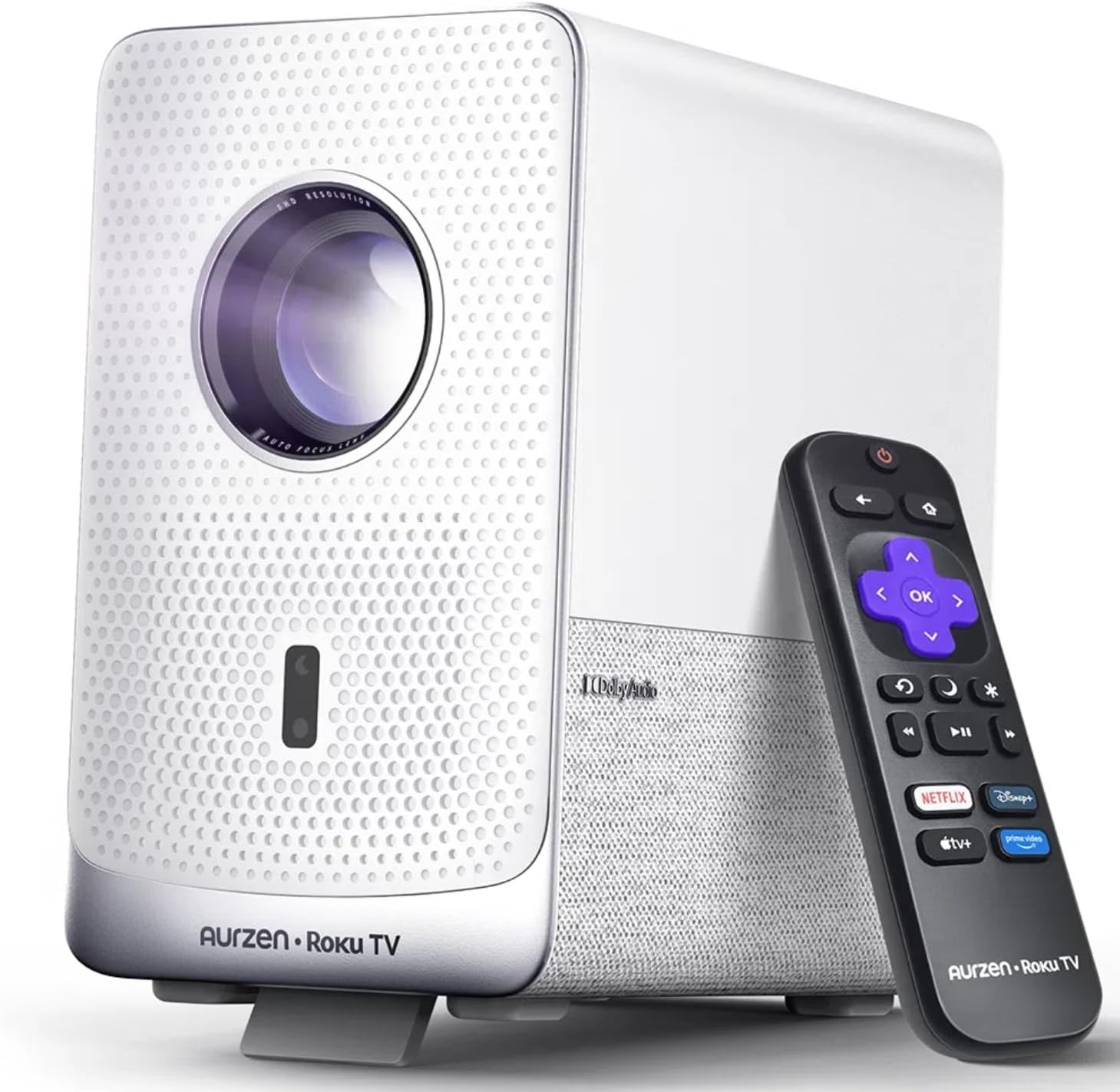
Image: The Aurzen D1R Cube Smart Projector shown with its remote control. The projector is white with a textured front panel and a visible lens.
Ключови характеристики:
- Roku TV Built-in: Достъпвайте директно до популярни стрийминг услуги.
- Sealed Optical Engine: Protects against dust, maintaining image quality and extending lifespan.
- 1080P FHD Resolution: Delivers crisp and clear visuals.
- Dolby Audio: Provides enhanced sound experience.
- Auto Focus & Keystone Correction: Automatic image adjustment for quick setup.
- Dual-band WiFi & Bluetooth 5.2: For seamless connectivity.
- Apple AirPlay: Effortless content sharing from Apple devices.
- Съвместимост с интелигентен дом: Works with Apple HomeKit, Siri, Alexa, and Google Assistant.

Image: An internal diagram illustrating the sealed optical engine of the Aurzen D1R Cube projector, highlighting its dust-proof design.
4. Настройка
4.1 Първоначално настаняване
Поставете проектора върху стабилна, равна повърхност. За оптимално viewing, position it directly in front of your projection surface (wall or screen). The projector features automatic focus and keystone correction to adjust the image, but a relatively straight angle is recommended.

Image: A visual representation of the projector's auto-focus and auto-keystone correction features, showing how the image automatically adjusts to create a perfect rectangular display.
4.2 Захранване
- Свържете захранващия кабел към входния порт за захранване на проектора.
- Включете другия край на захранващия кабел в подходящ електрически контакт.
- The projector will power on automatically or can be turned on using the power button on the device or remote.
4.3 Настройка на дистанционното управление
Insert two AAA batteries (not included) into the remote control. Ensure correct polarity. The remote is pre-paired with the projector.
4.4 Initial Roku TV Setup
Upon first power-on, follow the on-screen instructions to set up your Roku TV. This includes:
- Избиране на език.
- Connecting to a Wi-Fi network (a stable internet connection is required).
- Activating your Roku account. If you do not have one, you will be prompted to create a free account.
- Installing desired streaming channels.
5. Инструкции за работа
5.1 Включване/изключване
Натиснете бутона за захранване на проектора или дистанционното управление, за да включите или изключите устройството.
5.2 Roku Home Screen Navigation
Use the directional pad and OK button on the remote to navigate the Roku home screen. Access streaming channels, search for content, and adjust settings.

Image: A screenshot of the Roku TV home screen, displaying various streaming app icons and navigation options.
5.3 Приложения за стрийминг
The Roku TV platform provides access to a wide range of streaming applications such as Netflix, Prime Video, Disney+, Hulu, YouTube, and more. Select an app from the home screen to begin streaming.

Изображение: Графично шоуasing various popular streaming service logos available on the Roku TV platform, including Netflix, Disney+, and Hulu.
5.4 Свързване на външни устройства
The projector includes HDMI and USB ports for connecting external devices.
- HDMI: Connect gaming consoles, Blu-ray players, or other HDMI-enabled devices. Select the corresponding HDMI input from the Roku TV menu.
- USB: Възпроизвеждане на медия files (photos, videos, music) from a USB storage device.
5.5 Bluetooth връзка
Connect Bluetooth headphones or speakers for an enhanced audio experience.
- Go to the Roku TV settings menu.
- Select 'Remotes & devices' then 'Bluetooth devices'.
- Поставете вашето Bluetooth устройство в режим на сдвояване.
- Select your device from the list on the projector screen to pair.

Image: A diagram illustrating the Bluetooth connectivity of the Aurzen D1R Cube projector, showing it connecting to various external audio devices.
5.6 Apple AirPlay
Effortlessly share content from your Apple devices (iPhone, iPad, Mac) to the projector using Apple AirPlay.
- Ensure your Apple device and the projector are connected to the same Wi-Fi network.
- On your Apple device, open the content you wish to share (e.g., photos, videos).
- Докоснете иконата AirPlay (обикновено правоъгълник със стрелка, насочена нагоре).
- Select your Aurzen D1R Cube projector from the list of available devices.

Image: A family watching content projected from an Apple device onto a large screen via Apple AirPlay using the Aurzen D1R Cube projector.
5.7 Гласово управление и интеграция с интелигентен дом
The projector supports voice control via the Roku mobile app and is compatible with Apple HomeKit, Siri, Alexa, and Google Assistant for broader smart home integration.
- Мобилно приложение Roku: Download the Roku mobile app to use voice commands, type easily, and control your projector from your smartphone.
- Smart Home Assistants: Link your Roku account to your preferred smart home ecosystem (Apple Home, Amazon Alexa, Google Home) to control the projector with voice commands.
6. Поддръжка
6.1 Sealed Optical Engine
The Aurzen D1R Cube features a sealed optical engine designed to prevent dust accumulation on internal components. This reduces the need for routine internal cleaning and helps maintain consistent image quality over time.

Image: A side-by-side comparison showing the difference in dust accumulation between a sealed optical engine (left) and an open optical engine (right) after a period of use.
6.2 Общо почистване
- Екстериор: Wipe the exterior of the projector with a soft, dry cloth. Do not use abrasive cleaners or solvents.
- Обектив: Gently clean the projector lens with a lens cleaning cloth or specialized lens cleaning solution. Avoid touching the lens with your fingers.
- Вентилация: Ensure ventilation openings are clear of dust and debris. Use a soft brush or compressed air to gently clean them if necessary.
6.3 Съхранение
When not in use for extended periods, store the projector in a cool, dry place, away from direct sunlight and extreme temperatures. Consider using a protective cover or case to prevent dust accumulation.
7. Отстраняване на проблеми
If you encounter issues with your Aurzen D1R Cube projector, refer to the following common solutions:
| проблем | Възможно решение |
|---|---|
| Без захранване | Ensure the power cord is securely connected to both the projector and the electrical outlet. Test the outlet with another device. |
| Няма снимка | Check if the projector is powered on. Verify the input source (HDMI, USB) is correctly selected. Ensure the lens cap is removed. |
| Размазано изображение | The projector has auto-focus. If the image remains blurry, try repositioning the projector or restarting it to trigger auto-focus again. Ensure the lens is clean. |
| Няма звук | Check the volume level on the projector and any connected external audio devices. Ensure Bluetooth audio is correctly paired or external speakers are properly connected. |
| Проблеми с Wi-Fi свързаността | Ensure your Wi-Fi router is working. Restart the projector and your router. Verify the Wi-Fi password is correct in the Roku TV settings. |
| Дистанционното не отговаря | Replace the AAA batteries in the remote control. Ensure there are no obstructions between the remote and the projector. |
For further assistance, please refer to the online support resources or contact Aurzen customer service.
8. Спецификации
Detailed technical specifications for the Aurzen D1R Cube Smart Projector:
| Характеристика | Спецификация |
|---|---|
| Марка | Aurzen |
| Модел | D1R Cube |
| Максимална резолюция на дисплея | 1920 x 1080 (1080P Full HD) |
| Технология за свързване | WiFi (Dual-band 2.4G/5G), Bluetooth 5.2, HDMI, USB, Audio |
| Специални функции | Roku TV Smart Projector, Sealed Optical Engine, Dolby Audio, Apple AirPlay, Smart Home Compatibility |
| Тегло на артикула | 5.68 паунда |
| Размери на продукта | 7.42 x 7 x 7.83 инча |
| Цвят | Бяло |
9. Гаранция и поддръжка
9.1 Гаранция на продукта
Aurzen products are covered by a manufacturer's warranty. Please refer to the warranty card included with your product or visit the official Aurzen webсайт за конкретни гаранционни условия.
9.2 Поддръжка на клиенти
For technical support, troubleshooting assistance, or warranty claims, please contact Aurzen customer service through their official channels. You can find more information and contact options on the Aurzen Brand Store on Amazon.


