1. Продуктът свършиview
The HP OmniDesk M02 Tower Desktop is a high-performance personal computer designed for business and productivity. It features an AMD Ryzen 7 8700G processor, ample DDR5 RAM, and fast SSD storage, running on Windows 11 Home. This manual provides essential information for setting up, operating, maintaining, and troubleshooting your device.
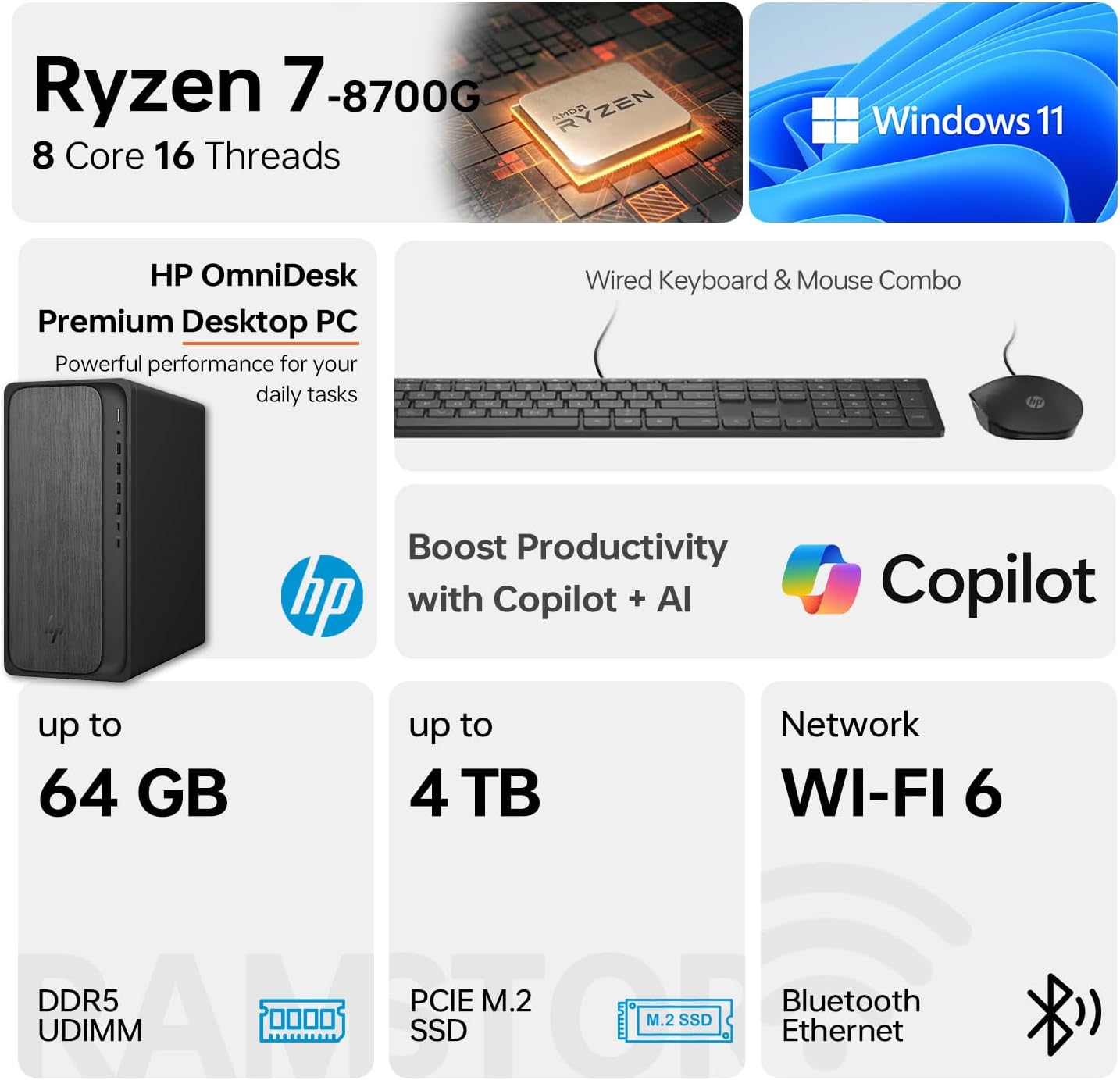
Image 1.1: HP OmniDesk M02 Tower Desktop highlighting its AMD Ryzen 7 8700G processor, Windows 11 operating system, Wi-Fi 6 connectivity, and memory/storage capabilities.
Ключови характеристики:
- Процесор: AMD Ryzen 7 8700G (8 Cores, 16 Threads, up to 5.1GHz Max Boost)
- Памет: 16GB DDR5 RAM (разширяема до 64GB)
- Съхранение: 1TB PCIe M.2 SSD, bundled with ADATA 512GB External SSD
- Операционна система: Windows 11 Начало
- Графика: Интегрирана AMD Radeon графика
- Свързване: Wi-Fi 6, Bluetooth, Ethernet (RJ-45)
- Портове: Multiple USB Type-A and Type-C ports, HDMI, DisplayPort, audio jacks
- Included Peripherals: Wired Keyboard & Mouse
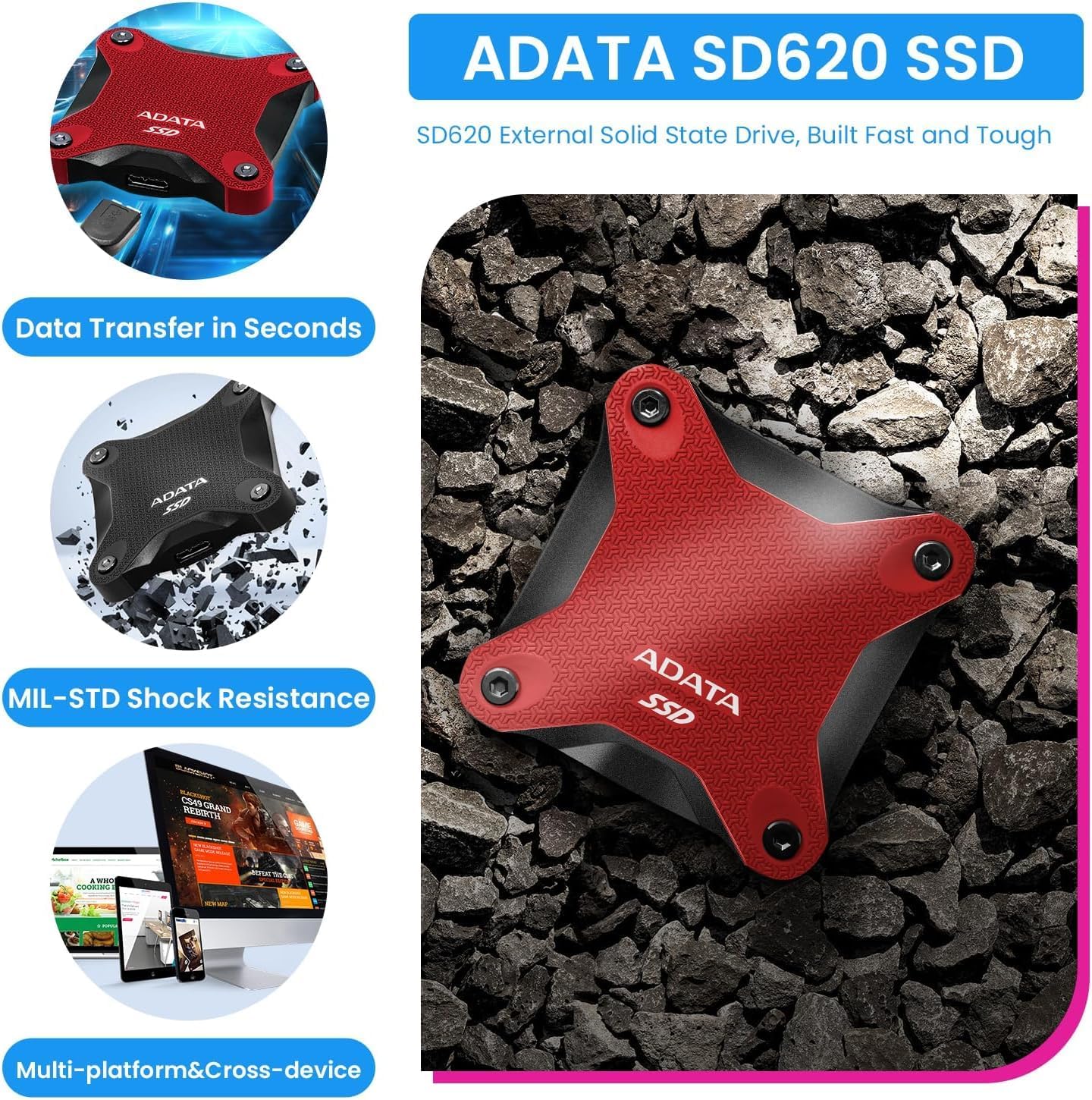
Image 1.2: The ADATA SD620 External SSD, included with the HP OmniDesk M02, highlighting its data transfer speed and MIL-STD shock resistance.
2. Инструкции за настройка
Follow these steps to set up your HP OmniDesk M02 Tower Desktop.
2.1 Разопаковане
- Внимателно извадете всички компоненти от опаковката.
- Verify that all items are present: HP OmniDesk M02 Tower Desktop, Wired Keyboard, Wired Mouse, Power Cable, and ADATA 512GB External SSD.
- Запазете опаковъчните материали за бъдещо транспортиране или сервизно обслужване.
2.2 Свързване на периферни устройства
Connect your monitor, keyboard, mouse, and other devices to the appropriate ports on the desktop.

Изображение 2.1: Подробности view of the front and rear ports on the HP OmniDesk M02 Tower Desktop, indicating their types and functions.
- монитор: Connect your monitor to either the HDMI or DisplayPort on the rear of the desktop.
- Клавиатура и мишка: Свържете кабелната клавиатура и мишка към всички налични USB Type-A портове.
- мощност: Connect the power cable to the desktop's power input and then to a wall outlet.
- Външен SSD: Connect the ADATA 512GB External SSD to an available USB port.
- Мрежа (по избор): За кабелна интернет връзка свържете Ethernet кабел към RJ-45 порта.
2.3 Първоначално стартиране
- Натиснете бутона за захранване отпред на работния плот.
- Follow the on-screen instructions to complete the Windows 11 Home setup. This typically involves selecting your region, language, and creating a user account.
- Ensure an internet connection is established during setup for updates and account synchronization.
3. Инструкции за работа
This section covers basic operation of your HP OmniDesk M02.
3.1 Включване/изключване и рестартиране
- Включване: Натиснете бутона за захранване отпред на работния плот.
- Изключване: Щракнете върху бутона „Старт“ в Windows 11, след което изберете „Захранване“ > „Изключване“.
- Рестартиране: Щракнете върху бутона Старт, след което изберете Захранване > Рестартиране.
3.2 Свързване с Wi-Fi и Bluetooth
- Wi-Fi: Click the Network icon in the taskbar, select your desired Wi-Fi network, enter the password, and click Connect.
- Bluetooth: Go to Settings > Bluetooth & devices, ensure Bluetooth is turned on, and then click "Add device" to pair new Bluetooth devices.
3.3 Using Windows 11 and AI Features
Your HP OmniDesk M02 comes with Windows 11 Home, offering a modern interface and integrated AI capabilities through Copilot.
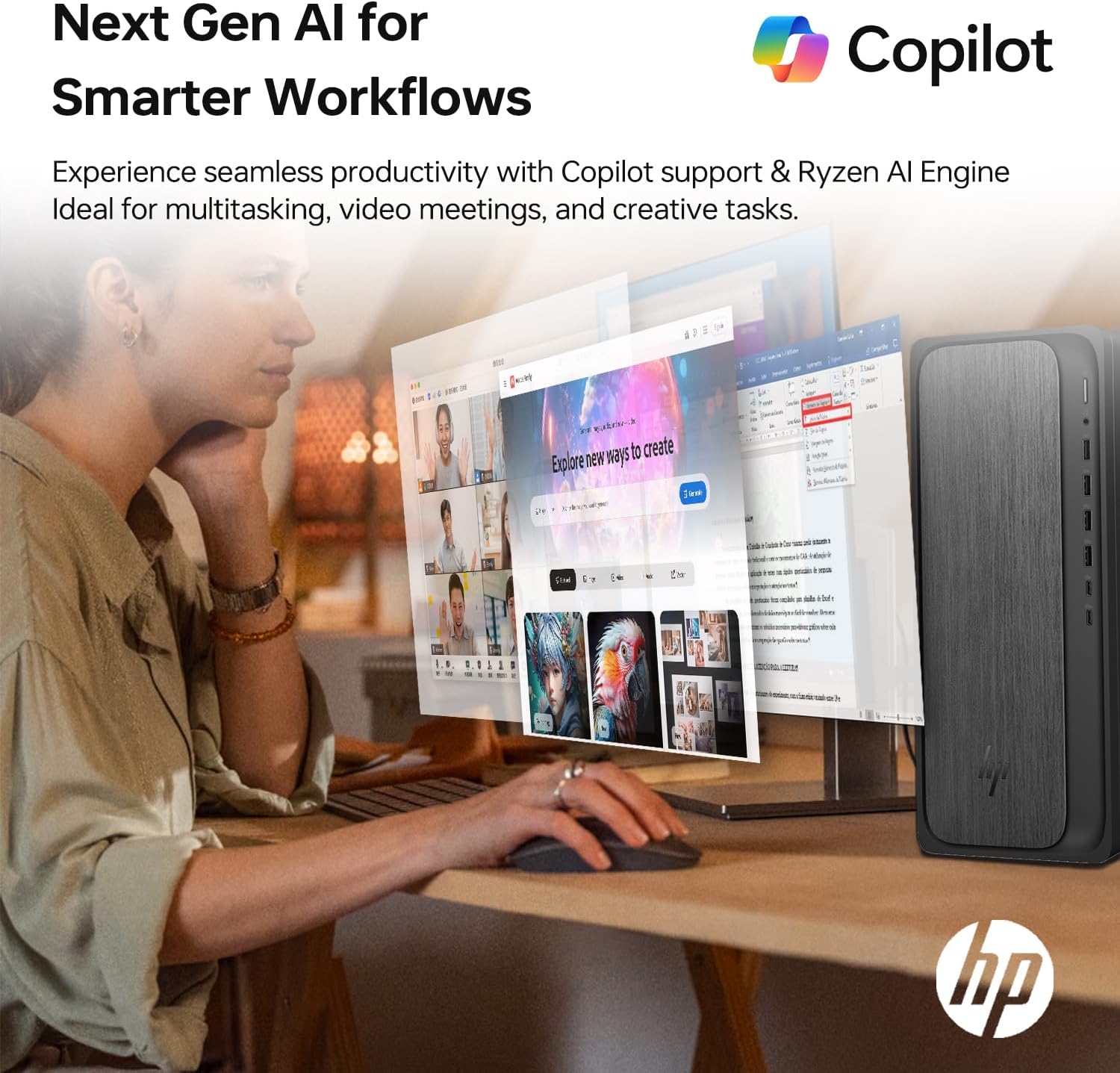
Image 3.1: A user interacting with the HP OmniDesk M02, demonstrating the integration of Copilot for enhanced productivity and AI-driven workflows.
- Старт меню: Access applications, settings, and power options from the centered Start menu.
- Приспособления: Personalize your desktop with widgets for news, weather, and more.
- Втори пилот: Utilize the integrated Copilot AI for assistance with tasks, content creation, and system navigation. Access it via the taskbar icon.
4. Поддръжка
Правилната поддръжка гарантира дълготрайността и оптималната производителност на вашия настолен компютър.
4.1 Почистване
- Екстериор: Използвайте леко мека кърпа без мъх dampс вода или мек почистващ разтвор. Избягвайте агресивни химикали.
- Vents: Periodically clean dust from the ventilation grilles using compressed air to prevent overheating. Ensure the desktop is powered off before cleaning vents.
4.2 Софтуерни актуализации
Редовно актуализирайте операционната си система и драйверите, за да осигурите сигурност и производителност.
- Актуализации на Windows: Go to Settings > Windows Update and check for available updates.
- Актуализации на драйвери: Посетете официалната поддръжка на HP website for your model to download the latest drivers for components like graphics and chipset.
4.3 Надстройки на хардуера
The HP OmniDesk M02 supports upgrades for RAM and internal storage.
- RAM: The system supports up to 64GB DDR5 UDIMM RAM.
- Вътрешен SSD: The system supports up to 4TB PCIe M.2 SSD.
- Важно: Opening the chassis for upgrades may affect the original manufacturer's warranty. Consult the warranty section for details.
5. Отстраняване на проблеми
Този раздел разглежда често срещани проблеми, с които може да се сблъскате.
5.1 Без захранване
- Ensure the power cable is securely connected to both the desktop and a working power outlet.
- Проверете дали електрическият контакт работи, като включите друго устройство.
- Verify the power supply unit (PSU) switch (if present) is in the ON position.
5.2 Няма изображение на монитора
- Confirm the monitor is powered on and its input source is correctly selected (HDMI/DisplayPort).
- Check that the video cable is securely connected to both the desktop and the monitor.
- Опитайте да свържете монитора към друг видео порт на работния плот, ако има такъв.
5.3 Проблеми с мрежовата свързаност
- Кабелен: Ensure the Ethernet cable is properly connected and your router/modem is working.
- Wi-Fi: Verify Wi-Fi is enabled in Windows settings and you are connected to the correct network with the correct password. Restart your router/modem.
6. Спецификации
Подробни технически спецификации за настолния компютър HP OmniDesk M02 Tower.

Изображение 6.1: Крупен план view of the AMD Ryzen 7 8700G processor, highlighting its core count, thread count, clock speed, and L3 cache.
| Компонент | Спецификация |
|---|---|
| Номер на модела | TPC-F134-MT |
| Процесор | AMD Ryzen 7 8700G (8 Cores, 16 Threads, 4.2GHz base, up to 5.1GHz max turbo) |
| RAM | 16GB DDR5 UDIMM (4800 MHz), expandable to 64GB |
| Вътрешна памет | 1TB PCIe M.2 SSD, expandable to 4TB |
| Външно хранилище | ADATA 512GB External SSD (bundled) |
| Графика | Интегрирана AMD Radeon графика |
| Операционна система | Windows 11 Начало |
| Безжична връзка | Wi-Fi 6 (802.11ax), Bluetooth |
| Предни портове | 1x USB Type-C 10Gbps, 1x USB Type-C 5Gbps, 2x USB Type-A 10Gbps, 2x USB Type-A 5Gbps, 1x Headphone/Microphone Combo |
| Задни портове | 4x USB 2.0 Type-A, 1x RJ-45 (Ethernet), 3x 3.5mm Audio Jack Combo, 1x HDMI, 1x DisplayPort |
| Размери (ДxШxВ) | 6.10" x 13.27" x 12.40" (15.5 x 33.7 x 31.5 см) |
| Тегло | 12.72 фунта (5.77 кг) |
| Цвят | Сив |
7. Гаранция и поддръжка
7.1 Гаранционна информация
The HP OmniDesk M02 Tower Desktop comes with a manufacturer's warranty. For this specific configuration, a 1-year warranty on the upgraded RAM and SSD is provided by PCOnline US. All other original components retain the standard 1-year manufacturer's warranty from HP.
Моля, запазете доказателството си за покупка за гаранционни искове.
7.2 Техническа поддръжка
For technical assistance, please refer to the official HP support website or contact their customer service. For issues related to the upgraded RAM or SSD, please contact PCOnline US directly.
Поддръжка на HP: www.hp.com/support