1. Продуктът свършиview
This manual provides detailed instructions for the Gamrombo Wireless Controller, designed for use with Xbox One, Xbox Series X|S, PC, and Windows 10/11 operating systems. Please read this manual carefully before use.
1.1 Съдържание на опаковката
- Gamrombo Wireless Controller (x2)
- 2.4GHz USB Adapter (x2)
- USB Type-C кабел за зареждане (x2)
- Ръководство на потребителя (този документ)
1.2 Оформление на контролера
The Gamrombo Wireless Controller features a standard layout with responsive buttons, joysticks, and triggers for an enhanced gaming experience.

Изображение 1.1: Предна част view of the Gamrombo Wireless Controllers and 2.4GHz USB Adapters.

Изображение 1.2: Подробности view of controller buttons, joysticks, and triggers.
2. Настройка и свързване
2.1 Connecting to Xbox Consoles (Xbox One, Xbox Series X|S)
- Уверете се, че вашата Xbox конзола е включена.
- Insert the 2.4GHz USB adapter into an available USB port on your Xbox console.
- Press and hold the Home button on the controller for 3 seconds to power it on. The indicator light on the controller will flash rapidly.
- Once the controller connects to the adapter, the indicator light will become solid, indicating a successful connection.
2.2 Connecting to PC (Windows 10/11)
- Уверете се, че вашият компютър е включен.
- Insert the 2.4GHz USB adapter into an available USB port on your PC. The system will automatically install the necessary drivers.
- Press and hold the Home button on the controller for 3 seconds to power it on. The indicator light on the controller will flash rapidly.
- Once the controller connects to the adapter, the indicator light will become solid. You can now use the controller for PC games.

Image 2.1: Controller compatibility with various platforms.
2.3 Зареждане на контролера
To charge the controller, connect the included USB Type-C cable to the charging port on the controller and the other end to a USB power source (e.g., console, PC, or USB wall adapter). The indicator light will show charging status and turn off when fully charged.
3. Инструкции за работа
3.1 Включване/изключване
- Включване: Натиснете и задръжте бутона Начало за 3 секунди.
- Изключване: Press and hold the Home button for 5-8 seconds. The controller will automatically power off after 5 minutes of inactivity.
3.2 Турбо функция
The Turbo function allows for rapid, repeated input of a button press, which can be beneficial in certain games.
- Натиснете и задръжте бутона Turbo.
- While holding the Turbo button, press the desired action button (e.g., A, B, X, Y, LB, RB, LT, RT). The Turbo function is now activated for that button.
- To deactivate Turbo for a specific button, repeat the process: press and hold the Turbo button, then press the action button again.

Image 3.1: Instructions for activating the Turbo function.
3.3 Двойна вибрация
The controller features dual motors for vibration feedback, providing an immersive gaming experience. Vibration intensity can vary based on game support and in-game settings.

Image 3.2: Dual-motor vibration feedback levels.
3.4 Audio Jack and Volume Control
The controller includes a standard 3.5mm stereo audio jack for connecting headsets. Volume can be adjusted directly on the controller.
- Увеличаване на звука: Push the volume slider to the right (+).
- Намали звука: Push the volume slider to the left (-).
- Без звук: Press and hold the middle of the volume slider to mute audio.

Image 3.3: Audio jack and volume control details.
4. Поддръжка
- Почистване: Използвайте мека, суха кърпа за почистване на контролера. Избягвайте използването на агресивни химикали или абразивни материали.
- Съхранение: Съхранявайте контролера на хладно и сухо място, далеч от пряка слънчева светлина и екстремни температури.
- Грижа за батерията: To prolong battery life, avoid fully discharging the controller frequently. Charge the controller regularly, even if not in active use.
5. Отстраняване на проблеми
5.1 Проблеми с връзката
- Контролерът не се свързва: Ensure the 2.4GHz USB adapter is securely plugged into the console/PC. Make sure the controller is charged. Try re-pairing by powering off and on the controller.
- Прекъсната връзка: Ensure there are no strong wireless interference sources nearby. Try moving closer to the console/PC.
5.2 Controller Firmware Upgrade
If you experience persistent connection issues, particularly with Xbox consoles, a firmware upgrade may be required. The upgrade process is performed on a Windows PC.

Image 5.1: Information regarding controller firmware upgrade for connection issues.
- Upgrade Program Download: we.tl/t-I78iIsdPhP
- Video Upgrade Steps: youtu.be/2Q_x2bhtcUU
- The upgrade typically takes 2-3 minutes and ensures continued compatibility with Xbox devices.
5.3 Други проблеми
- Бутоните не реагират: Ensure the controller is powered on and connected. Restart the controller and try again.
- Вибрацията не работи: Проверете настройките в играта, за да се уверите, че вибрацията е активирана.
6. Спецификации
| Характеристика | детайл |
|---|---|
| Свързаност | 2.4GHz Безжичен |
| Съвместимост | Xbox One, Xbox Series X|S, PC (Windows 10/11) |
| Капацитет на батерията | 650mAh |
| Време за зареждане | 2-3 часа |
| Работно време | 8-10 часа |
| Аудио жак | 3.5mm стерео |
| Вибрация | Двойни мотори |
| Сензор за движение | 6-Axis (for supported games/platforms) |
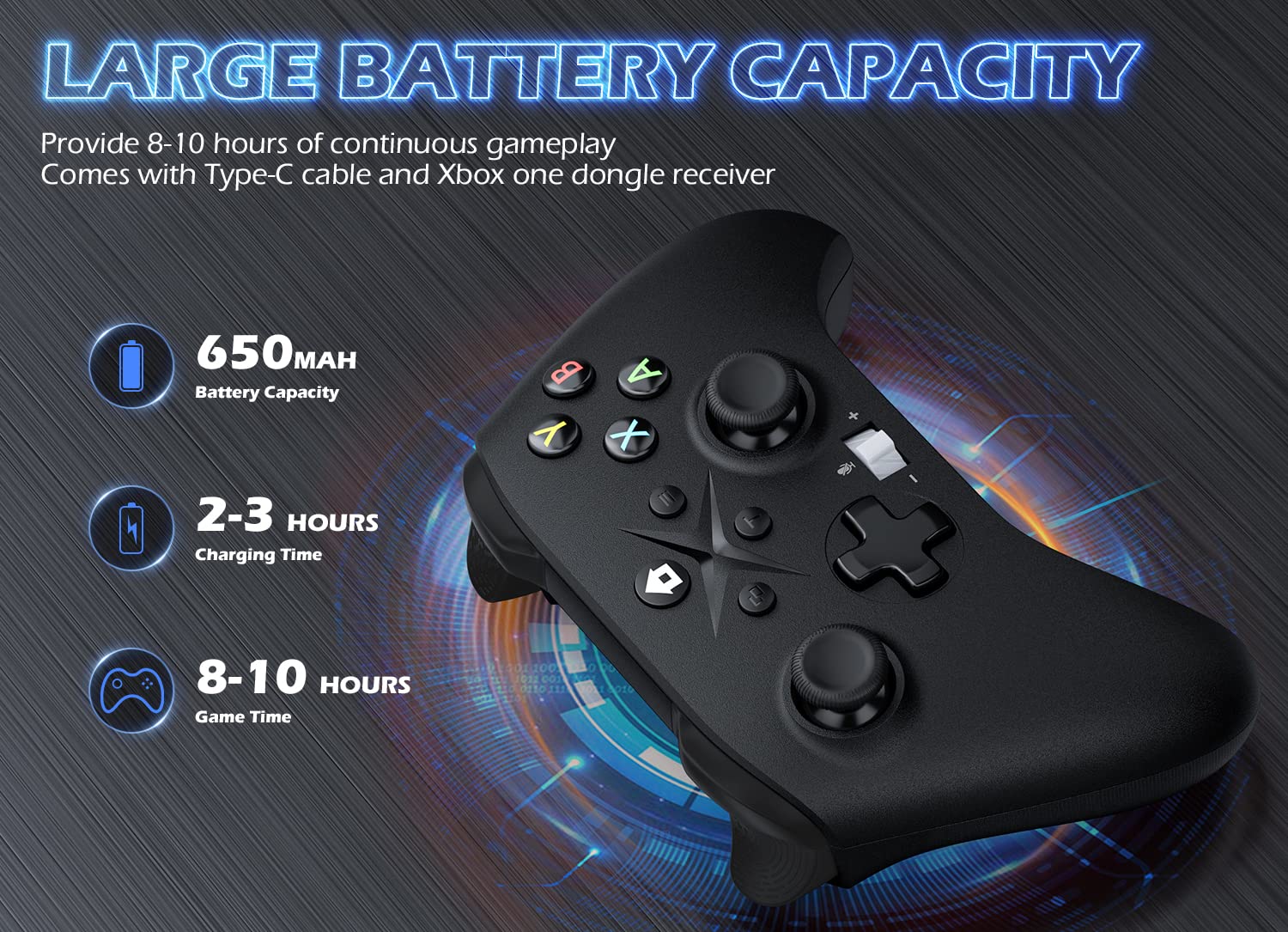
Image 6.1: Battery specifications.
7. Важна информация за безопасност
- Не излагайте контролера на екстремни температури, влажност или пряка слънчева светлина.
- Избягвайте изпускане или подлагане на контролера на силни удари.
- Не се опитвайте да разглобявате или модифицирате контролера. Това може да анулира гаранцията и да причини повреда.
- Keep the controller and its accessories out of reach of small children.
- Използвайте само предоставения кабел за зареждане или сертифициран еквивалент.
8. Поддръжка на клиенти
For further assistance or inquiries, please contact Gamrombo customer support through the retailer's platform or the official Gamrombo webсайт.


