1. Въведение
This manual provides essential instructions for the safe and efficient operation, setup, and maintenance of your Procolored F13 Panda DTF Printer. Please read this manual thoroughly before using the printer to ensure optimal performance and longevity.
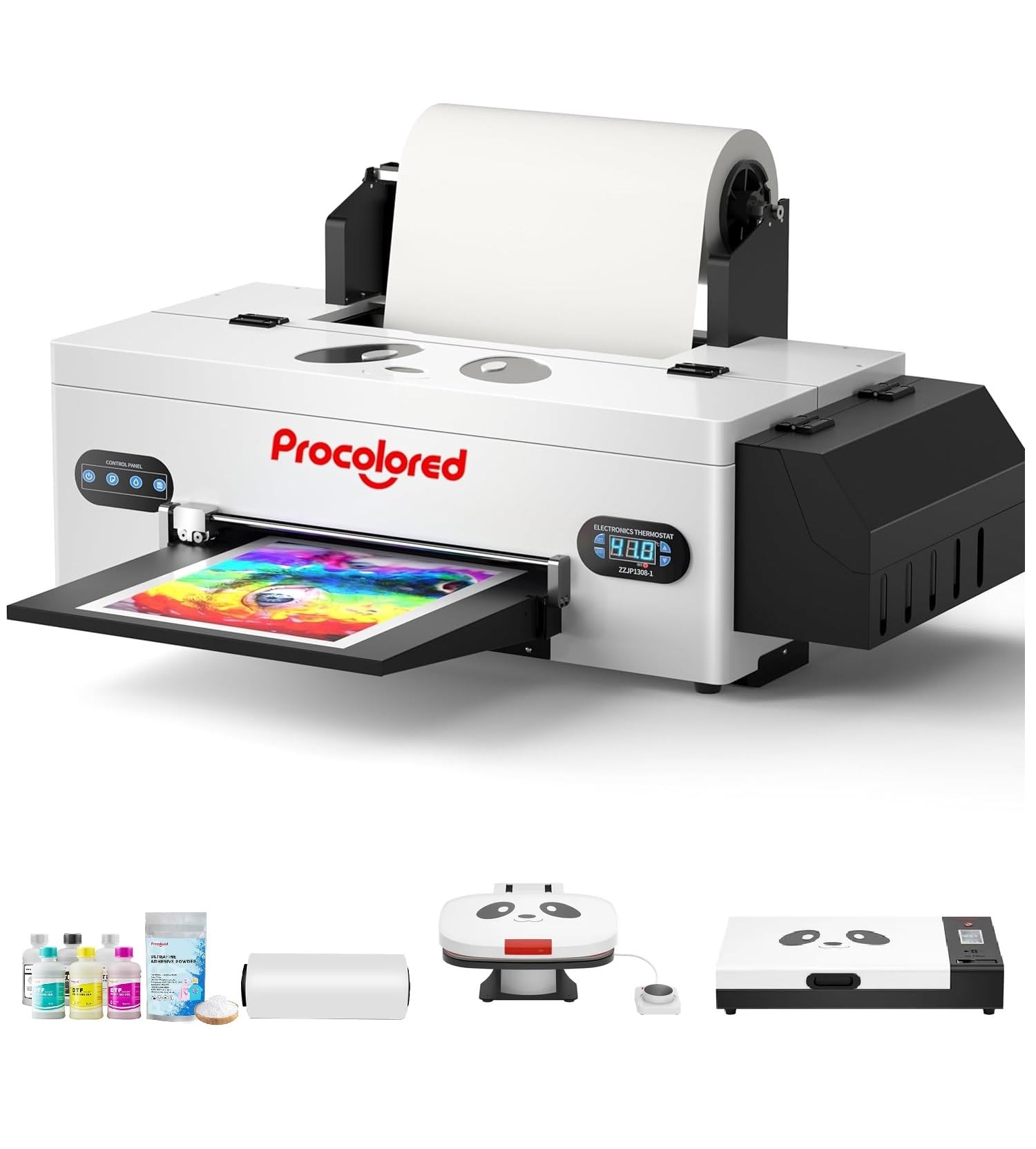
Figure 1: Procolored F13 Panda DTF Printer.
2. Информация за безопасност
Винаги спазвайте следните предпазни мерки, за да предотвратите нараняване или повреда на принтера:
- Уверете се, че принтерът е поставен върху стабилна, равна повърхност.
- Свържете принтера към заземен електрически контакт с правилния волтаж.tage (AC 100-230V).
- Не излагайте принтера на вода или прекомерна влажност.
- Дръжте ръцете си далеч от движещи се части по време на работа.
- Use only recommended inks and cleaning solutions.
- Да се пази от деца.
3. Съдържание на пакета
Проверете дали всички елементи са налични в пакета:
- Procolored F13 DTF Printer
- Roll Film 13"
- DTF Ink Set (CMYK+WW)
- Nozzle Protection Fluid
- DTF Powder
- Пластмасова опора
- Кабел за данни (USB)
- Захранващ кабел
- Moisturizing Device
- Бутилка за отпадъци
- Касета
- Spare Ink Tube
- Ролкова скоба
- Подложка с мастило
- Чистачка
- Режещо острие
- USB ключ
- Спринцовка
- Отвертка
- Ролкова лента
- Удължителна тръба
- Needle Hub
- Пролет
- Тампон

Figure 2: Included accessories for the Procolored F13 DTF Printer.
4. Ръководство за настройка
4.1 Разопаковане и първоначално поставяне
Carefully remove the printer and all components from the packaging. Place the printer on a sturdy, level surface in a well-ventilated area.
Video 1: Procolored F13 DTF Printer Unboxing. This video demonstrates the unboxing process and initial setup steps for the printer.
4.2 Монтаж на ролка с фолио
Install the 13-inch DTF film roll onto the designated holder at the rear of the printer. Ensure the film feeds smoothly into the printer mechanism.
4.3 Ink System Setup
Fill the ink tanks with the corresponding DTF pigment inks (Cyan, Magenta, Yellow, Black, White, Light Cyan). Ensure the white ink circulation system is properly connected and functioning to prevent clogging.

Figure 3: Illustration of the advanced white ink system, showing circulation, siphon effect, and automatic cleaning.
4.4 Свързване към захранването и инсталиране на софтуер
Connect the power cable to the printer and a suitable power outlet. Install the Procolored RIP software (compatible with Windows 7/10/11) on your computer. Follow the on-screen instructions for software installation and driver setup.
Фигура 4: Надview of the Procolored RIP software interface and available tutorials.
5. Инструкции за работа
5.1 Preparing for Print
- Power on the printer using the main switch.
- Ensure the DTF film is correctly loaded and aligned.
- Open the Procolored RIP software on your computer.
- Import your design and adjust settings such as size, resolution (up to 1440x1440dpi), and color profile.
5.2 Процес на печат
Initiate the print job from the software. The printer will feed the film and apply ink. The built-in cutter will automatically trim the film after printing, optimizing material usage.
Video 2: Procolored F13 DTF Printer in operation. This video demonstrates the printing process, including film feeding and ink application.
5.3 Post-Printing
After printing, apply DTF powder to the wet ink and cure it using a DTF oven or heat press. Once cured, the design is ready for transfer to textiles.

Фигура 5: Прamples of versatile applications for DTF prints, including shirts, flags, tote bags, and caps.
6. Поддръжка
6.1 Система за автоматично почистване
The F13 Panda DTF Printer features an automatic cleaning system that operates even when the printer is powered on. This system helps prevent print head clogs and ensures consistent print quality. Regular use of this feature is recommended.
6.2 White Ink Circulation
The printer includes a white ink circulation system with a siphon filtration diaphragm pump. This system minimizes blockages and maintains the quality of white ink. Ensure the system is always active during operation.
Video 3: F13 L1800 DTF Apparel Printer features. This video highlights the white ink circulation and automatic cleaning functions.
6.3 Общо почистване
Периодично почиствайте външната част на принтера с мека,amp cloth. Refer to the software's maintenance section for specific print head cleaning procedures if needed.
7. Отстраняване на проблеми
Ако срещнете проблеми с принтера си, разгледайте следните често срещани решения:
- Проблеми с качеството на печат: Perform a nozzle check and head cleaning through the software. Ensure ink levels are sufficient.
- Film Feeding Problems: Check for obstructions in the film path and ensure the film roll is correctly installed and aligned.
- Софтуерни грешки: Restart the software and the printer. Ensure your software and drivers are up to date.
- Проблеми със свързването: Verify USB cable connection and ensure the printer is powered on.
For persistent issues, contact Procolored customer service.
8. Спецификации
| Характеристика | Спецификация |
|---|---|
| Марка | Процветен |
| Име на модела | F13-XMJZ |
| Технология за свързване | USB |
| Печатна технология | Мастиленоструен |
| Специална функция | Преносим |
| Изход на принтер | Цвят |
| Максимална скорост на печат (цветен) | 1 ppm |
| Максимална скорост на печат, монохромен | 1 ppm |
| Размери на продукта (Д x Ш x В) | 16.53" Д x 34.25" Ш x 16.4" В |
| Цвят на мастилото | Cyan, Magenta, Yellow, Black, White, Light Cyan |
| Резолюция | 1440 x 1440 dpi |
| Максимален размер на носителя | A3 (13 Inches) |
| Софтуерна поддръжка | Windows 7/10/11 |
| Специфични приложения за продукта | Textile Printing |
9. Гаранция и поддръжка
Your Procolored F13 Panda DTF Printer comes with a comprehensive warranty:
- Print Head and Related Components: Six-month warranty.
- Други аксесоари: Едногодишна гаранция.
Our dedicated customer service team is available 24/6 to address any queries or technical issues you may encounter. Please refer to your purchase documentation for specific contact details.


